Profile and Settings
Your profile and settings let you personalize your Trainery experience and control how you receive notifications.
Viewing and updating your profile
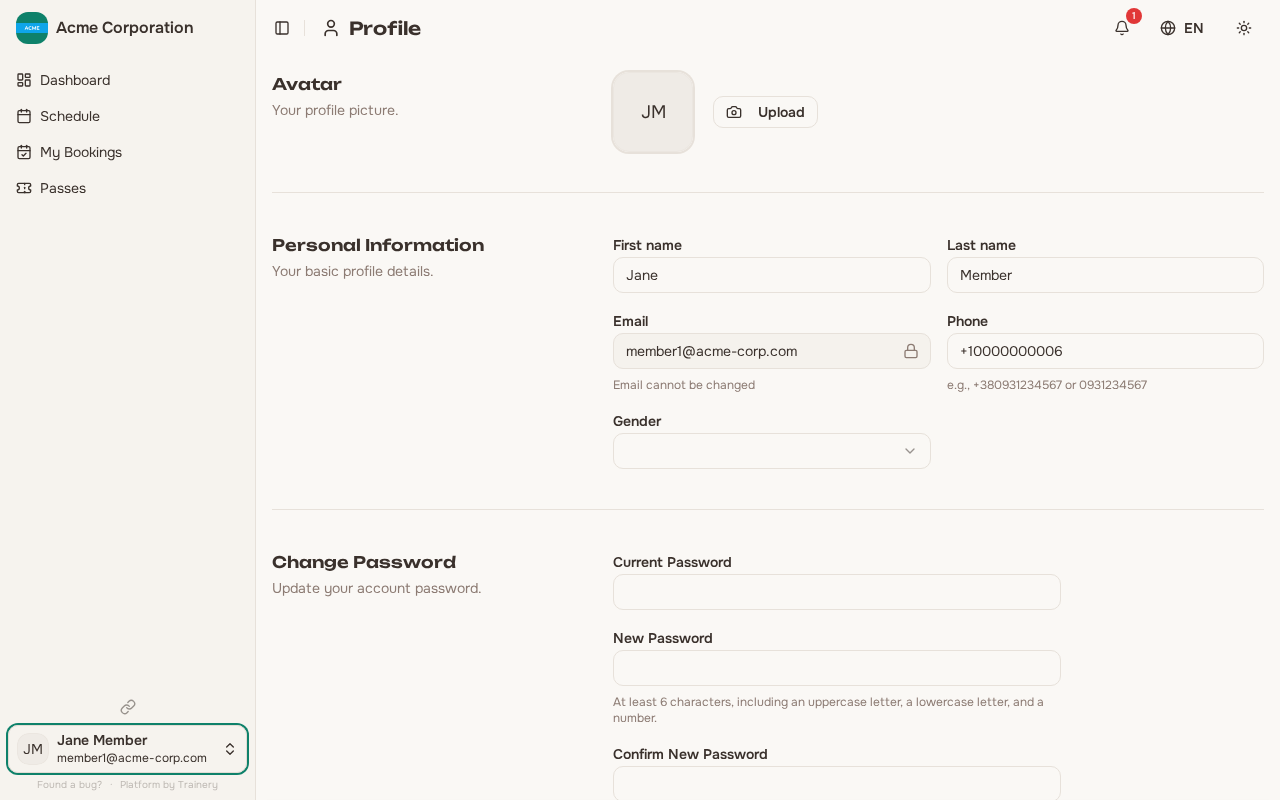
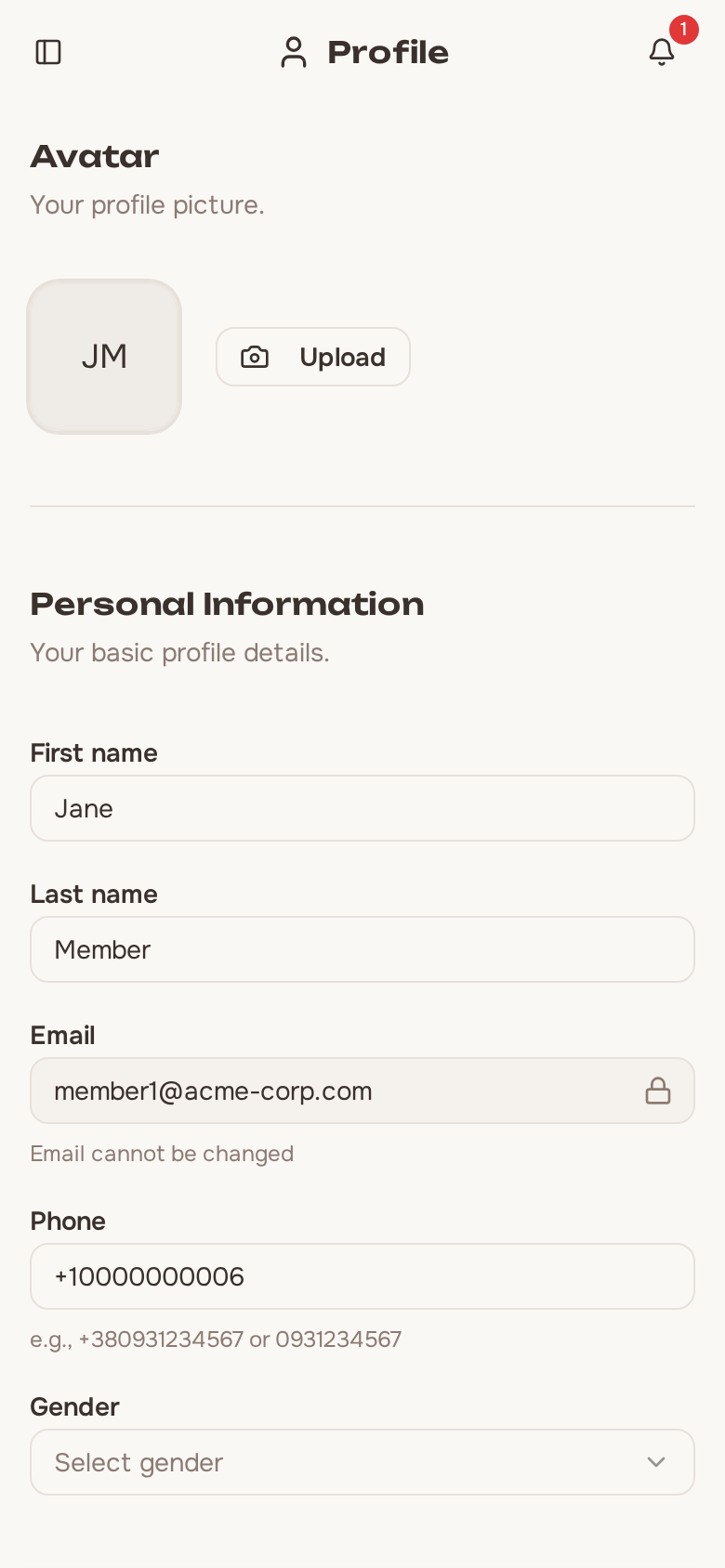
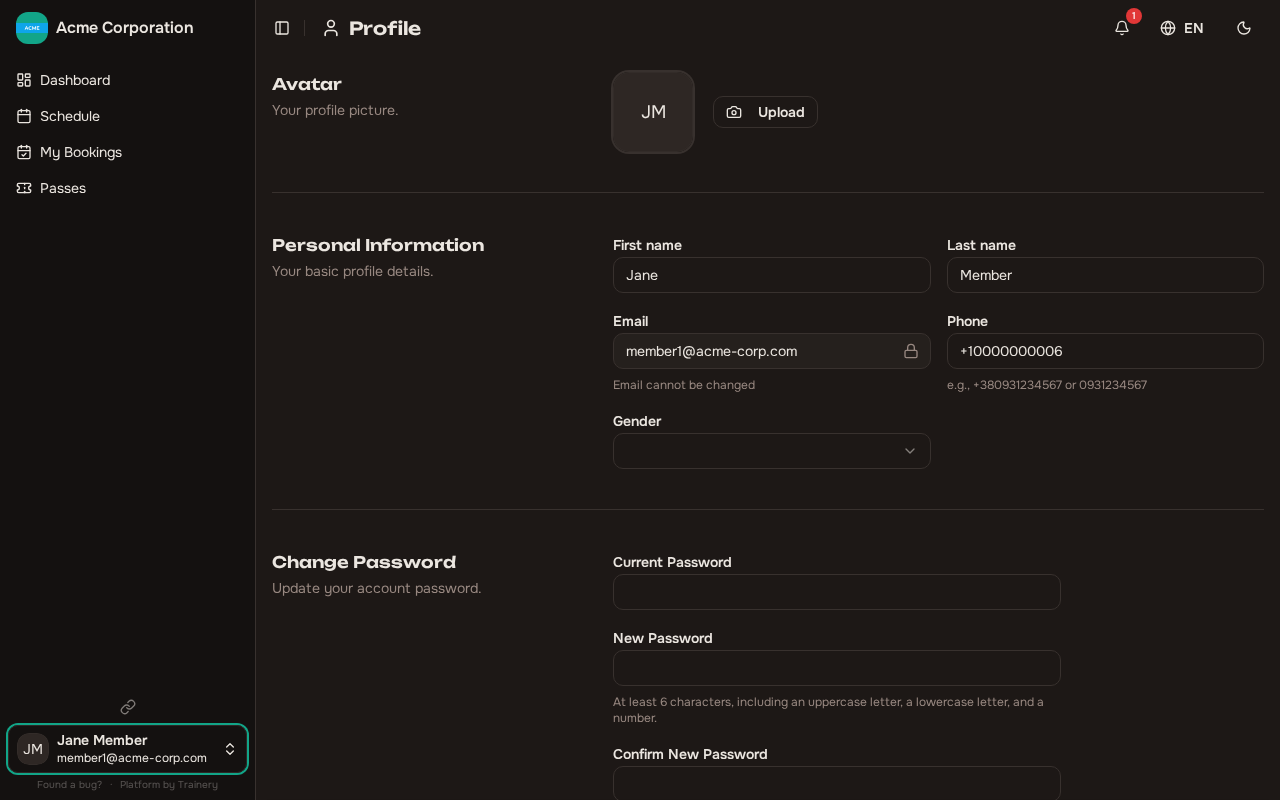
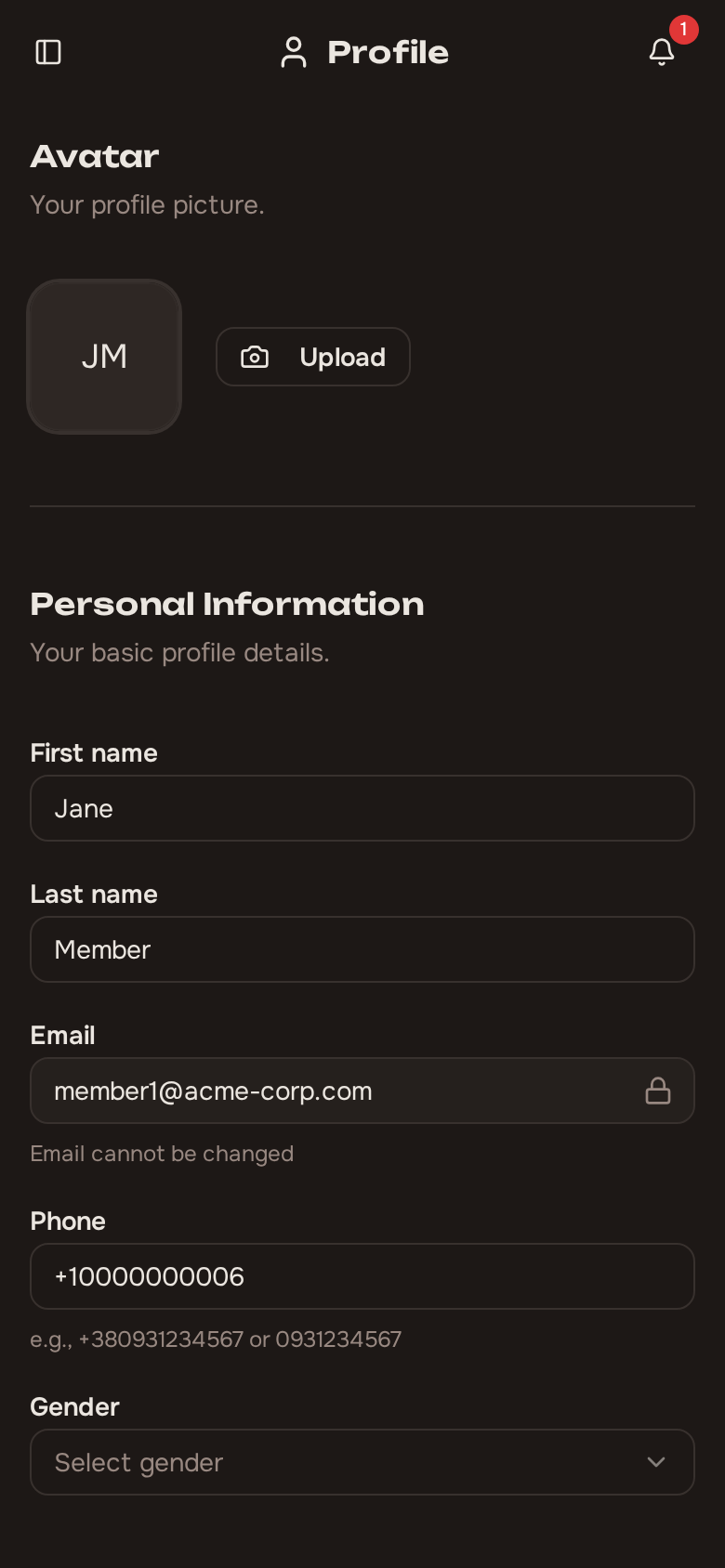
Section titled “Viewing and updating your profile”Your profile page shows your account information:
- First name and Last name
- Email address
- Role within the organization
- Member since date
- Avatar
- Phone number
To update your profile, edit the fields you want to change and save. You can upload or change your avatar image at any time.
Your name is two separate fields, First name and Last name, and both are required. Like the other multilingual fields in Trainery, the name is stored per language – editing it while the interface is in one language leaves the other language’s version untouched, so switch languages and edit again if you want both to match.
Changing your password
Section titled “Changing your password”You can change your password from the profile page. Enter your current password and then your new password to confirm the change. This applies to email/password login only – Google OAuth users do not have a password to change.
Viewing other members
Section titled “Viewing other members”You can see other members of your organization, though the information shown is limited to names. This helps you recognize fellow members without exposing private details.
Notification preferences
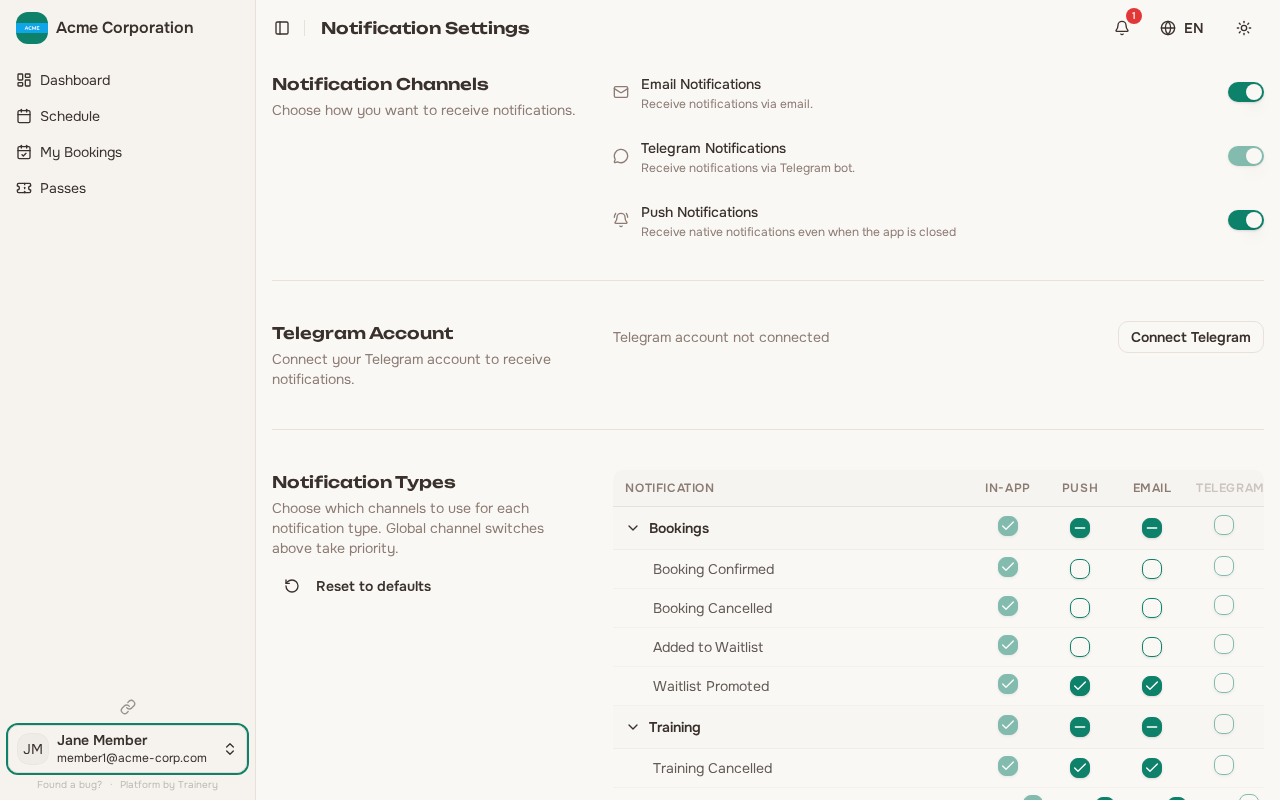
Section titled “Notification preferences”Trainery can notify you through several channels:
- In-app notifications – Always active; appear in the notification bell. Cannot be turned off.
- Email – Important updates delivered to your inbox.
- Push notifications – Browser-based alerts via Web Push, even when you are not on the page. Requires granting browser permission first.
- Telegram – Messages sent directly to your Telegram account. Requires linking your account first (see below).
Channel toggles
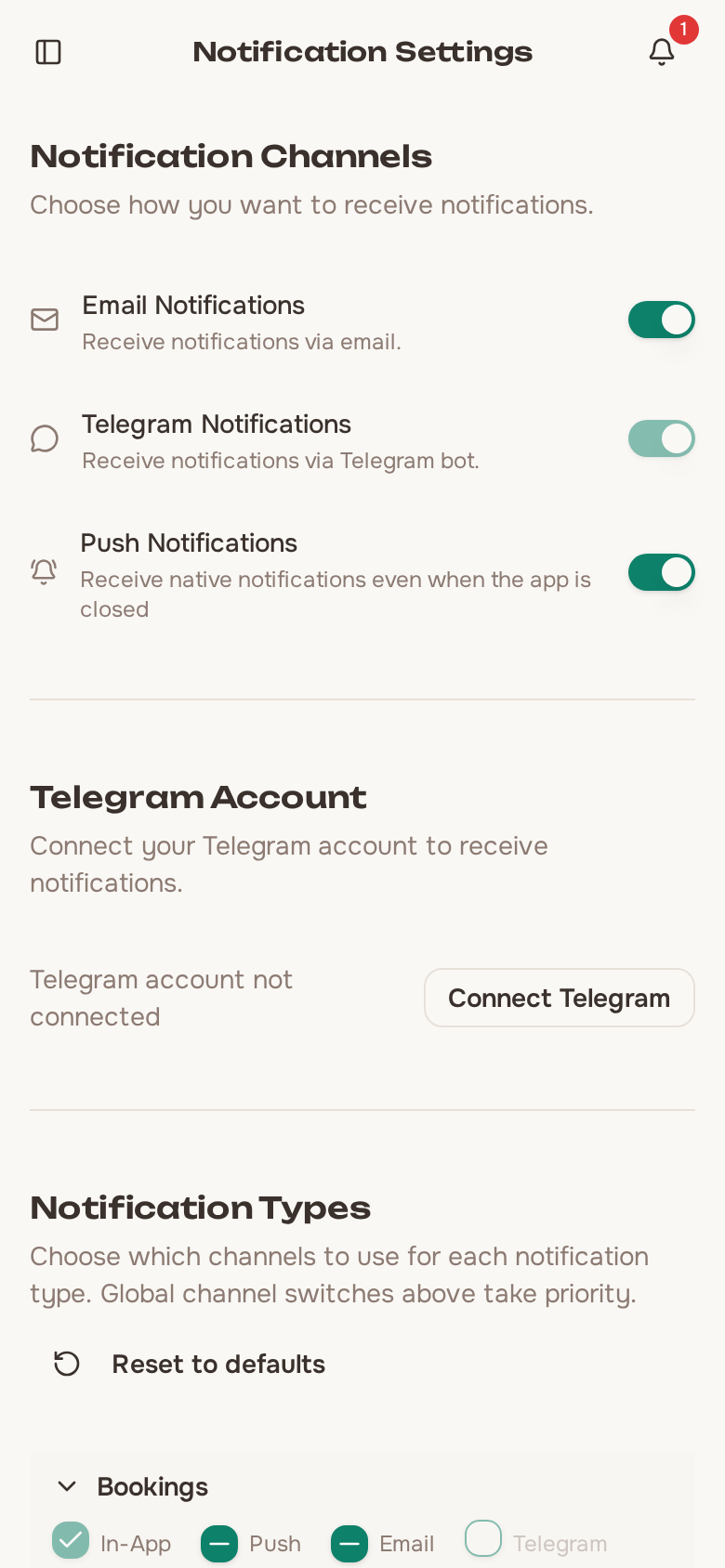
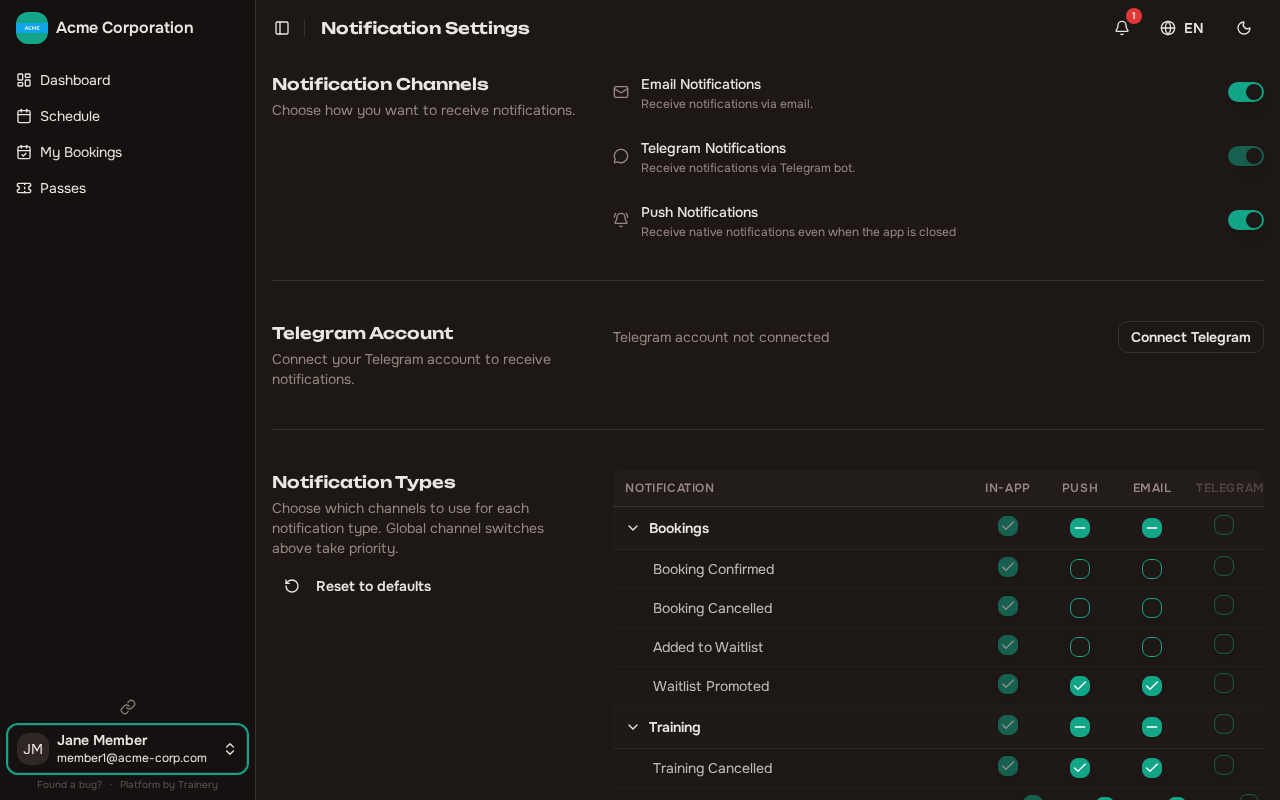
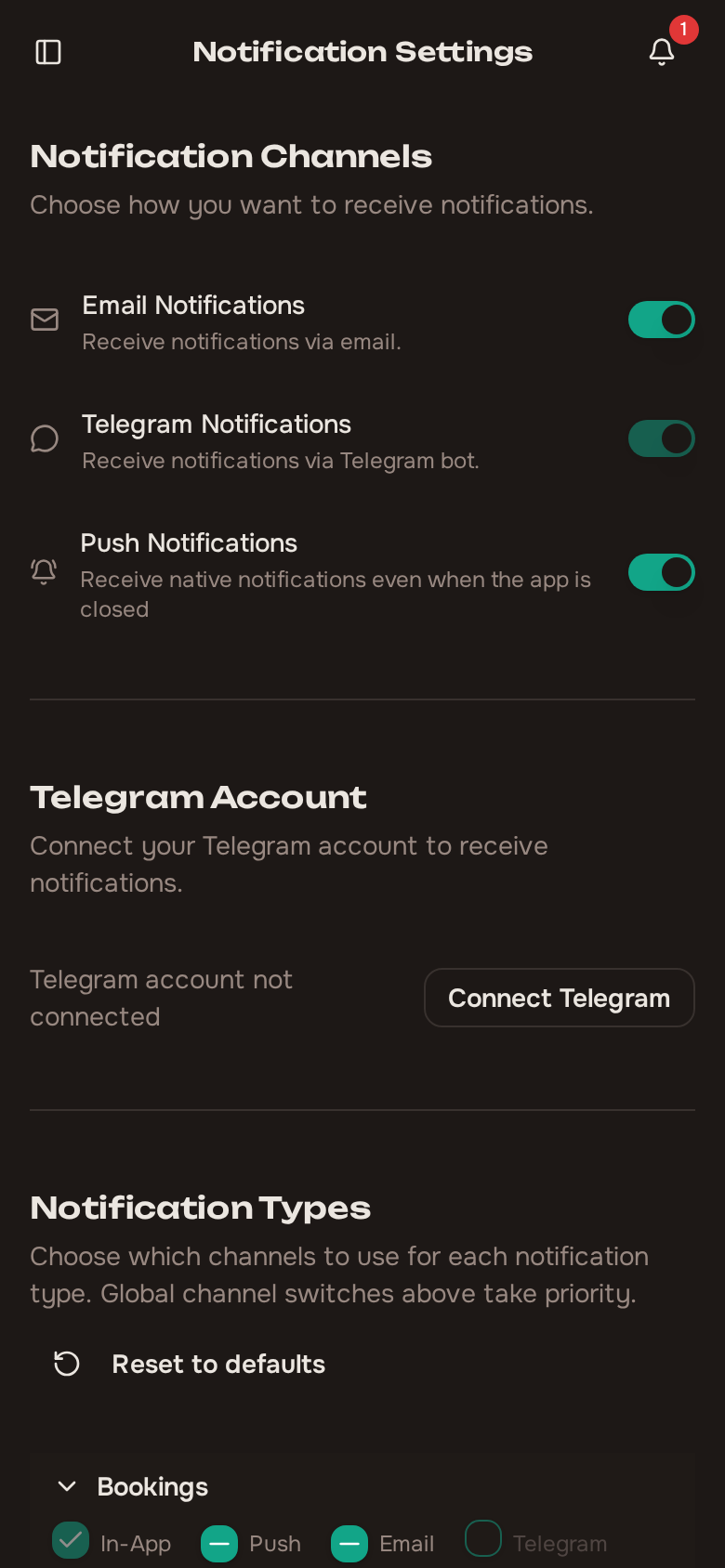
Section titled “Channel toggles”Each channel (email, push, Telegram) can be toggled on or off globally. When you disable a channel, no notifications of any type are sent through it. In-app notifications are always active.
Even if a channel is enabled globally, individual notification types may have their own per-type overrides (see below).
Tip: Even if you turn off email and push notifications, in-app notifications remain active so you never miss critical updates.
Per-type notification overrides
Section titled “Per-type notification overrides”You can fine-tune which channels are used for each notification type. This creates a matrix of notification type vs. channel.
How it works:
- Each notification type has a default channel set based on its importance (see table below).
- You can override any type to enable or disable specific channels.
- Only your changes are saved – the rest falls back to defaults.
- Use “Reset all” to revert all overrides back to defaults.
Default channels by importance:
| Importance | Default channels | Types in this tier |
|---|---|---|
| Critical | In-app, Push, Telegram, Email, SMS | Training cancelled (same-day), Booking cancelled by admin |
| Important | In-app, Push, Telegram, Email | Waitlist promoted, Training reminder, Pass expiring soon, Pass expired, Auto-cancel warning, Pass requested, Pass request rejected |
| Informational | In-app, Telegram | Booking confirmed, Booking waitlisted, Pass granted, Pass sessions low, Pass session refunded, Training rescheduled, Training updated |
| Low | In-app only | Member invited, Member joined, Role changed, Booking cancelled (self) |
Notification types by category
Section titled “Notification types by category”| Category | Type | What it notifies |
|---|---|---|
| Bookings | Booking confirmed | You successfully booked a session |
| Bookings | Booking cancelled | Your booking was cancelled (by you or an admin) |
| Bookings | Booking waitlisted | You were placed on the waitlist for a full session |
| Bookings | Waitlist promoted | You were promoted from the waitlist – your spot is confirmed |
| Training | Training cancelled | A session you were booked into was cancelled |
| Training | Training reminder | Upcoming session reminder (timing set by your organization’s admin) |
| Training | Training rescheduled | A session you booked was moved to a different time or date |
| Training | Training updated | Trainer or space changed for a session you booked (time unchanged) |
| Training | Auto-cancel warning | A session you booked may be cancelled due to low participation |
| Passes | Pass granted | You received a new pass |
| Passes | Pass expiring soon | Your pass is about to expire |
| Passes | Pass expired | Your pass has expired |
| Passes | Pass sessions low | Your pass has few remaining sessions |
| Passes | Pass session refunded | A session was refunded back to your pass |
| Passes | Pass request rejected | Your pass request was rejected (with optional reason) |
| Members | Role changed | Your role in the organization was changed |
Note: Your organization’s admin can disable specific notification types entirely. If a type is disabled at the organization level, you will not receive it and it will not appear in your notification settings.
Linking your Telegram account
Section titled “Linking your Telegram account”Connecting Telegram lets you receive notifications directly in a Telegram chat. To link your account:
- Go to your notification settings and choose the Telegram linking option.
- Trainery generates a unique code for you.
- Open the organization’s Telegram bot and send the code as a message.
- Once the bot verifies the code, your account is linked.
Your profile will show the current Telegram link status. You can unlink at any time if you change your mind. Unlinking stops all Telegram notifications immediately, but you can re-link whenever you want.
Real-time notifications
Section titled “Real-time notifications”Trainery delivers notifications in real time through a live connection (SSE). Here is how notifications work in the app:
- A bell icon in the navigation shows your unread notification count.
- Click the bell to see your notification list.
- You can mark notifications as read individually or all at once.
- You can delete notifications you no longer need.
Notifications arrive instantly – there is no need to refresh the page.