Managing Passes
Passes are what allow you to book training sessions in Trainery. Think of a pass as a bundle of sessions — each time you book and attend a session, one session is used from your pass.
Viewing available passes
Section titled “Viewing available passes”The Available Passes section shows all passes your organization currently offers. For each pass you can see:
- Name and description
- Number of sessions included — some passes are Unlimited and have no session count at all, so they are limited only by their validity period
- Validity period — how long the pass stays active once purchased
- Price
- Applicable trainings — which training types the pass can be used for
This helps you compare options and pick the pass that best matches your training goals.
Tip: If you attend different types of training, check which trainings each pass covers. Some passes are specific to one type, while others may cover several.
Viewing your active passes
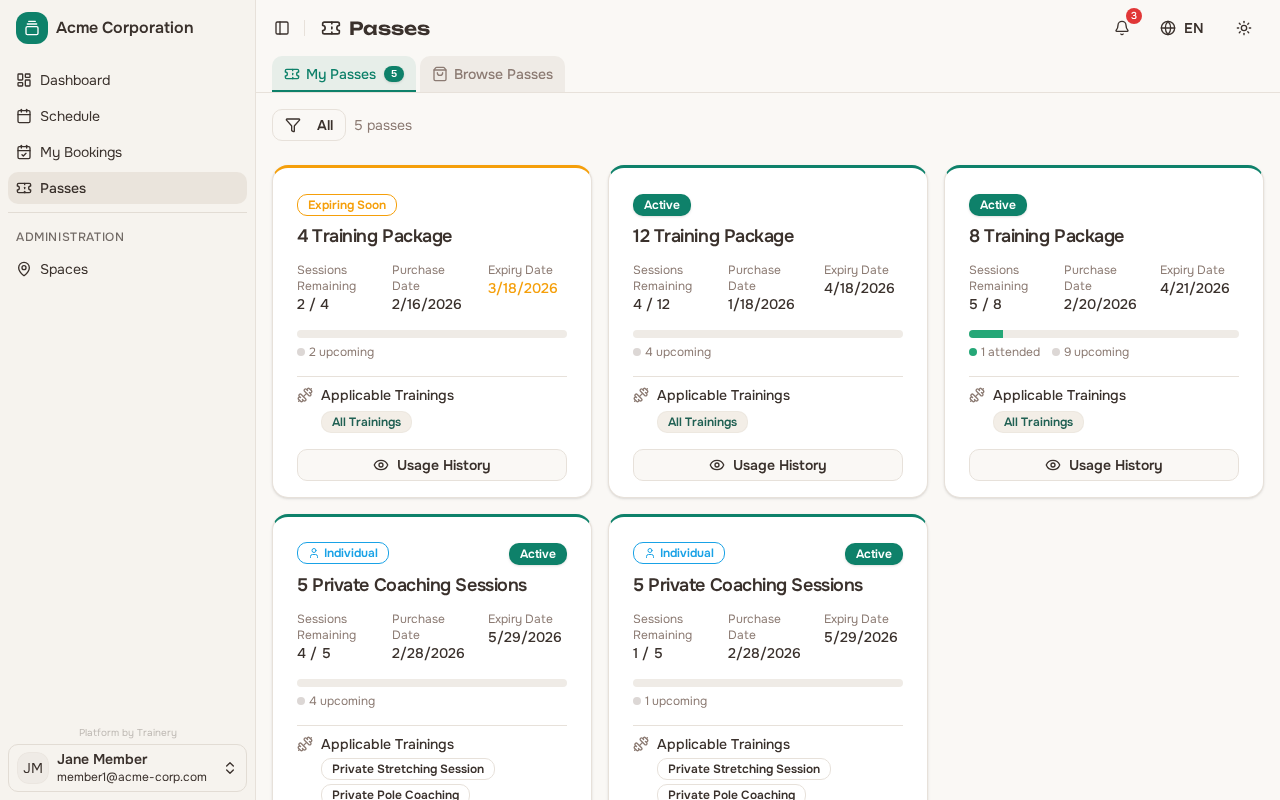
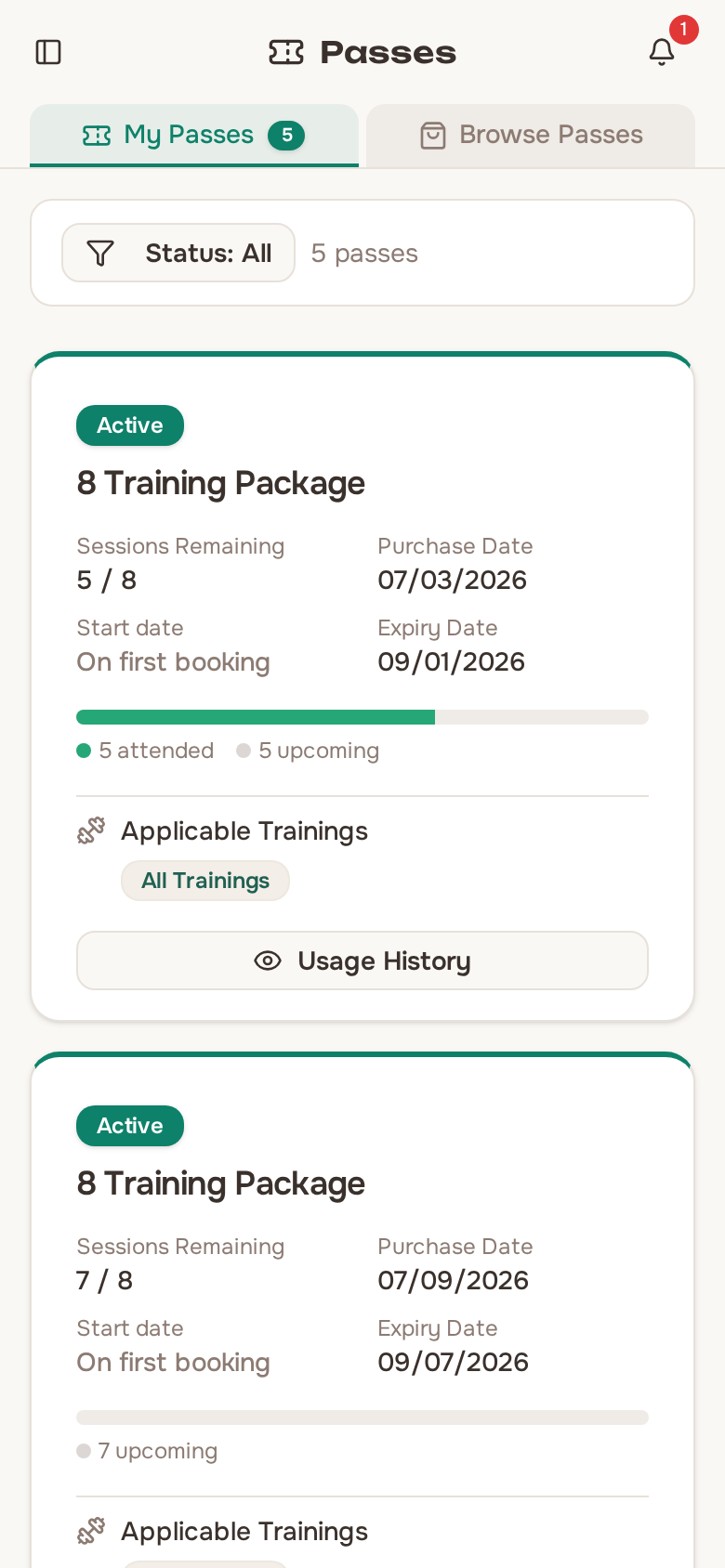
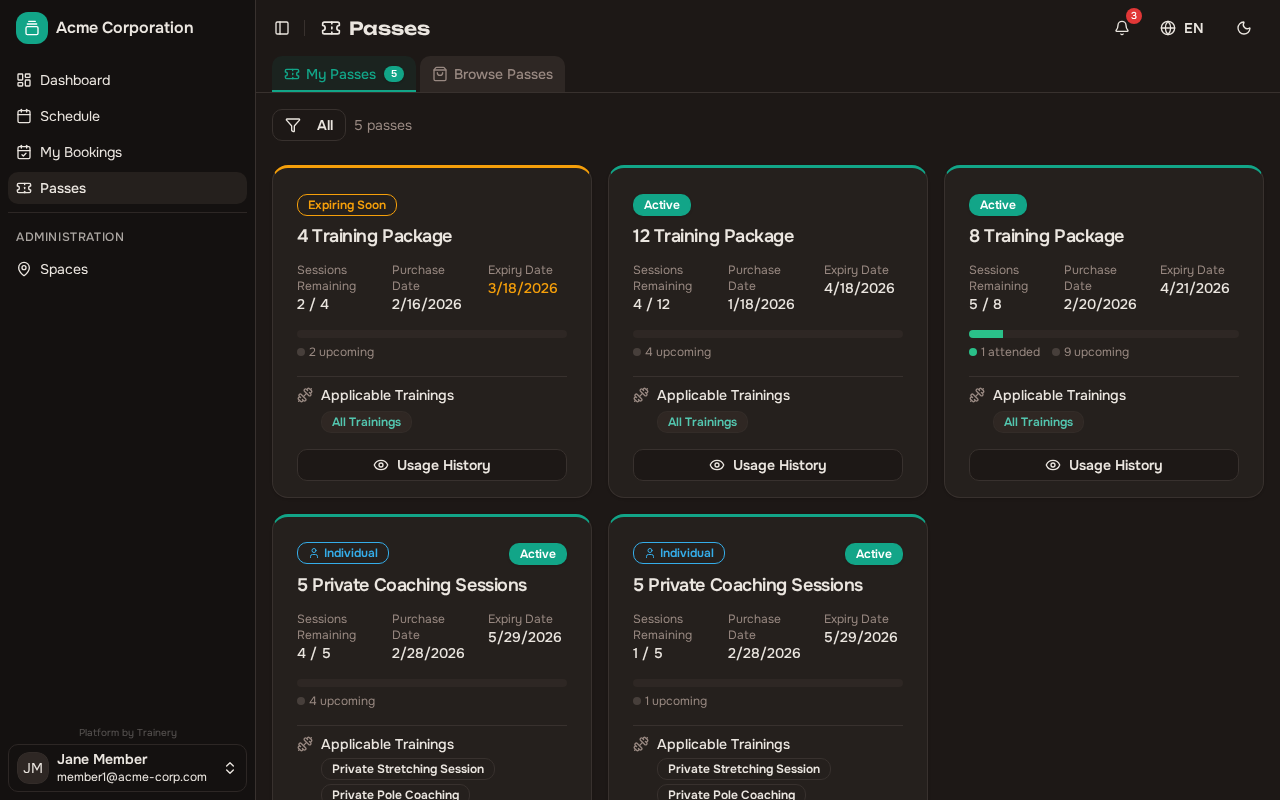
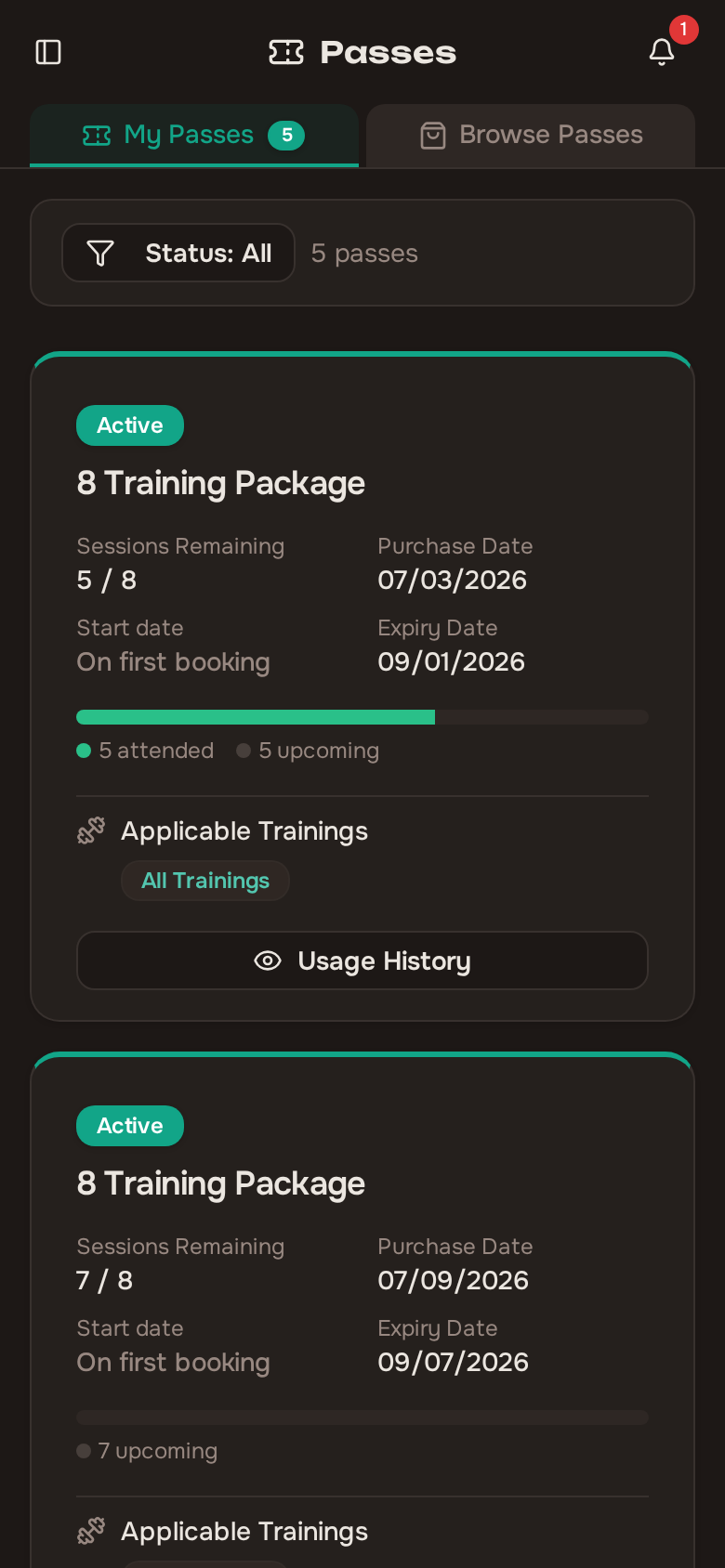
Section titled “Viewing your active passes”The My Passes section lists every pass currently tied to your account. For each active pass you can see:
- Sessions remaining out of the total included — an unlimited pass shows an infinity symbol instead of a count, because there is no balance to use up
- How many of those are already booked, shown under the counter when any of your remaining sessions are committed to a session you have not attended yet
- Expiry date — when the pass will no longer be valid
The counter shows the sessions you have left to use, not the ones you have left to book. A session comes off the balance the moment you book it and stays off until the trainer marks the register, so a pass with one session still ahead of you would otherwise read as empty. Booking itself still works off the free sessions — one already promised to a booking cannot be spent twice — which is why the number you can still book with is never larger than the number shown.
Passes that are close to expiring are highlighted so you can plan accordingly. You can also see which trainings each pass applies to, helping you decide which pass to use when booking.
Some passes only start at your first session. Until you book a session with such a pass, it has no expiry date yet — you will see a dash instead of a date, a Not yet activated badge and Starts at your first session. The countdown starts on the day of the earliest session you book, not on the day you book it. Until that session begins, the start moves with your bookings: book an earlier session and it moves earlier, cancel that booking and it moves to your next booked session. You can’t book an earlier session if that would make the pass expire before a session you’ve already booked with it.
Tip: Keep an eye on both your remaining sessions and your expiry date. A pass becomes unusable when either the sessions run out or the expiry date is reached, whichever comes first. For an unlimited pass only the date matters — it never runs out of sessions.
Passes for closed courses
Section titled “Passes for closed courses”A pass tied to a closed training works differently. The moment the studio grants it, your seat is booked in every session of the course at once — you do not book them yourself, and they are all reserved for you from day one.
If the course had fewer sessions scheduled than your pass covers, you are booked into the ones that exist, and into the rest automatically once the studio extends the timetable.
So that the counter still tells you something useful, a closed pass counts down as the course runs, not as the seats are reserved – the same principle every other pass follows. Right after it is granted it shows the full number of sessions. Each session takes one off the count once it has actually taken place, and the pass reads as fully used only after the last session of the course is behind you.
If you join a course that is already under way, only the sessions from your enrolment day onwards are booked for you. The sessions that ran before you joined are part of the course you paid for, so they count towards the pass’s total – but they never show up as yours. You will not find them in your bookings, on your calendar, or in the pass usage history, and they are never counted as missed. That is why such a pass can show a few sessions already elapsed while your own list is shorter and shows nothing missed.
When a pass is frozen
Section titled “When a pass is frozen”If you are injured or away for a while, the studio can freeze your pass instead of cancelling it. A frozen pass carries a Frozen badge, and you keep every session on it – the balance is not touched.
While the freeze lasts you cannot book with that pass, and it is not offered when you choose a pass at booking time. In exchange, the expiry date moves out by the length of the freeze, and it does so straight away – so you can see your new date as soon as the freeze is set.
The freeze ends on its own once its last day has passed, and your pass simply works again. Staff can also lift it earlier, in which case only the days you did not use are given back. You cannot freeze a pass yourself – ask the studio.
Viewing pass usage history
Section titled “Viewing pass usage history”Want to see exactly how your pass has been used? Open any pass to view its usage details:
- Total sessions included with the pass
- Sessions used so far
- Sessions remaining
- A list of bookings made with this pass, showing which sessions each was used for
This gives you a clear picture of your training activity and how much value you are getting from each pass.
If your pass has ever changed, a Modification History section appears below the booking list. It shows every change, when it happened, and who made it, using labels such as Extended, Sessions added, Sessions removed, Deactivated, Reactivated, Frozen, and Unfrozen. Internal notes that staff attach to a change, and their email addresses, are not shown to you. The section is hidden entirely for passes that have never been changed.
Changes made by staff are not the only ones listed. A session returned because a class was cancelled, because a whole timetable was called off, or because your booking switched to a different payment method appears here too. Where nobody made the change by hand — the app cancelling a class for low attendance, for instance — it is attributed to System. A cancellation that returns several sessions at once is shown as a single change covering the whole movement, rather than one line per session.
Requesting a pass
Section titled “Requesting a pass”If you would like to get a pass, you can send a request directly from the available passes list. Open a pass and click Request Pass. Your organization’s admins will be notified and can approve or reject your request.
While your request is pending, the pass shows a “Requested” status and you cannot submit a duplicate request. If an admin rejects your request, you will receive a notification with the reason (if one was provided).