Pass Management
Passes are how members pay for and access training sessions. As an admin, you create pass templates that define the terms, then grant individual passes to members. You can also extend, adjust, or deactivate passes as needed.
Creating a pass template
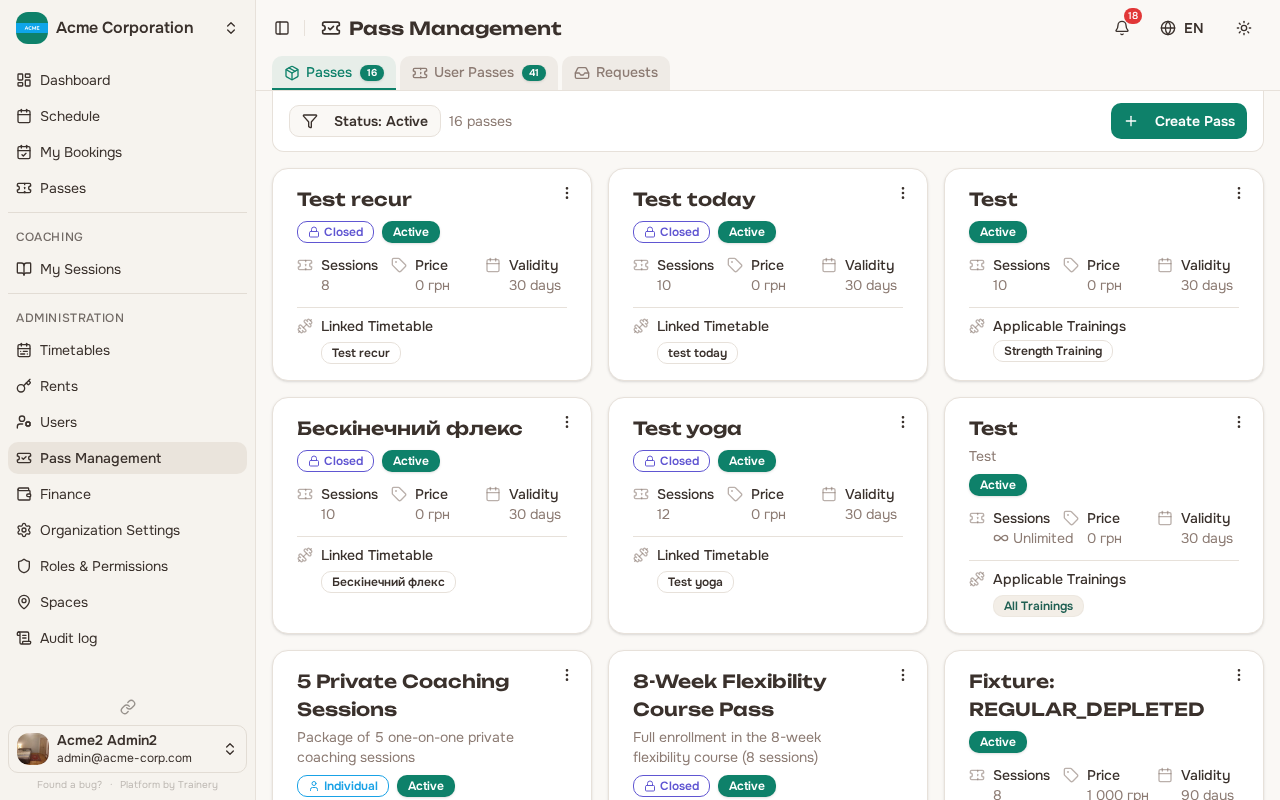
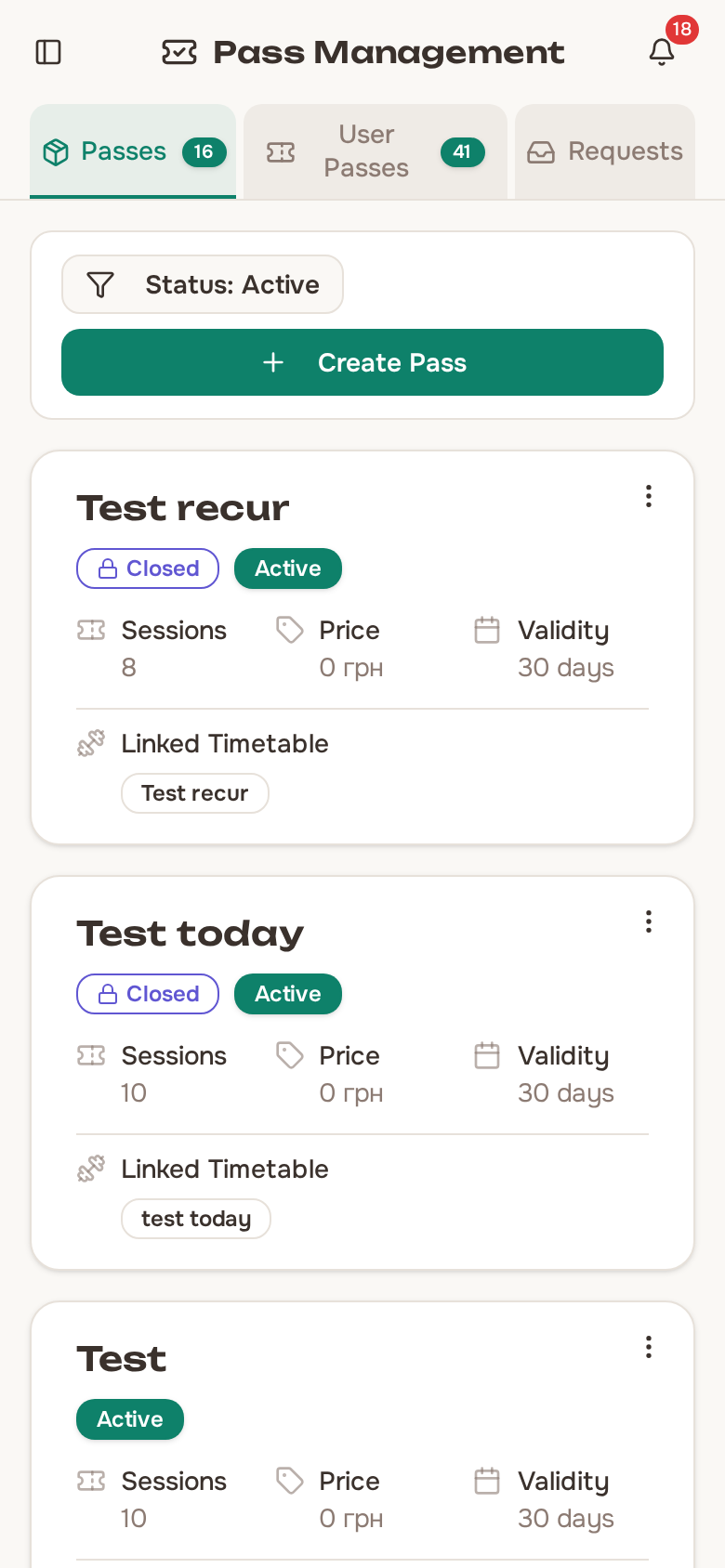
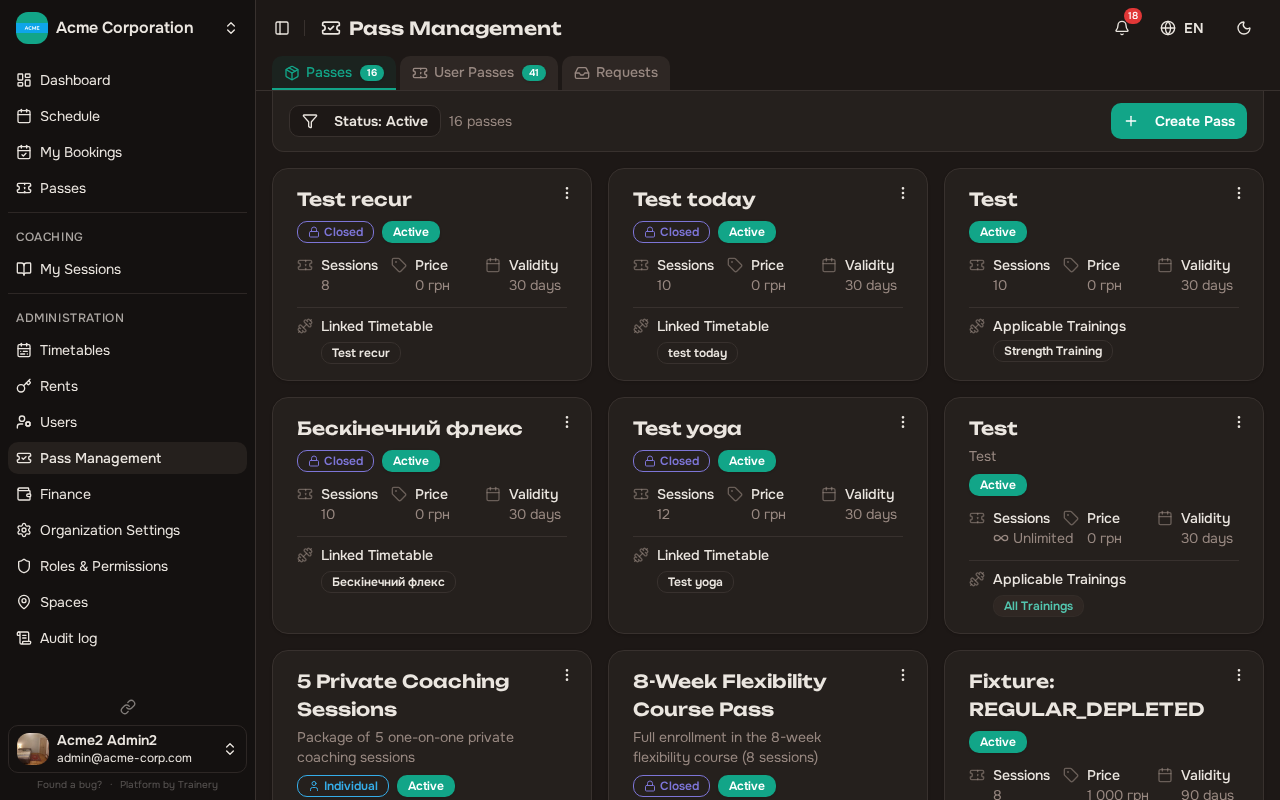
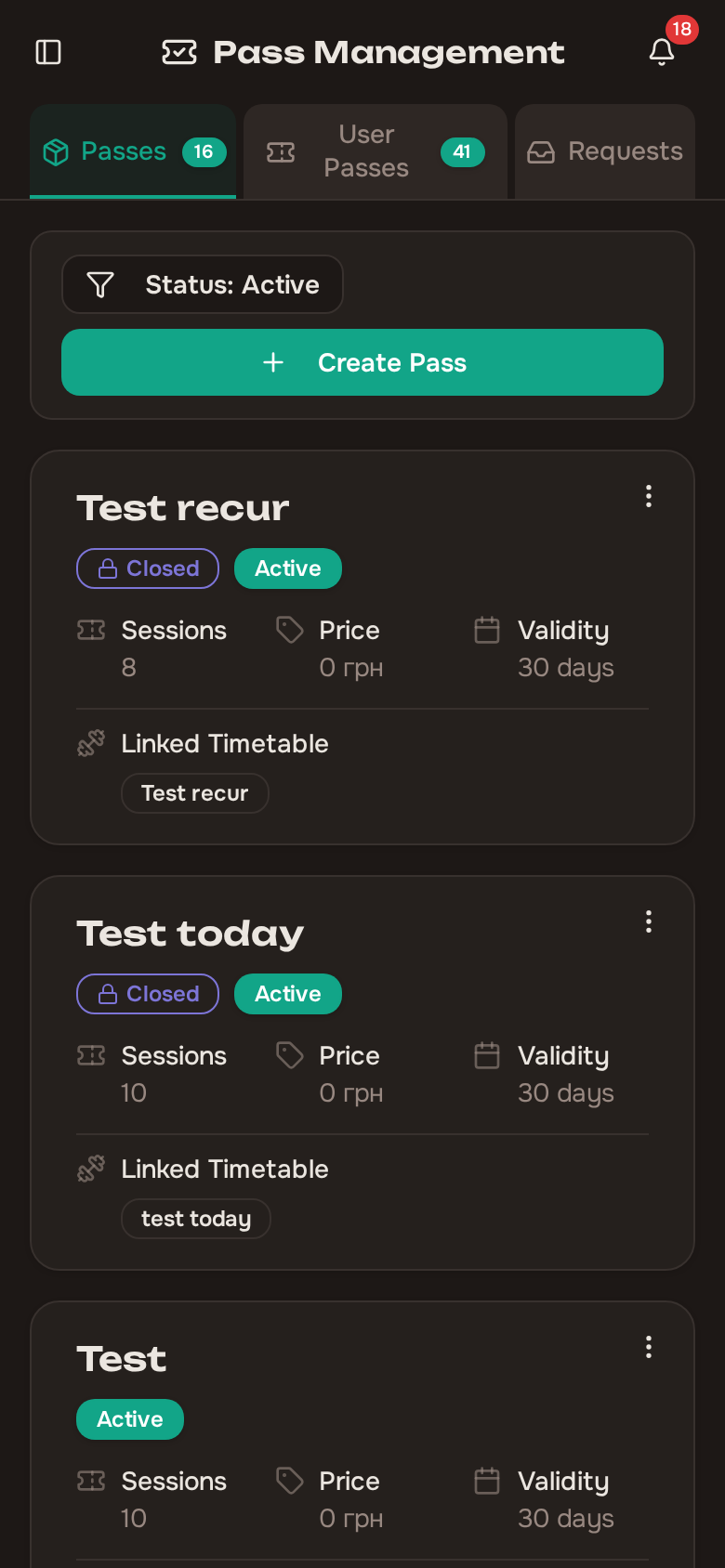
Section titled “Creating a pass template”A pass template defines the structure of a pass – how many sessions it includes, how long it lasts, what it costs, and which trainings it applies to.
To create a template:
- Go to the pass management section.
- Create a new template.
- Fill in the details:
- Name and description (supports multiple languages if your organization uses more than one locale).
- Number of sessions included – or leave the pass unlimited, so it has no session balance at all and is limited only by its expiry date.
- Price.
- Validity period in days.
- Applicable trainings – which training types this pass can be used for.
- List in the member catalogue – on by default. Turn it off to make a grant-only pass: it can still be granted by staff and used for bookings, but it is hidden from the members’ browse-and-purchase page, so nobody can buy or request it themselves. Useful for comps or legacy pricing you do not want to advertise. This is separate from whether the pass is active – a hidden pass is still fully usable, just not on the shelf.
- Save the template.
Once saved, the template is available for granting passes to members.
Catalogue visibility only applies to regular passes. Course (closed) and individual passes are always grant-only and never appear in the member catalogue, regardless of this setting.
A closed (pass-only) template cannot be unlimited. Granting a closed pass automatically books exactly as many occurrences as the pass includes, so it must have a set number of sessions.
Updating and deleting templates
Section titled “Updating and deleting templates”You can update a pass template at any time. Changes apply to the template itself and do not retroactively affect passes that have already been granted.
Deleting a template is only possible when there are no active passes based on it. If members still hold active passes from that template, you will need to wait until those passes expire or deactivate them first.
Granting a pass to a member
Section titled “Granting a pass to a member”To give a member a new pass:
- Select the member.
- Choose a pass template.
- Optionally pick a Start date.
- Confirm the grant.
The pass is created immediately with the full number of sessions from the template – or with no session balance at all if the template is unlimited. The expiry date is calculated as today’s date plus the template’s validity period in days.
The member is notified about the new pass. For an unlimited template the notification tells them the pass has unlimited sessions rather than naming a number.
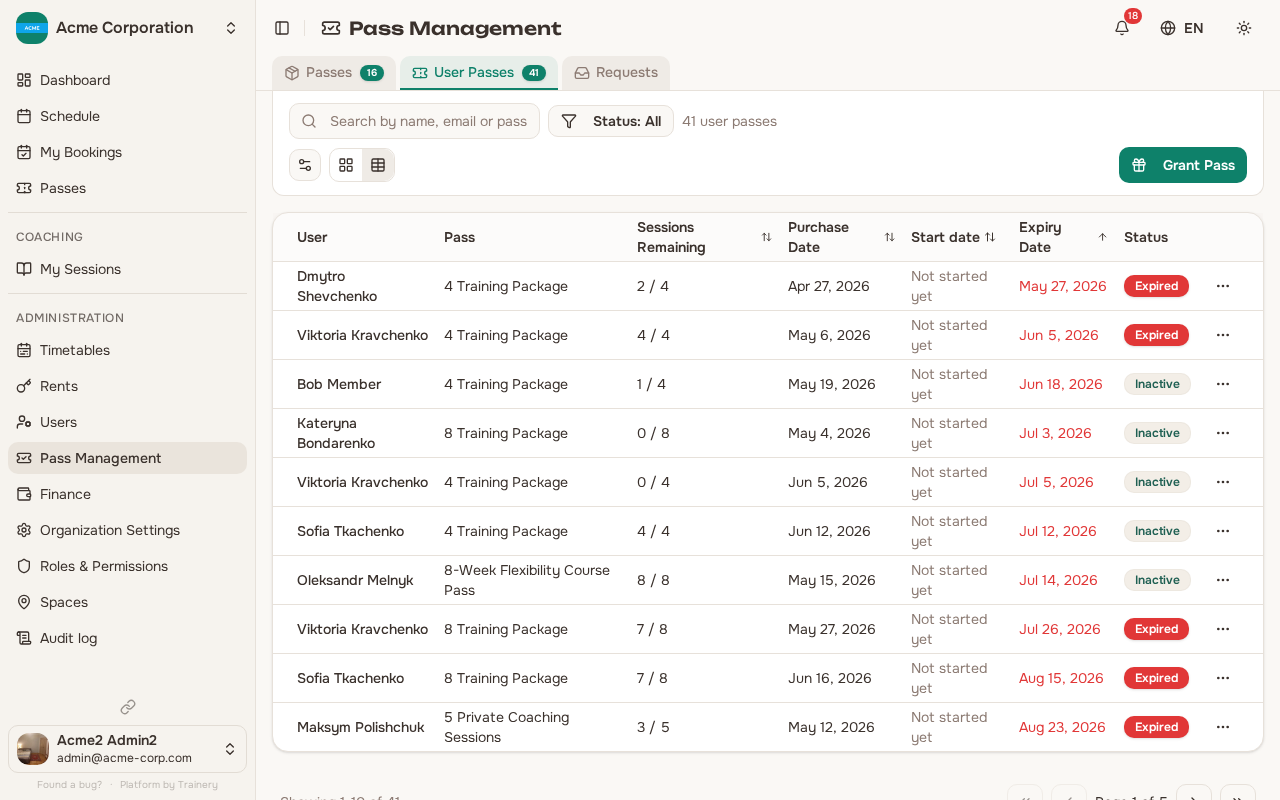
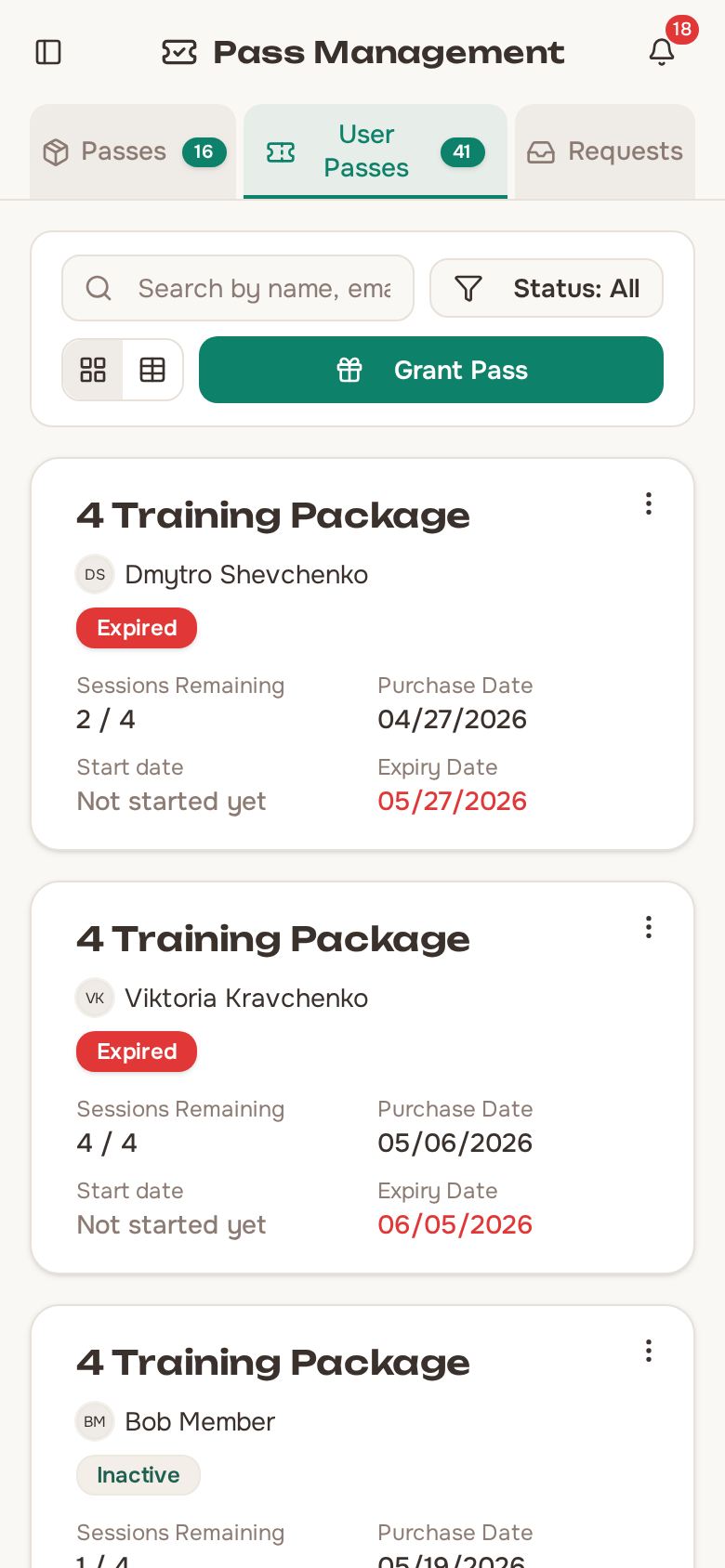
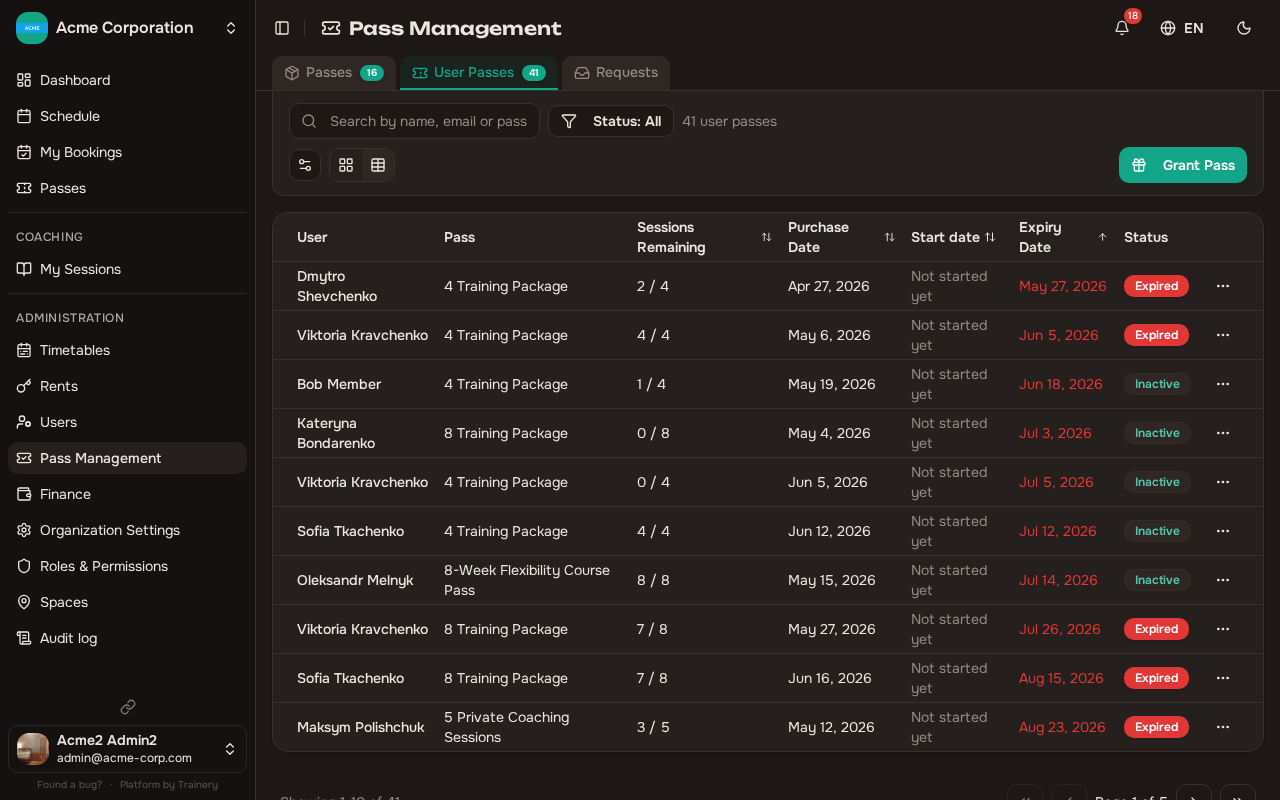
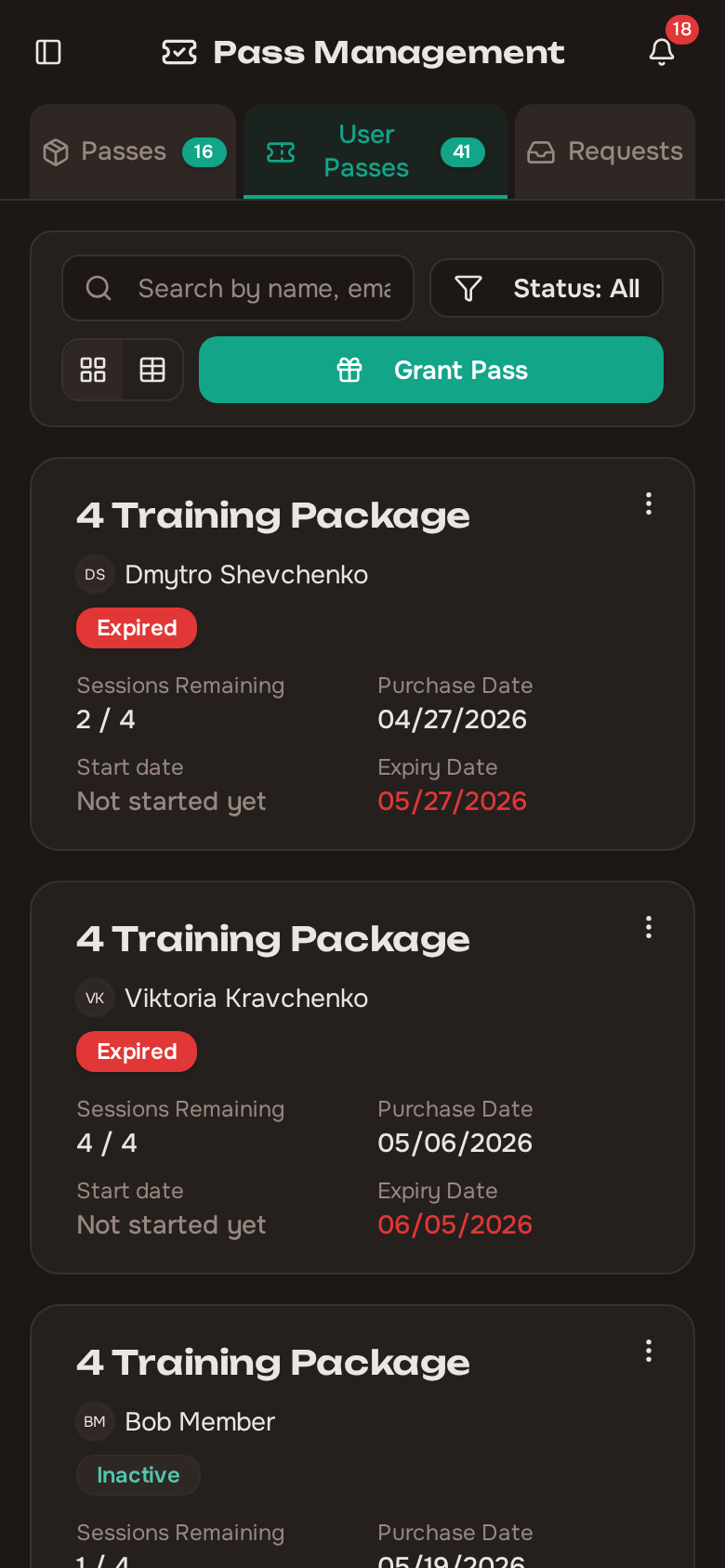
The list of granted passes
Section titled “The list of granted passes”Alongside the expiry date, each granted pass shows its Start date – the day its validity actually began. That is not the same thing as the day it was purchased: a pass can be granted today and start next Monday, or start only at the first session the member books with it. You can sort the list by Start date as well.
A pass that starts at its first session has no start date until the member books a session with it, and reads Not started yet until then. Once a session is booked, the column shows that session’s day, even while it is still ahead.
Members browsing the pass catalogue see only regular passes. Course passes and one-on-one passes are granted by staff, so they are no longer listed there for members to request or buy.
Choosing when the pass starts
Section titled “Choosing when the pass starts”Start date is optional. Left empty it shows Organization default, and the pass follows your organization’s start-on-purchase or start-at-first-session setting exactly as before. Clear start date puts it back to that default if you picked a day and changed your mind.
When you do set a day, it overrides that setting for this one grant: both the activation and the expiry date are measured from the day you chose. The day is read as a studio calendar day in your organization’s timezone, so it does not shift with the timezone of the device you are granting from.
The same dialog opens when you approve a pass request, so a request can be approved with a chosen start date too.
For a closed (pass-only) course pass, the start date is the member’s enrolment date. Only the sessions from that day forward are booked for them – the course sessions that already ran are not.
Those earlier sessions are still charged against the pass’s allowance, because the member paid for the whole course. They are simply invisible to the member: they do not appear in the member’s bookings, on their calendar, or in the pass usage history, and they are never counted as missed. So a mid-course grant on an 8-session course can read as three of eight sessions already elapsed while the member’s list holds five sessions and shows nothing missed.
The pass detail view tells you how many sessions were absorbed this way. That figure is staff-only – the member never sees it.
What the session counter shows
Section titled “What the session counter shows”Every pass counter reports sessions the member has left to use, not sessions they have left to book. A session is taken off the balance when it is booked and stays off until the register is marked, so reading the raw balance made a member with a session still ahead of them look like they had nothing left – and convinced staff that pass could not cover the very session it had already paid for. Where any remaining sessions are committed to a booking nobody has marked yet, the card says how many.
Actions that spend sessions – booking, validating a pass, adjusting sessions – deliberately keep working off the free balance, which is always the smaller number while seats are held. The one exception is choosing a pass while marking attendance: that assigns a seat the member already holds rather than booking a new one, so it offers the same number the member sees.
Closed passes and the session counter
Section titled “Closed passes and the session counter”Granting a closed pass books the member into every occurrence of the linked schedule straight away, so its session balance really is spent at the moment of the grant. The counter on the pass does not report that raw balance – it counts down as the course runs. A freshly granted 8-session closed pass reads 8 / 8, drops by one after each session has taken place, and shows as used up only once the whole course is behind the member. It also stays under the Active status filter for as long as any of its booked sessions is still ahead.
Adjust sessions works on a closed pass too, but it means something different there: it changes how many sessions of the course the member is enrolled in, not an abstract balance. See Adjusting a closed (course) pass.
When the course is shorter than the pass
Section titled “When the course is shorter than the pass”A grant books the sessions the course has at that moment. If the timetable has fewer sessions left than the pass covers – say an 8-session pass on a timetable that ends in two days – the member is booked into the ones that exist and the rest of the allowance stays on the pass. Instead of the usual success message you get a warning: Pass granted, but only 2 of 8 sessions were booked: the group has no more sessions scheduled yet. The rest will be booked automatically once the schedule is extended.
When you then extend the timetable (for example, move its end date out), everyone holding an active closed pass for it is booked into the new sessions, up to what their pass still holds, as part of the same save. An open-ended timetable that extends itself overnight does the same. Enrolment continues from each member’s latest session and never books a session that has already started or that falls before the pass’s start date, so a gap you deliberately left earlier in the course stays a gap.
To change a course’s dates, edit its timetable rather than deleting and recreating it. Deleting removes every member’s bookings in it and leaves the pass tied to no group.
Extending a pass
Section titled “Extending a pass”If a member needs more time on their pass, you can extend the expiry date:
- Open the member’s active pass.
- Choose how many days to add.
- Save the extension.
The additional days are added to the current expiry date.
Some passes only start counting down at the first session. Until the member books a session with such a pass it has no expiry date yet – the list shows a dash instead of a date and a Not yet activated badge. Once a session is booked, the pass starts on that session’s day, but the dates can still move with the member’s bookings until the session actually begins. Extending is unavailable until then, because there is no settled expiry date to extend. Once the first session has started, the dates are fixed and extension becomes available.
The same applies when you cancel a whole session and choose to extend affected passes: a pass whose first session hasn’t started yet is not extended. Its start simply moves to the member’s next booked session, so no days are lost.
Freezing a pass
Section titled “Freezing a pass”When a member is injured or travelling, you can put their pass on hold instead of deactivating it. Freezing leaves the session balance completely untouched and gives the member the lost time back on the other end.
- Open the member’s pass and choose Freeze.
- In the Freeze Pass dialog, set the hold either as Freeze for (days) or as a Last frozen day. The two inputs are two views of the same value – change one and the other follows.
- Optionally record why, in the field prompting Why is the pass being frozen? (optional).
- Confirm the freeze.
The dialog states the rule plainly: The pass can’t be used while frozen, and its expiry date moves out by the same number of days. That move happens immediately, for the whole planned hold, so the member can see the date they get back straight away rather than waiting for the freeze to end. The last frozen day is a studio calendar day in your organization’s timezone, not the day showing on your own device. A single freeze can run for at most 365 days.
While a pass is frozen:
- It cannot be used to book, and attempting it reports that the Pass is frozen and cannot be used until it is unfrozen.
- It is not offered in the pass picker when booking or when marking attendance.
- It is left out of the expiring passes report and out of the expiry and low-session reminders.
The freeze lifts by itself once the last frozen day has passed – nobody has to click anything, and a freeze that ran its full course changes nothing when it ends.
You can also end a freeze early with Unfreeze. It takes one click and asks no questions. Only the unserved remainder of the hold is taken back off the expiry date, so the member keeps the days they actually spent frozen.
Freezing is refused on a pass that is inactive, already frozen, or already expired, and on a pass whose first session hasn’t started yet – its dates still follow the member’s bookings, so there is no settled expiry date to move.
A Frozen badge marks the pass on the admin pass card, in the list of a member’s passes, and on the member’s own card. It takes precedence over the “expiring soon” and “expired” markers: the expiry date moved with the hold, so those badges would be misleading.
Both the freeze and the unfreeze are written to the pass’s modification history. Members cannot freeze their own passes – only staff with pass management permission can.
Adjusting sessions
Section titled “Adjusting sessions”You can also correct a granted pass’s session balance in either direction – for example to compensate a member for a cancelled session, or to take back sessions that were credited by mistake.
- Open the member’s active pass and choose Adjust sessions.
- Pick a mode: Add or Remove.
- Enter how many sessions to add or take back. The dialog shows the Current sessions count and the resulting After adjustment count as you type.
- Fill in Reason. It is optional when adding, but the field is marked Required when removing sessions.
- Confirm with the save button, or Remove sessions in remove mode.
A few limits apply:
- You cannot remove more sessions than the pass has left. The count is capped at what remains, and the Remove card is unavailable when the pass has none left.
- A single adjustment can change the balance by at most 500 sessions.
- An unlimited pass cannot be adjusted. The dialog explains that This pass has unlimited sessions and offers only Close – there is no balance to change, and nothing to run out of before the expiry date.
Every adjustment is recorded in the pass’s modification history.
Adjusting a closed (course) pass
Section titled “Adjusting a closed (course) pass”On a closed pass the same dialog does something different. A course pass has no free-floating balance – it holds a seat in a run of sessions – so adjusting it changes how many sessions of the course the member is enrolled in. The dialog shows this as Enrolled sessions rather than a plain balance.
Add enrols the member into that many further sessions of the course, starting from the next session they are not already booked into and working forward. If the course has nothing left to enrol into, you are told so: The course has no further sessions to enrol into.
Near the end of a course the add may be partial – if you ask for four more sessions and only two remain, the member is enrolled into those two. The pass’s allowance then moves by what was actually booked, not by what you typed, so the number of sessions the member paid for and the number they are booked into stay in step.
Remove cancels sessions from the end of the enrolment, never from the middle. The course keeps its shape: the member drops out of the last sessions of the run and stays in the earlier ones. Sessions that have already been held are never cancelled, so attendance and the finance for the part of the course already run are left alone.
Because of that, removal is capped at the sessions still ahead of the member. The dialog shows the cap as Available to remove and clamps its own preview to that number, so you cannot ask for more than the course can give back.
An adjustment on a closed pass changes this one member’s allowance and enrolment only. The pass template it came from is shared and is not touched, so other members holding the same course pass are unaffected. Both directions are written to the pass’s modification history like any other adjustment.
Deactivating a pass
Section titled “Deactivating a pass”Deactivating a pass stops it being used while keeping the record and its full history. Nothing is erased: the pass stays on the member’s profile, its modification history is intact, and you can bring it back later with Reactivate. Deactivation does not remove sessions or change the expiry date.
For a closed (course) pass, Deactivate does one thing more. Because the pass holds a seat in every session of its course, deactivating it also cancels the member’s upcoming bookings for that course and frees those places for other people. Sessions that have already been held are left exactly as they are, so the attendance you recorded and the finance for the part of the course already run stay intact.
The confirmation dialog spells this out before you commit:
This pass holds a place in every session of its course. Deactivating it cancels the upcoming bookings and frees those places. Sessions already held keep their attendance. Reactivating the pass restores the cancelled bookings.
Reactivate puts back exactly the bookings that the deactivation cancelled – and only those. Anything the member cancelled themselves before or after stays cancelled; reactivating is not a way to undo a member’s own decision.
A restored booking comes back even if the session has filled up in the meantime, so the member does not lose their place because of an administrative pause. That can leave a session over its capacity, which the trainer resolves from the session’s attendee list.
Deleting a pass permanently
Section titled “Deleting a pass permanently”Deleting is separate from deactivating, is offered only to people with pass management permission, and cannot be undone. The action is Delete permanently.
Before you confirm, the dialog shows exactly what will be destroyed:
- Bookings to delete – how many bookings this pass created.
- Of which upcoming – how many of them are still ahead.
- Of which already held – how many have already taken place.
- How many of those already have attendance marked. If any do, it is called out explicitly, because deleting the pass erases that attendance record along with the bookings.
You then have to tick the acknowledgement, I understand this permanently deletes the pass and its bookings, before the delete button becomes available.
A pass that never created any bookings is deleted on its own. A pass that did requires the explicit choice to delete its bookings as well – the pass is never deleted in a way that would leave its bookings behind with nothing backing them.
Deactivate is the reversible, history-preserving option, and it is the one to reach for in almost every case – a member who stopped coming, a pass suspended over a payment, a course a member is leaving. Delete permanently is for a grant that should never have existed: the wrong member, the wrong template, a duplicate. On a closed pass it is also the only clean way to undo one, because the bookings left behind by the wrong grant would otherwise get in the way of granting the correct pass.
Modification history
Section titled “Modification history”Every pass keeps a Modification History of the administrative changes made to it. Each entry records what changed, when it happened, which staff member did it, the session counts or expiry date before and after, and the reason that was entered. Passes that have never been changed simply show No modifications recorded.
The recorded change types are:
- Extended – the expiry date was pushed back.
- Sessions added – sessions were credited to the pass.
- Sessions removed – sessions were taken back from the pass.
- Deactivated and Reactivated – the pass was blocked or unblocked.
- Frozen and Unfrozen – the pass was put on hold or taken off hold.
The member also sees this history on their own pass, but in a redacted form: they see what changed, when, and who did it, while the internal reason note and the staff member’s email address are stripped out and stay admin-only. Keep that in mind when wording a reason – it is for your own records, not for the member.
Reviewing pass requests
Section titled “Reviewing pass requests”Members can request passes directly from the app. When a member submits a request, it appears in the Requests tab of the pass management section. A badge on the tab shows the number of pending requests.
You can filter requests by status: Pending, Approved, Rejected, or All.
For each pending request, you have two options:
- Approve – opens the grant pass dialog with the member and pass template already selected. After confirming, the pass is granted and the request is marked as approved.
- Reject – opens a dialog where you can optionally provide a reason for the rejection. The member receives a notification with the reason (if provided).
Approving a request does not automatically grant the pass. It opens the standard grant dialog so you can review the details before confirming.
Pass analytics
Section titled “Pass analytics”The analytics section gives you an overview of how passes are performing across your organization. You can review:
- Per-template statistics: how many passes have been purchased, how many are currently active, how many have finished (deactivated, past their expiry date, or out of sessions), total sessions used, and revenue generated.
- Expiring passes report: a list of passes that are nearing their expiry date, so you can proactively reach out to members about renewals. Unlimited passes appear here too – their expiry date is the only thing that ends them.
For unlimited templates there is no session allowance to count down, so sessions used is the number of sessions booked with those passes.
Browsing the pass catalogue is open to members, but the organization-wide list of who holds which pass, the analytics above, and the expiring passes report require pass management permission – a plain member only ever sees their own passes.
Use the expiring passes report to identify members who might benefit from a pass extension or renewal before their sessions go unused.