Creating Trainings
You build your organization’s offerings by creating training templates. A template defines everything about a particular training — its name, duration, capacity, and which passes apply. Once you have a template, you can schedule it as many times as you like.
Who can do this. Authoring the timetable requires the
training.createpermission, which admins and owners hold by default. Trainers do not — by default a trainer runs the sessions the studio schedules for them and adjusts their own occurrences, but does not author templates or schedules. If you want a particular trainer to build their own timetable, grant themtraining.create(andtraining.manage_own/training.delete_ownto edit and remove what they created) under Role Management.
Creating a Training Template
Section titled “Creating a Training Template”To create a new training template, navigate to the trainings page and select Create Timetable.
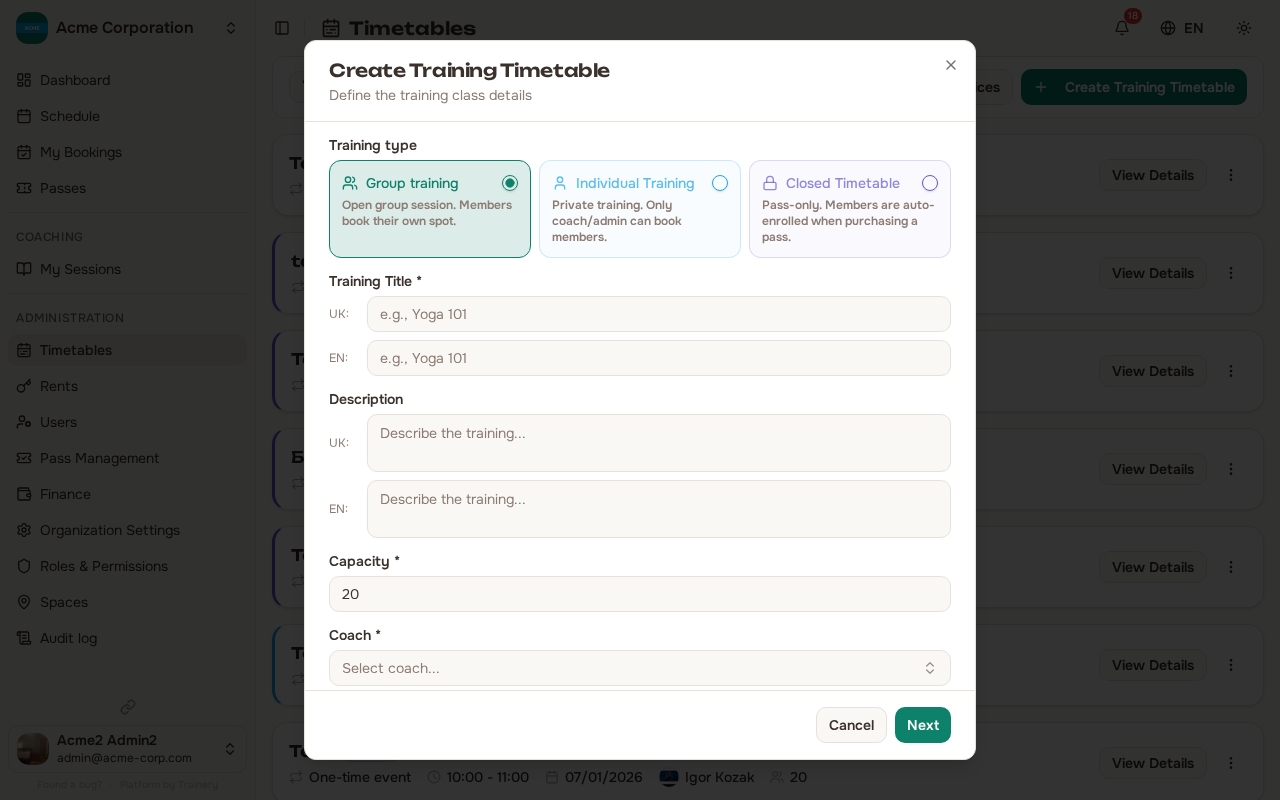
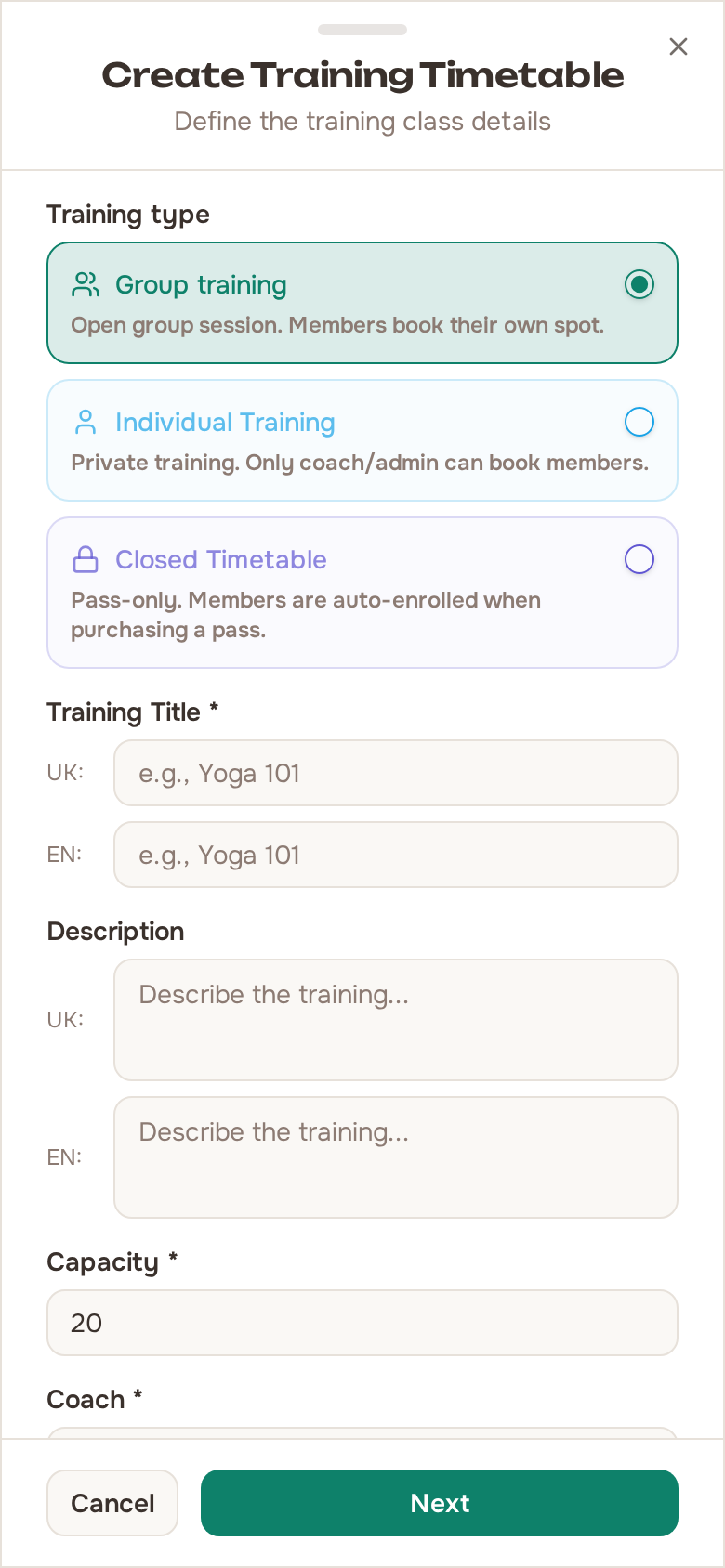
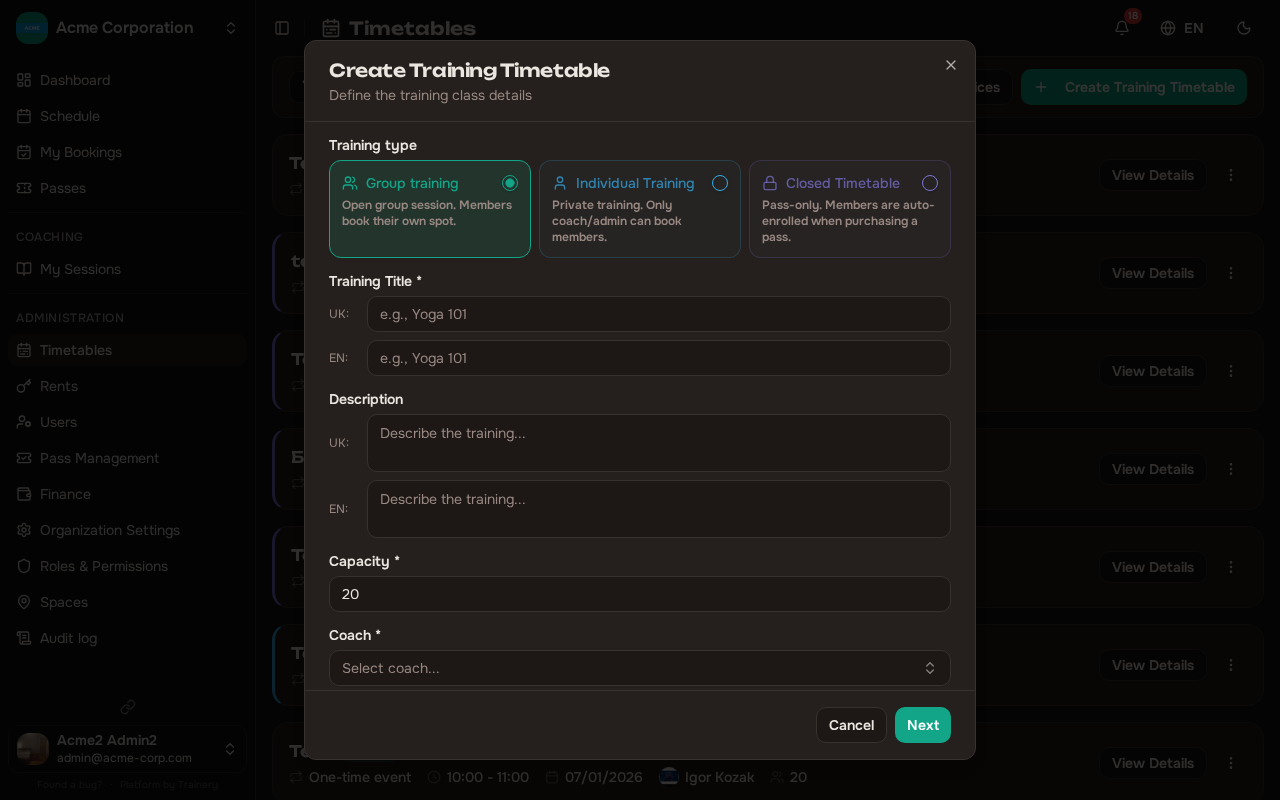
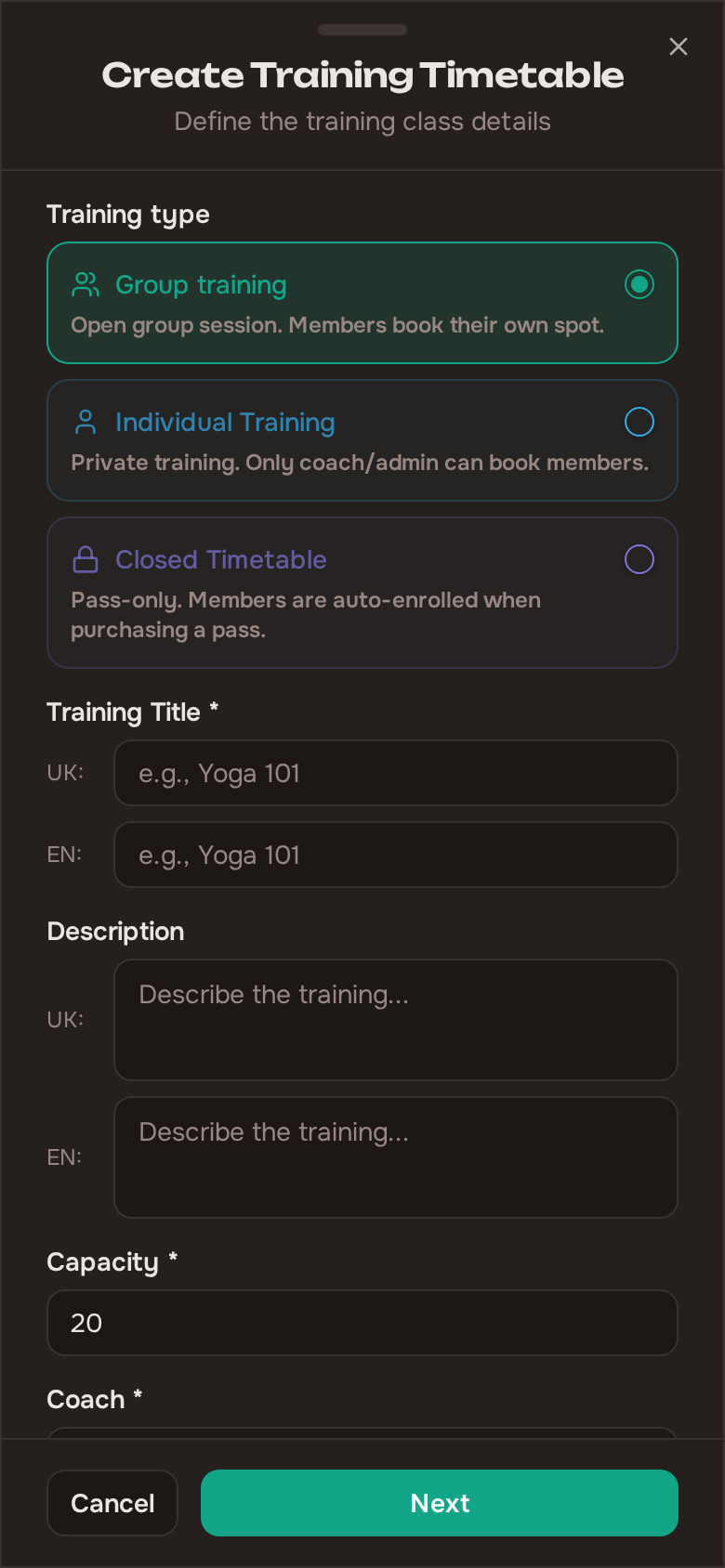
You will fill in the following details:
- Training type — Choose one of three color-coded options at the top of the dialog: Group training (a normal open session members book themselves), Individual (a private session you book members into), or Closed (pass-only enrollment). Group is the default. See Special Training Types for how Individual and Closed behave. For an Individual training you can also pre-select the members to book into every session it generates.
- Title — Give your training a descriptive name. If your organization supports multiple languages, you can provide translations for each.
- Description — Explain what the training covers. This is shown to members when they browse sessions. Multilingual descriptions are supported.
- Trainer — Who runs the sessions. Required, with no default — pick from the trainers in your organization.
- Duration — How long each session lasts.
- Capacity — The maximum number of members who can book a single session.
- Booking & cancellation deadline — How far in advance members must book before the session starts. The same cutoff also closes cancellation: past it, a member can neither book nor cancel, and only you can cancel their booking for them.
- Default space — The room or area where this training typically takes place.
- Pass compatibility — Select which passes can be used to book this training. Only members holding a compatible pass will be able to register.
- Staff price — Optional. A second, lower price that staff — a trainer, admin or owner — pays to attend, revealed by the Set a different price for staff toggle. It applies to cash or card bookings only: a session paid with a pass always spends one session, whoever attends. Only staff ever see it — a staff member sees the regular price struck through next to this reduced one, while a regular member sees only the normal price. Leave it empty to charge everyone the same. A trainer never sees the staff discount on a session they lead — they hold no seat in their own class.
Services
Section titled “Services”A studio sells the same handful of things over and over — “Pole Dance costs 200”. Services are that price list, written down once, so you do not retype the price on every timetable you create.
A service is a catalogue entry, not a session: it has no time, no trainer, no capacity and no room. Just a name and a price. Each entry has:
- Service name — plus an optional description, in every language your organization uses.
- Price per session — what one session of this kind costs.
- Duration (minutes) — how long a session of this kind runs. It is shown next to the price both in the catalogue and in the picker, so you can choose on length as well as on cost. It is information carried on the service, nothing more: the create-training form keeps its own duration field, which you fill in yourself.
- Its position in the list, which you set by dragging the entry where you want it.
Picking a service when you create a training
Section titled “Picking a service when you create a training”The Service picker sits directly above the price field on the create-training form. Its placeholder reads Pick a service, and each option shows the service name together with its price, so you can choose on price just as easily as on name.
If your catalogue is grouped into categories (see below), the picker groups its options the same way, with any services that belong to no category listed under a heading of their own.
Picking one fills in the price — and the price stays editable. The hint under the picker says so: Fills the price below, which you can still change for this training. The catalogue prefills; it does not dictate. You can also skip the picker entirely and price a training by hand.
The price is copied at the moment the training is created. Repricing a service later never changes a training that already exists.
Managing the catalogue
Section titled “Managing the catalogue”A Services dialog is reachable from the timetables page and from the picker itself. It opens with a reminder of what the list is for: Your price list — what a session of each kind costs. Pick a service when creating a training and its price is filled in for you. Before you have added anything, it reads No services yet. Add one and its price will be a click away when you create a training.
Add service creates a new entry; existing entries can be edited and reordered from the same dialog.
Grouping the catalogue into categories
Section titled “Grouping the catalogue into categories”Forty entries in a single flat run are hard to read. Services can be sorted into categories, so a long catalogue reads as sections instead of one long list. The management dialog has two tabs for this — Services and Categories — and you move between them as you organize.
A category is presentation only. It has a Category name in each of the languages your organization uses, and a position in the list. That is all it has: no price of its own, no rules of its own, nothing a service or a training inherits from it.
Add category creates one. A new category starts collapsed, and every section can be expanded and collapsed while you work. Both the categories and the services inside them are reordered by dragging; a service is ordered within its own category rather than across the whole catalogue.
Nothing here is forced on you:
- A studio that has never created a category keeps the plain flat list, exactly as it was. Until you add one, the Categories tab simply reads No categories yet.
- Services you have not filed anywhere are gathered under No category, listed after the categorized ones.
- A category can be created without leaving the service form, so a half-filled service is not thrown away just to go and make somewhere to put it.
Deleting a category never deletes what is inside it. The confirmation, Delete category?, says as much: Its services are kept and simply become ungrouped. There is no retire step for a category the way there is for a service — a category holds no price, so there is nothing to preserve.
Retiring a service
Section titled “Retiring a service”A training never loses the price it was created with. A service that is already used by a training is retired rather than deleted: A service already used by a training is retired instead of deleted, so those trainings keep their price. Before you confirm, the dialog tells you how many trainings currently use that service.
A retired service:
- Still appears in the Services dialog, marked Retired.
- Can be brought back with Restore.
- Cannot be chosen for a new training — the attempt is refused with That service is retired and can’t be used for new trainings.
Anyone who can see trainings can read the catalogue. Adding, editing, reordering and retiring a service — and creating, renaming, reordering and deleting a category — are limited to people who can manage all trainings.
Viewing Training Templates
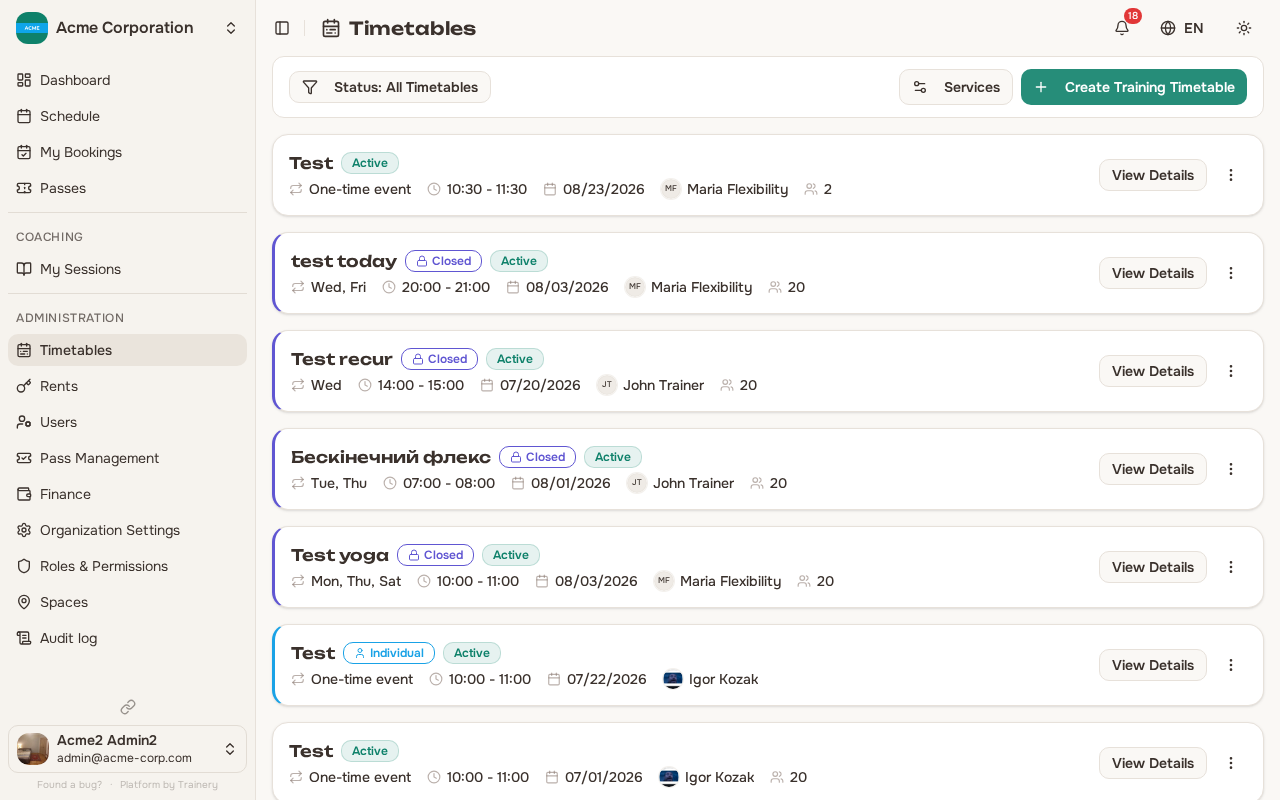
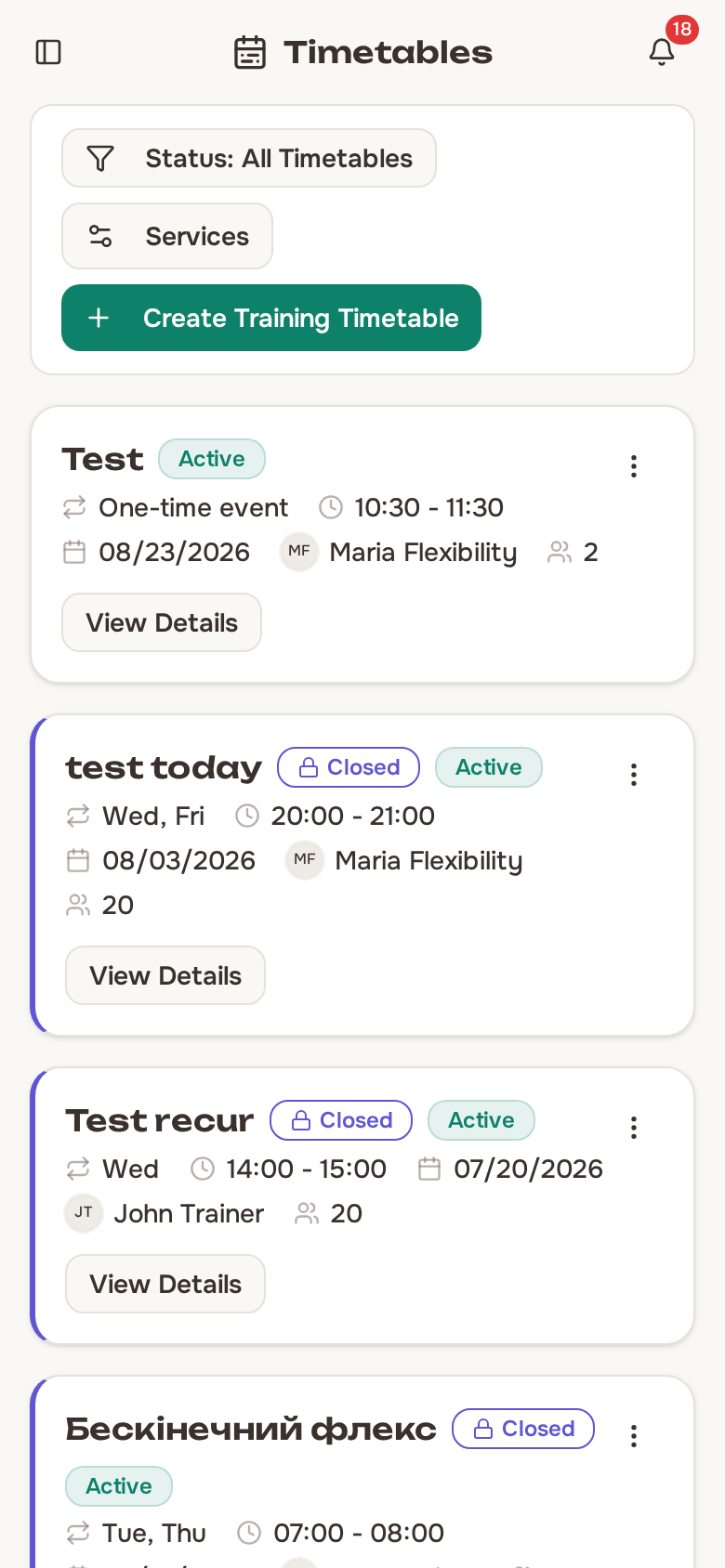
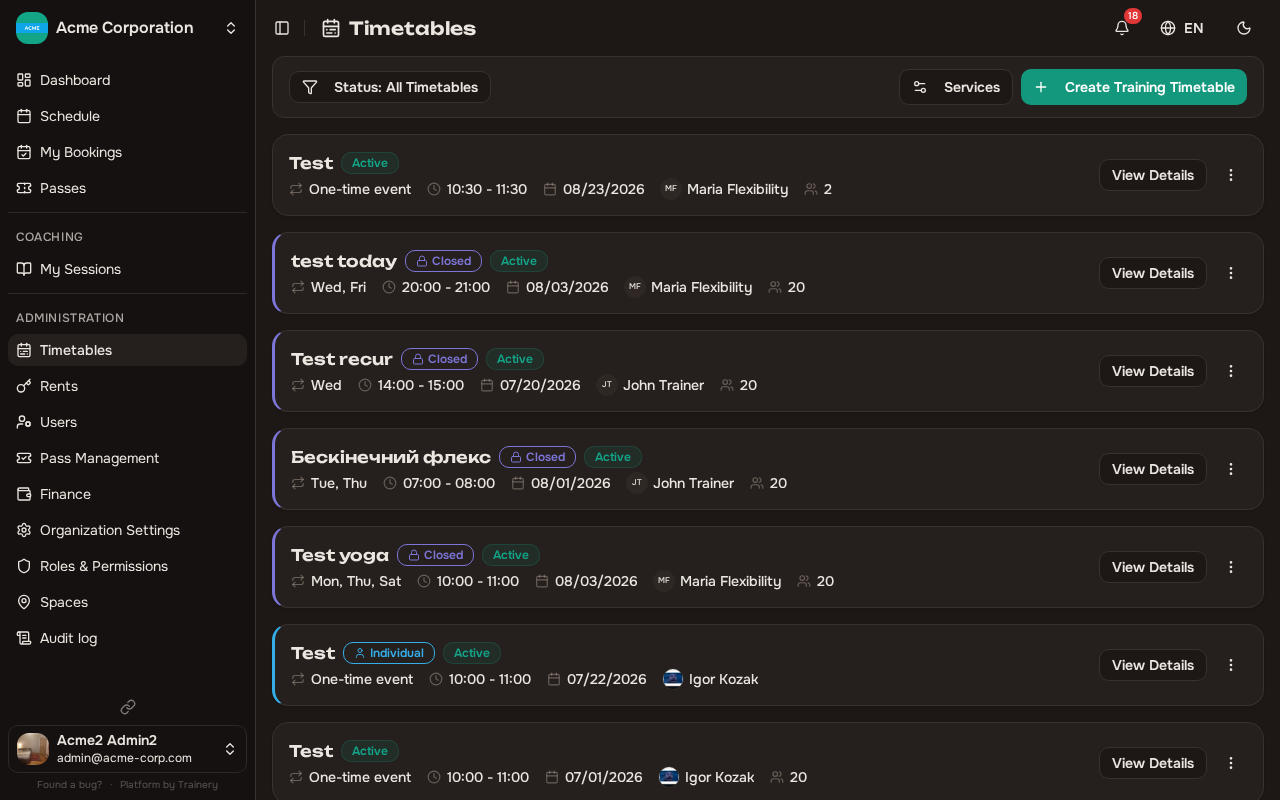
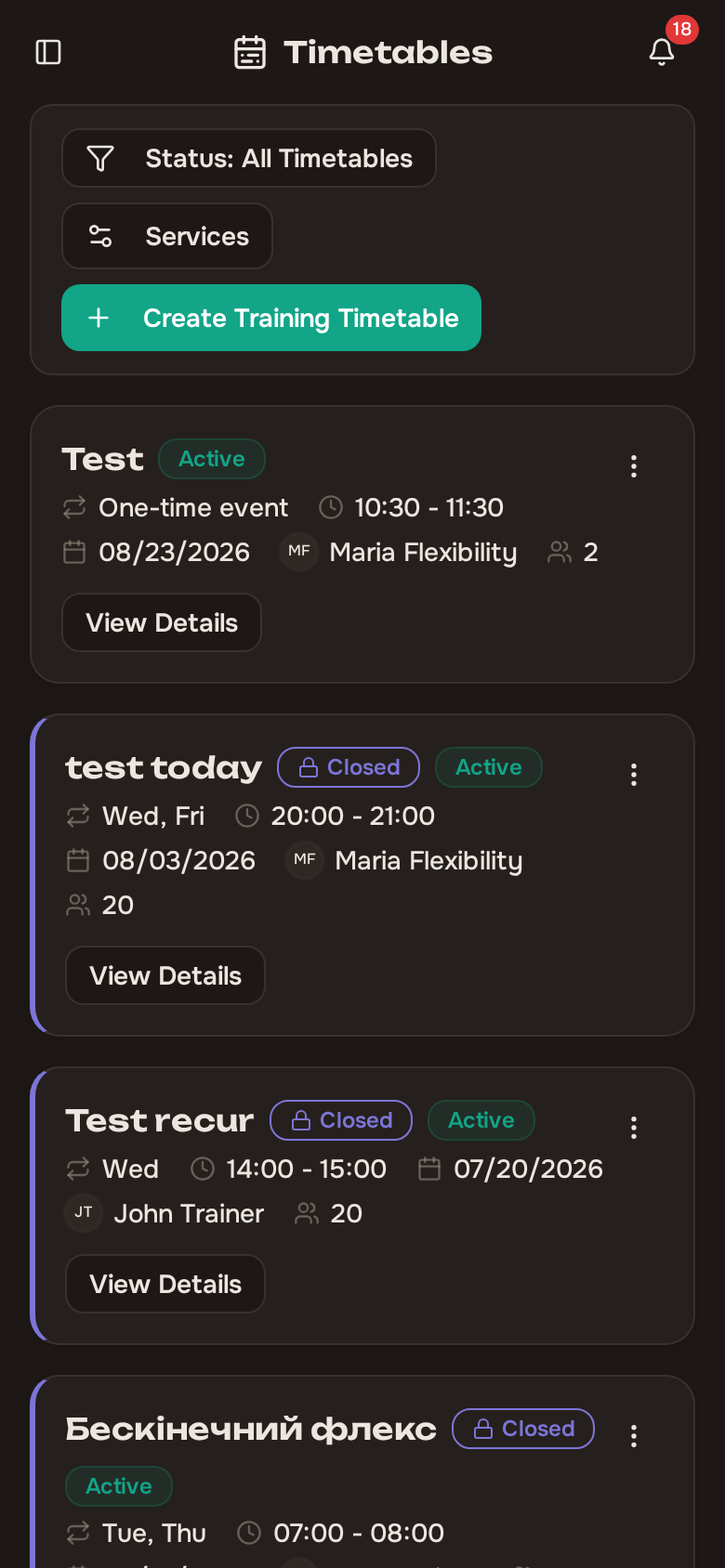
Section titled “Viewing Training Templates”The trainings page shows every template in your organization. You can filter the list by active or inactive status to quickly find what you need.
Each entry shows the training title, duration, capacity, and the passes that apply.
Updating a Training Template
Section titled “Updating a Training Template”With training.manage_all — which admins and owners hold — you can edit any training template in the organization, not only ones you created yourself. Open the template and make your changes — update the title, adjust the capacity, change the default space, or modify which passes are compatible.
Changes you make to a template apply to future occurrences only. Sessions that have already taken place or are currently in progress are not affected.
Deleting a Training Template
Section titled “Deleting a Training Template”If you no longer need a training template, you can delete it from the template detail view. training.delete_all covers every template in the organization; training.delete_own alone limits you to the ones you created.
You will be asked to confirm before the template is permanently removed.
Before deleting a template, consider whether making it inactive might be a better option. Inactive templates are hidden from scheduling but can be reactivated later.