Special Training Types
Beyond standard group sessions, Trainery supports special training configurations for more specific needs. These are set up through the regular training templates and schedules, with a few key differences.
Who can do this. Setting up individual and closed trainings goes through the create-timetable dialog, so it requires
training.create— held by admins and owners, not by trainers by default. See the note in Creating Trainings. Booking members into an individual session once it exists is separate: that isbooking.book_individual, which trainers do hold by default.
Individual Trainings
Section titled “Individual Trainings”Individual trainings are private sessions a trainer runs for one or more specific members — think personal coaching rather than an open group class.
To create an individual training, choose Individual in the Training type selector at the top of the create-timetable dialog. This tells Trainery to treat it as a private session.
An individual training has no seat limit at all. There is no capacity to set and none to run out of — the session holds whoever you put in it, whether that is one member or a small handful.
Because there is no limit, no screen shows a “booked of capacity” ratio or a filling capacity bar for an individual training. You see a plain participant count instead. A bar creeping toward a number that never applies would suggest a private session was running out of room, which it cannot.
Individual trainings differ from group sessions in two ways:
- Not shown on the public calendar — Members will not see these sessions when browsing available trainings. This keeps your schedule clean and avoids confusion.
- Someone books the members in — Instead of members booking themselves, whoever holds
booking.book_individual(trainers, admins and owners by default) adds them to the session directly. When you create the timetable you can pre-select the participants, and they are booked into every session it generates automatically.
Adding someone who is not in the system yet
Section titled “Adding someone who is not in the system yet”The Select participants… picker searches the people your studio already has. If the person you are booking is not one of them, you do not have to abandon the half-filled form to go and create them: the picker offers Create guest followed by the name you typed, and making that guest happens right there.
Two things keep the option out of your way:
- It appears only once you have typed both a first name and a surname. Until then you see the hint “Type a surname too — a guest needs both a first and a last name.”
- It appears only after the search has finished, so it never flashes over a member who does in fact exist.
The new participant lands in the field immediately — “The participant is added right away — an email can follow later.” You can add an email address to their profile whenever you get one, and activate the account from there as described in Managing Members.
Two studio-wide rules also treat individual trainings differently:
- They are exempt from the overtime pass-block — a late staff booking into an individual session can still be paid with a pass.
- They have their own booking deadline, separate from the one used for group sessions. It gates member cancellation only, not your ability to book people in.
Both of those are configured by admins — see Organization Settings.
Individual trainings are well-suited for personal coaching, assessments, or any scenario where you need a private session with a specific member.
Closed Schedules
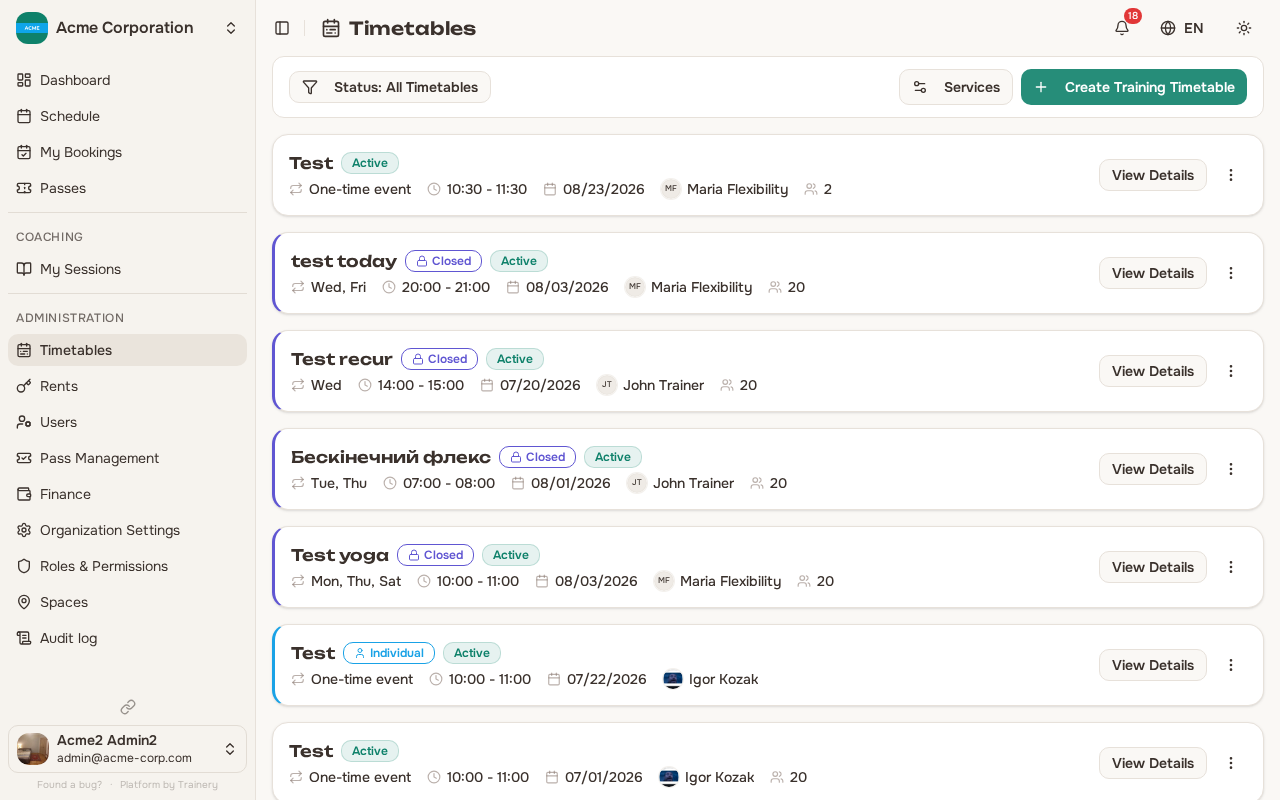
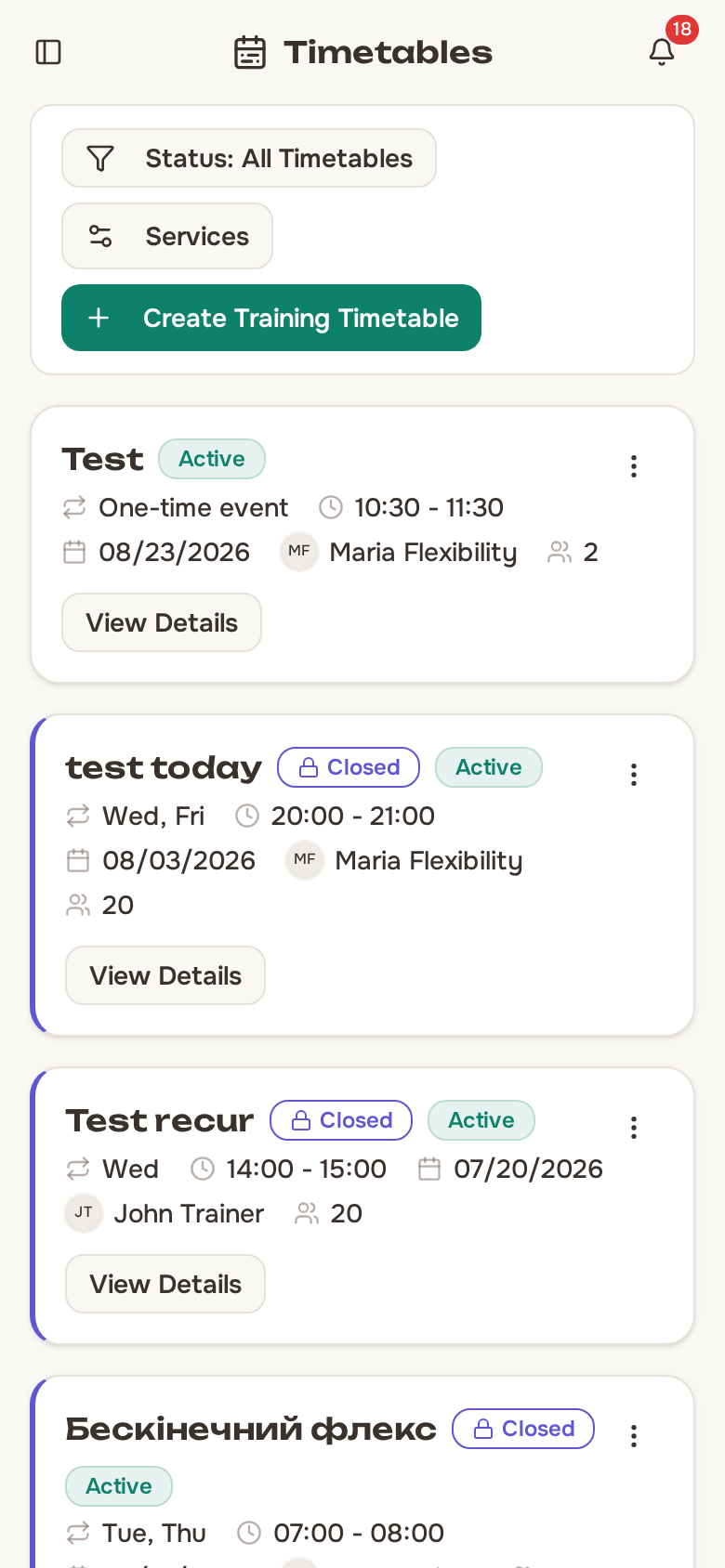
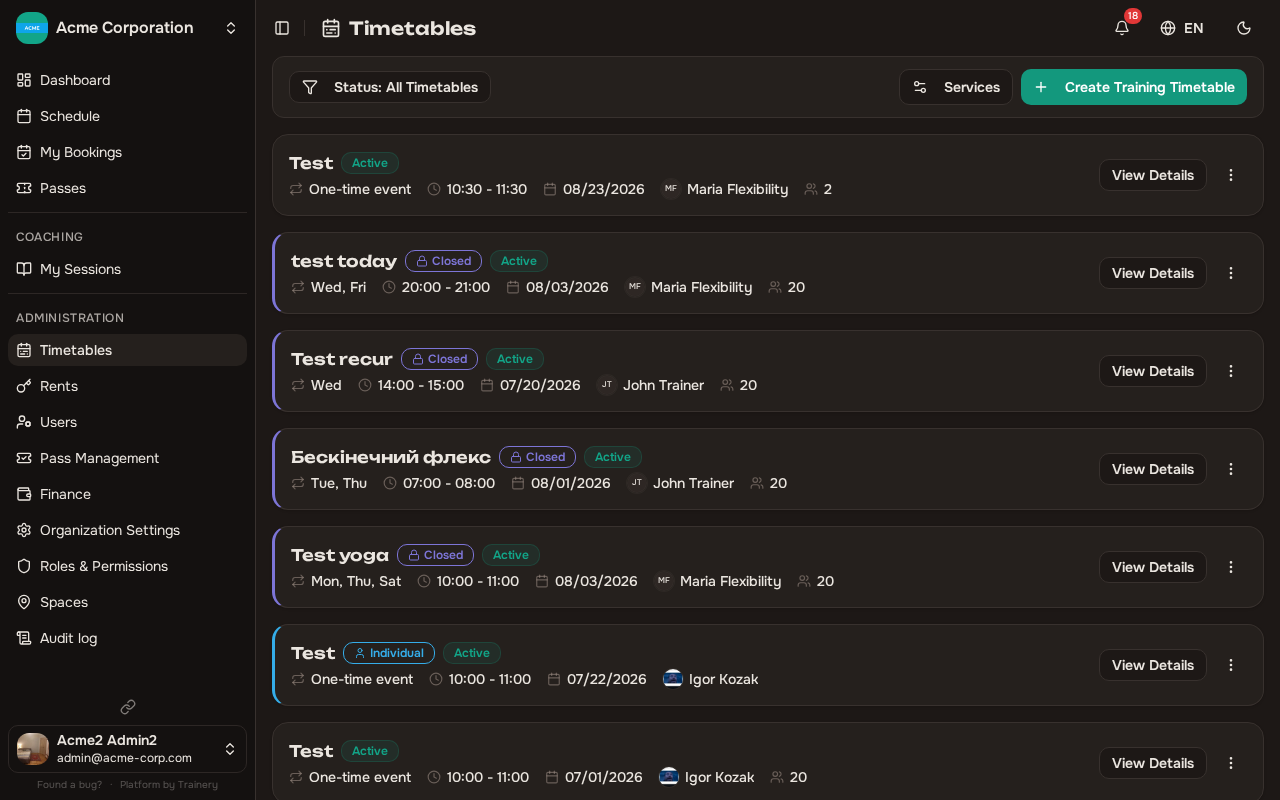
Section titled “Closed Schedules”A closed schedule is a pass-only training where participation is tied directly to holding a specific pass. This is useful for programs like fixed courses, workshops, or membership tiers where you want controlled enrollment.
Here is how closed schedules work:
- Members are automatically enrolled when they receive a linked pass. There is no need for them to manually book each session.
- Enrolment follows the timetable. If the course has fewer sessions scheduled than the pass covers, the member is booked into the ones that exist and the rest wait on the pass. Once you extend the timetable, they are booked into the new sessions automatically. See Pass Management.
- Members cannot book without a linked pass — If someone does not hold the required pass, they will not be able to register for the session.
- A closed schedule needs at least one linked pass to be useful. If a closed schedule has no pass attached, the schedules list shows a “No pass linked — add” warning badge on the card. Click the badge to open pass creation pre-filled with the schedule and its name, so you can wire them up in one step.
Closed schedules are ideal for structured programs where you want a consistent group of participants across multiple sessions, such as a multi-week course or a specialty training series.