Booking Sessions
Booking a session is the most common action you will take in Trainery. This guide covers everything from browsing the schedule to managing cancellations.
Viewing available sessions
Section titled “Viewing available sessions”You can find upcoming sessions in two ways:
- List view — Sessions are listed chronologically, making it easy to scan through the next few days. On a phone, a strip of days sits above the list: tap a day to jump to it, and the highlighted day follows you as you scroll. Days with nothing on are greyed out.
- Calendar view — A calendar layout that lets you see the full week or month at a glance.
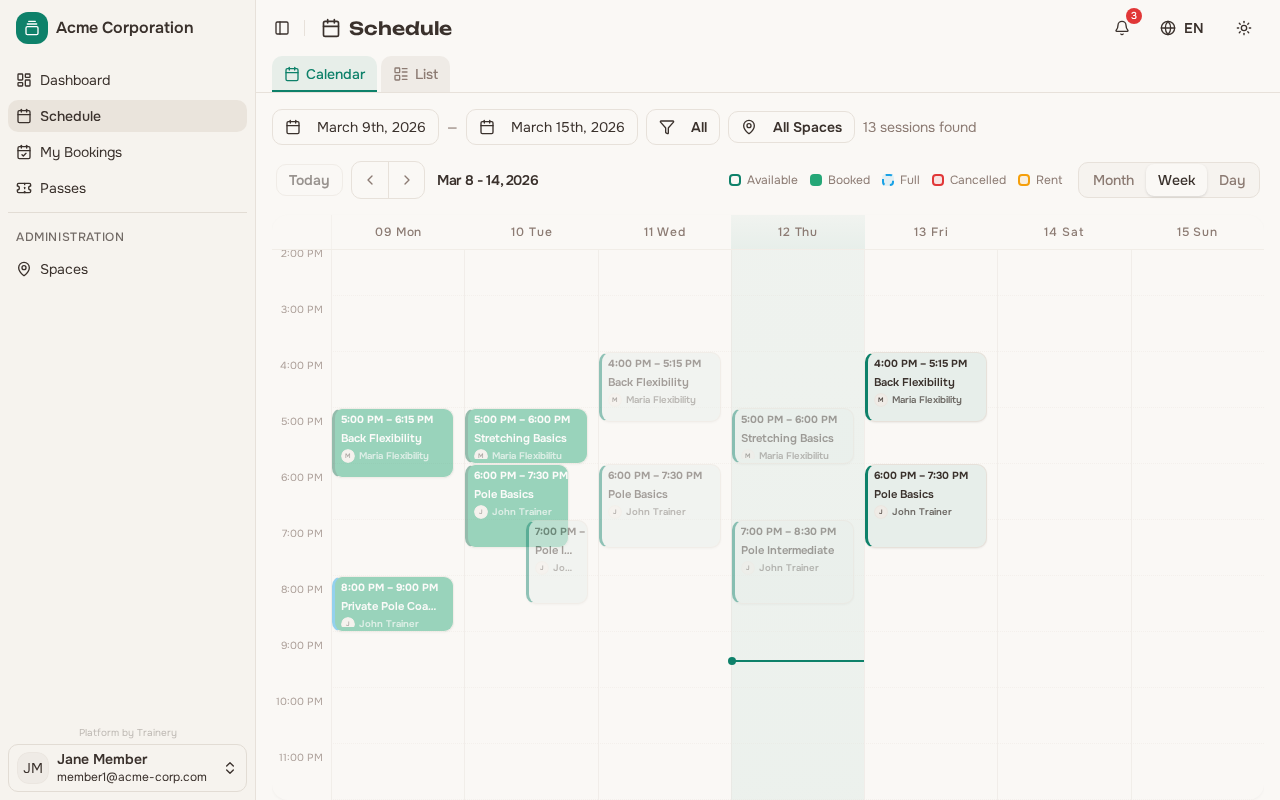
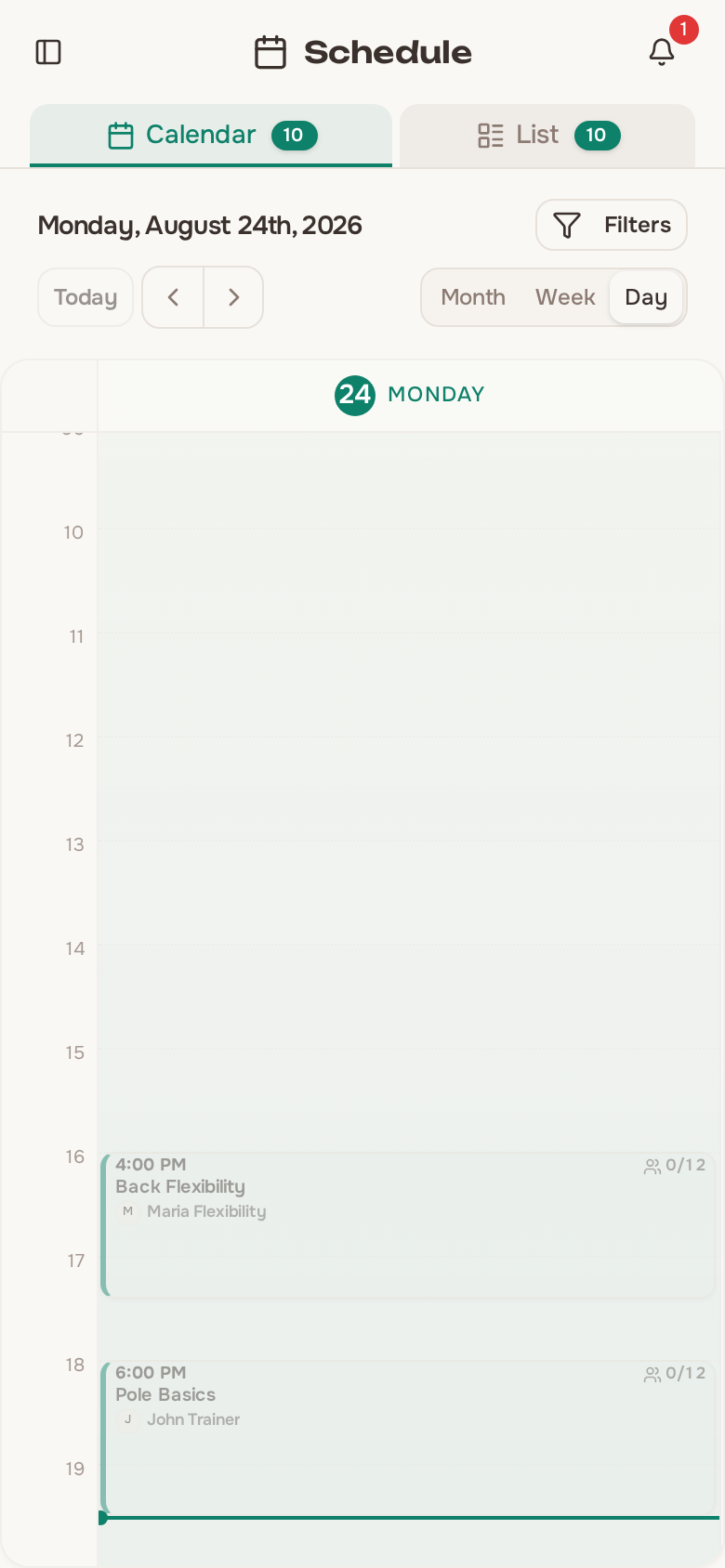
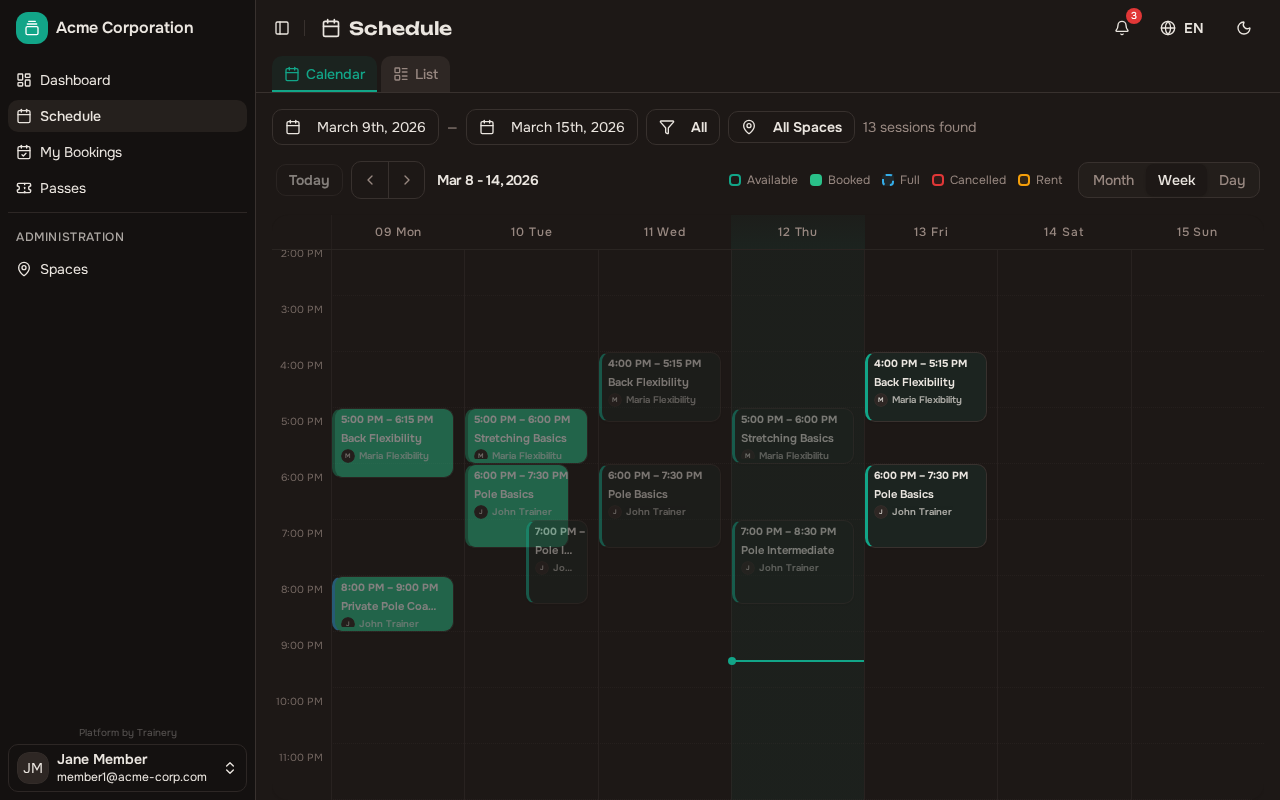
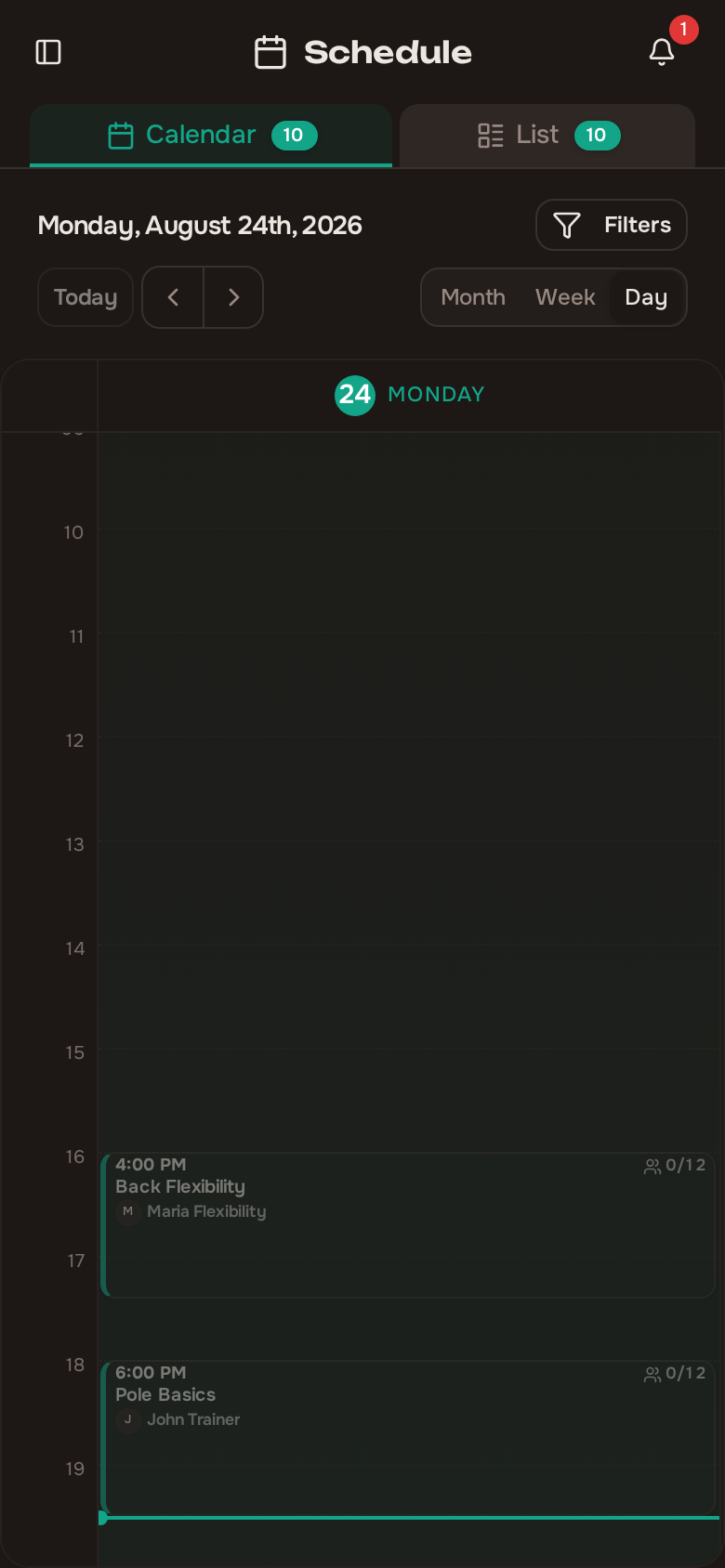
Each session shows the key details you need before booking:
- Training name
- Date and time
- Trainer
- Space (location)
- Number of spots available
Use the filters to narrow the list by date range or trainer if your organization has a busy schedule.
Viewing session details
Section titled “Viewing session details”Click on any session to see its full details:
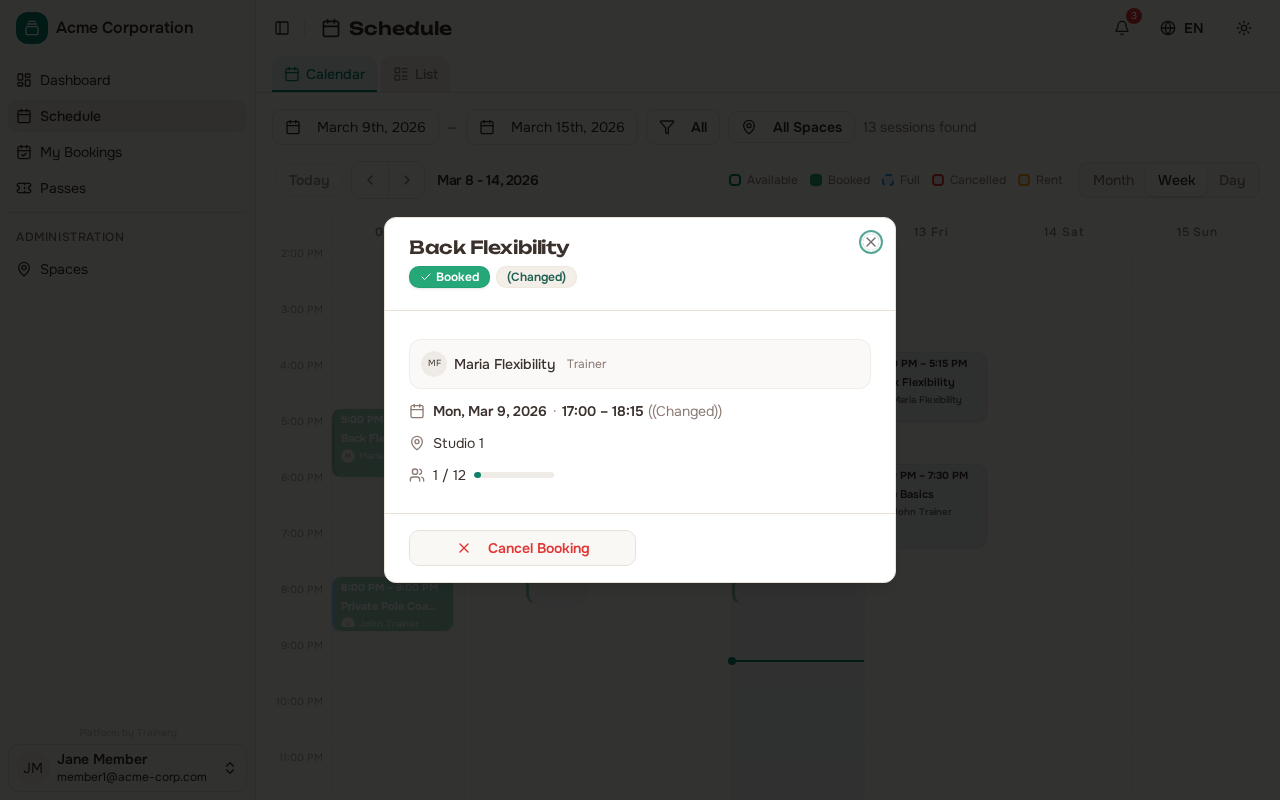
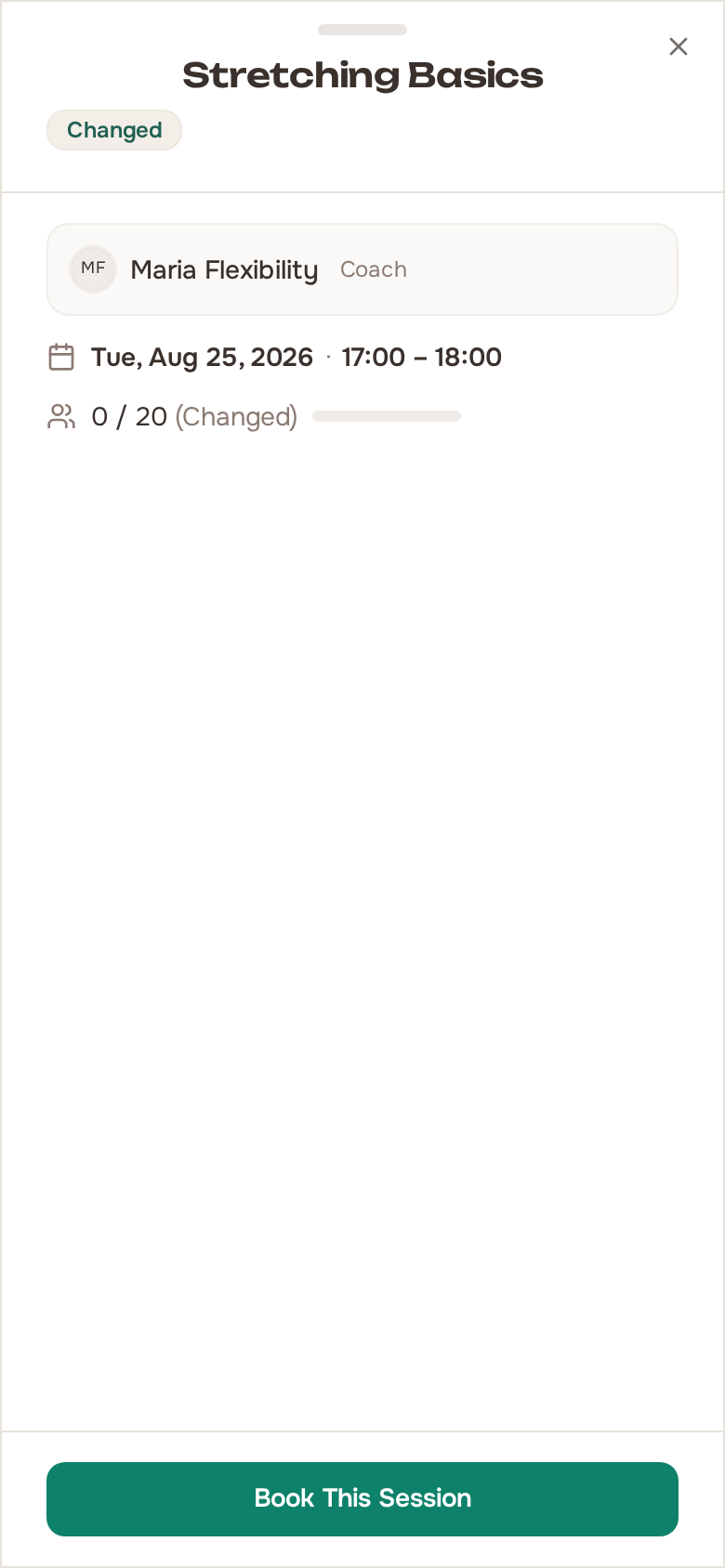
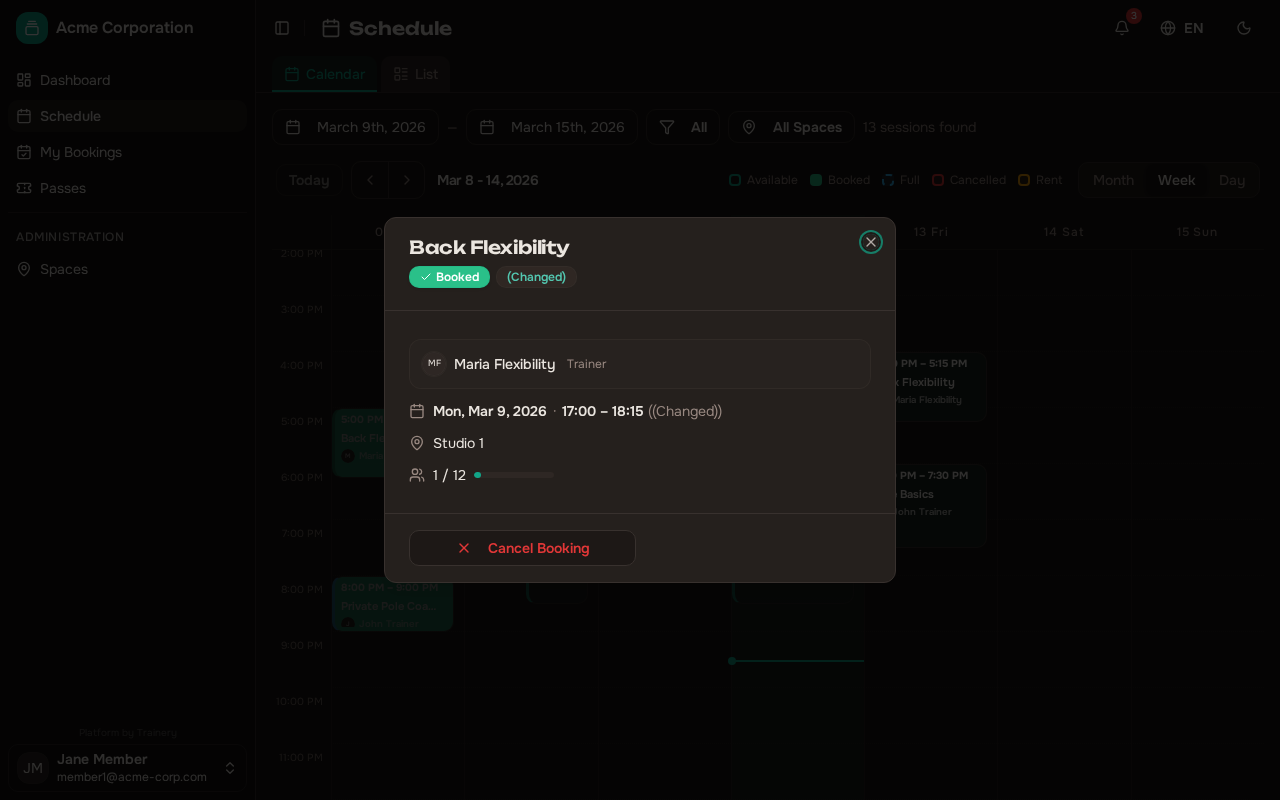
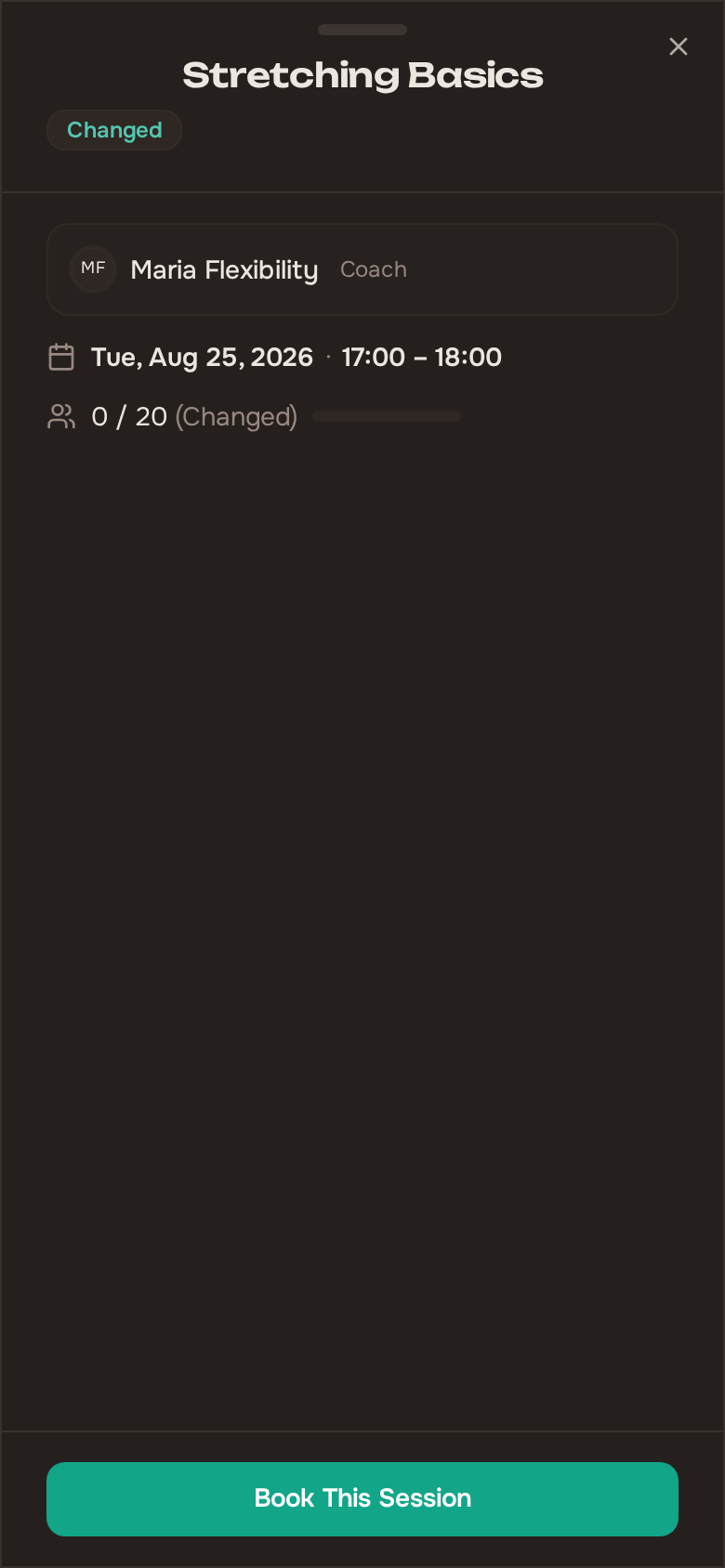
- Title and description of the training
- Date, start time, and duration
- Trainer leading the session
- Location or space
- Total capacity and current number of bookings
- Booking deadline (the cutoff time after which you can no longer book or cancel)
- Which passes are accepted for this session
If a session has been moved to a different time, everything you see follows the new time: the time on the card, the day it is grouped under, its place in the order, whether it counts as already past, and what any countdown counts down to. A moved session never lingers in the slot it no longer occupies.
Tip: Check the booking deadline before you leave a booking for later. Some sessions lock bookings well in advance.
Booking a session
Section titled “Booking a session”To book a session you need an active pass that applies to the training type. Here is how it works:
- Open the session you want to attend.
- You will see a list of your passes that are valid for this session.
- Select the pass you would like to use and confirm your booking.
In the list view you can also tap Book (or Join waitlist when the session is full) right on the session card. If exactly one of your passes can pay, there are no studio rules to accept and the session doesn’t clash with another booking of yours, you are booked on the spot. Otherwise, and always for the waitlist, the usual booking dialog opens so you can choose.
For a pass to be usable it must meet all of these conditions:
- The pass is currently active (not expired).
- The pass has remaining sessions.
- The pass applies to the training type of the session.
Accepting the booking rules
Section titled “Accepting the booking rules”If your organization has published booking rules, they open automatically the first time you book. Read them and press Got it, or tick I have read and understand the booking rules. yourself.
- The Confirm button stays disabled until the checkbox is ticked.
- You only accept once. After that, the booking dialog simply shows a View booking rules link so you can re-read them any time.
- If your organization changes its rules, you are asked to accept the new version once.
- If a trainer or admin books you into a session, you are not asked to accept anything.
What happens when you book
Section titled “What happens when you book”- Spot available — Your booking is confirmed immediately and one session is deducted from the selected pass.
- Session is full — You are placed on the waitlist. Your pass is not deducted while you are on the waitlist; it is only deducted if and when you are promoted to a confirmed spot.
Viewing your bookings
Section titled “Viewing your bookings”The My Bookings section shows all of your bookings split into upcoming and past. Each booking displays:
- Session name, date, and time
- Current status: Confirmed, Waitlisted, or Cancelled
Bookings are sorted by date so you can quickly see what is coming up next.
If you have rented a space, your space rentals appear in this same list, mixed in with your session bookings in date order. A rental is marked with a Rent badge and, while it is still upcoming, shows the same countdown and Add to Calendar option; you can open its details or cancel it from here.
Changing which pass pays
Section titled “Changing which pass pays”If you booked a session with one pass but would rather it came off a different one, you do not need to cancel and re-book. Open the booking and choose Change pass to move it onto another of your applicable passes – the session is credited back to the old pass and one is taken from the new one in a single step, and your spot is kept.
A few limits apply:
- It is only available before the trainer marks attendance. Once a session has been marked, its pass is settled.
- It works only for a booking paid with a pass – not one paid by cash or card, and not a course or overtime booking.
- A pass that would run out before the session happens is flagged Expires before this session and cannot be chosen – a pass can only pay for a session it will still be valid for.
When a booking moves to cash
Section titled “When a booking moves to cash”Sometimes a trainer uses one of your passes for an earlier session while marking attendance. When that happens, your furthest-out future booking on that pass is moved to cash, and you get a “Booking now paid by cash” notification naming the session. Your pass balance nets out – you neither lose nor gain a session.
The notification links to your bookings, so you can Cancel booking if you no longer want it. Only a booking that has not happened yet is ever moved this way.
Cancelling a booking
Section titled “Cancelling a booking”You can cancel a booking as long as the deadline has not passed. It is the same deadline that closes booking – one cutoff for both – so if a session stopped accepting bookings three hours before the start, that is also the last moment you could have cancelled it. After it, the cancel option is replaced by a note saying so; contact your trainer or the studio if you can’t attend. Some studios write that note themselves; where they have not, Trainery’s own wording names the exact time cancelling closed.
To cancel:
- Go to My Bookings and find the session.
- Choose the cancel option.
- Confirm the cancellation.
When you cancel a confirmed booking:
- The session is refunded back to your pass.
- If anyone is on the waitlist for that session, the next person in line is automatically promoted to a confirmed spot.
Tip: Cancel as early as you can. This frees the spot for someone on the waitlist and ensures your pass session is returned.
When the studio cancels a session
Section titled “When the studio cancels a session”Sometimes the cancellation comes from the other direction. If a session you booked is called off, you are notified and the session goes back onto your pass, where the return shows up in the pass’s modification history.
The session itself tells you why it was cancelled:
- If the studio wrote a reason, you see exactly what they wrote.
- If the class was cancelled automatically because too few people had signed up, you see Cancelled due to low attendance in your own language. How few is too few is the studio’s own setting, and it is not shown to you.
- If no reason was given, nothing is shown in its place.
A session that the studio has been warned about but has not cancelled still looks completely normal to you — the warning goes to the studio, not to the people who booked.
When a studio calls off a whole recurring timetable rather than a single session, you get one notification for the lot, naming the training, the date it stops from, and how many sessions were returned to your pass.
Understanding the waitlist
Section titled “Understanding the waitlist”When a session is fully booked, your booking is placed on a waitlist instead of being rejected. Here is how the waitlist works:
- You join the waitlist in the order you booked — first come, first served.
- Your pass is not charged while you are on the waitlist.
- If a confirmed member cancels, the next person on the waitlist is automatically promoted to a confirmed booking.
- When you are promoted, one session is deducted from your pass and you receive a notification letting you know.
You do not need to take any action — the promotion happens automatically and you will be notified right away.