Space Management
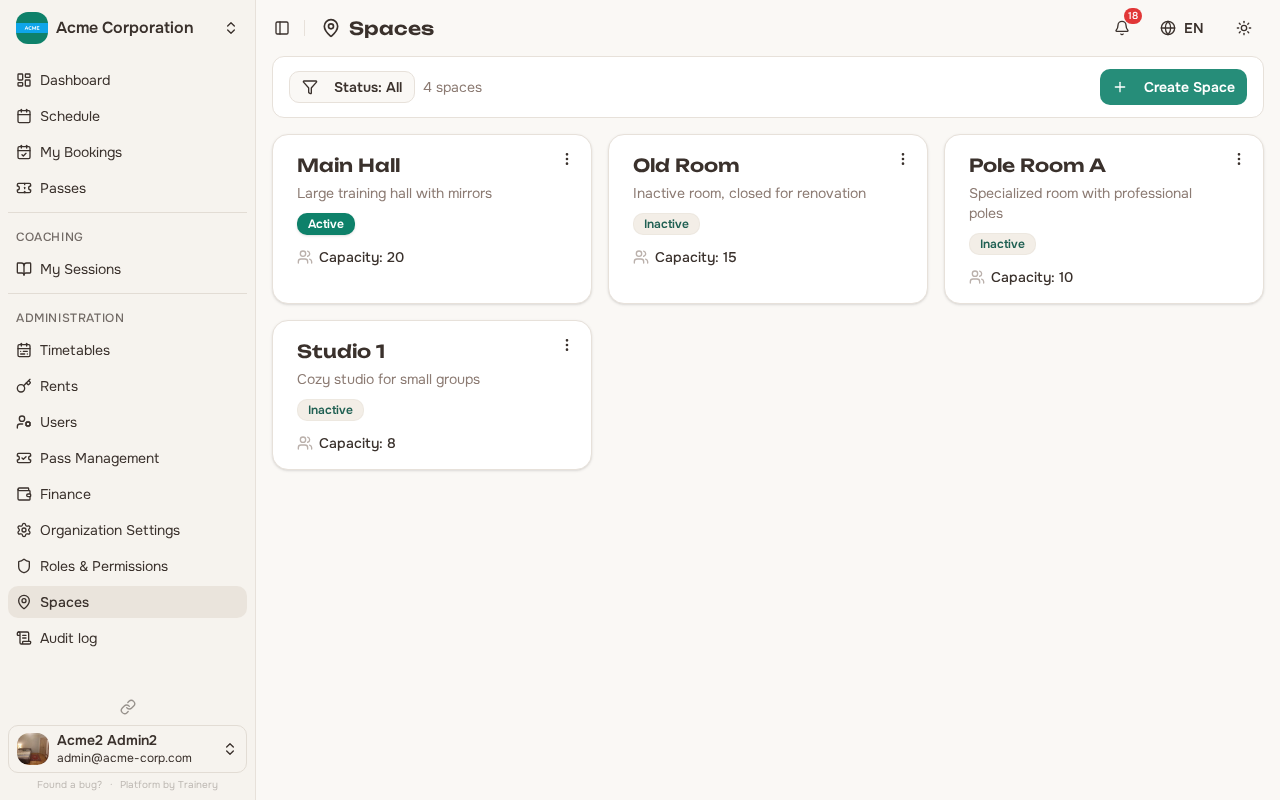
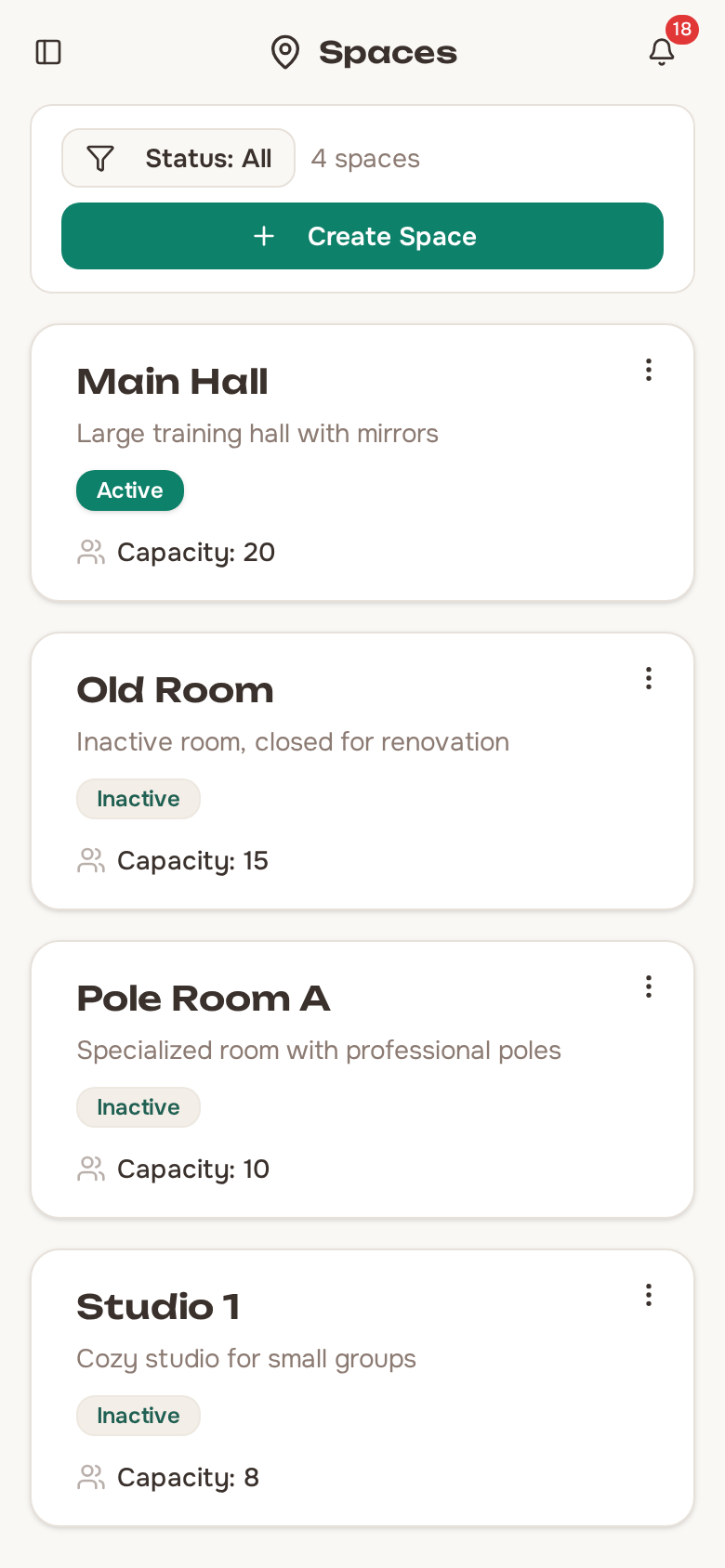
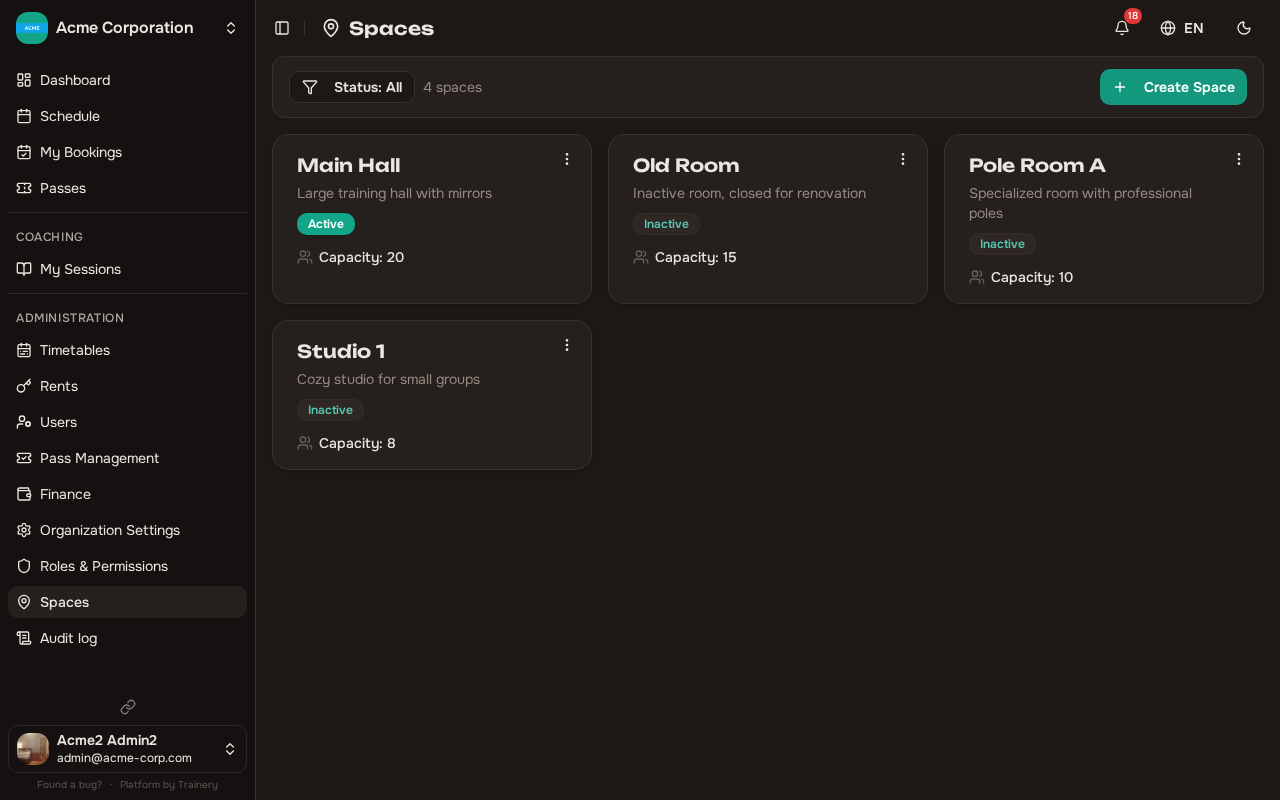
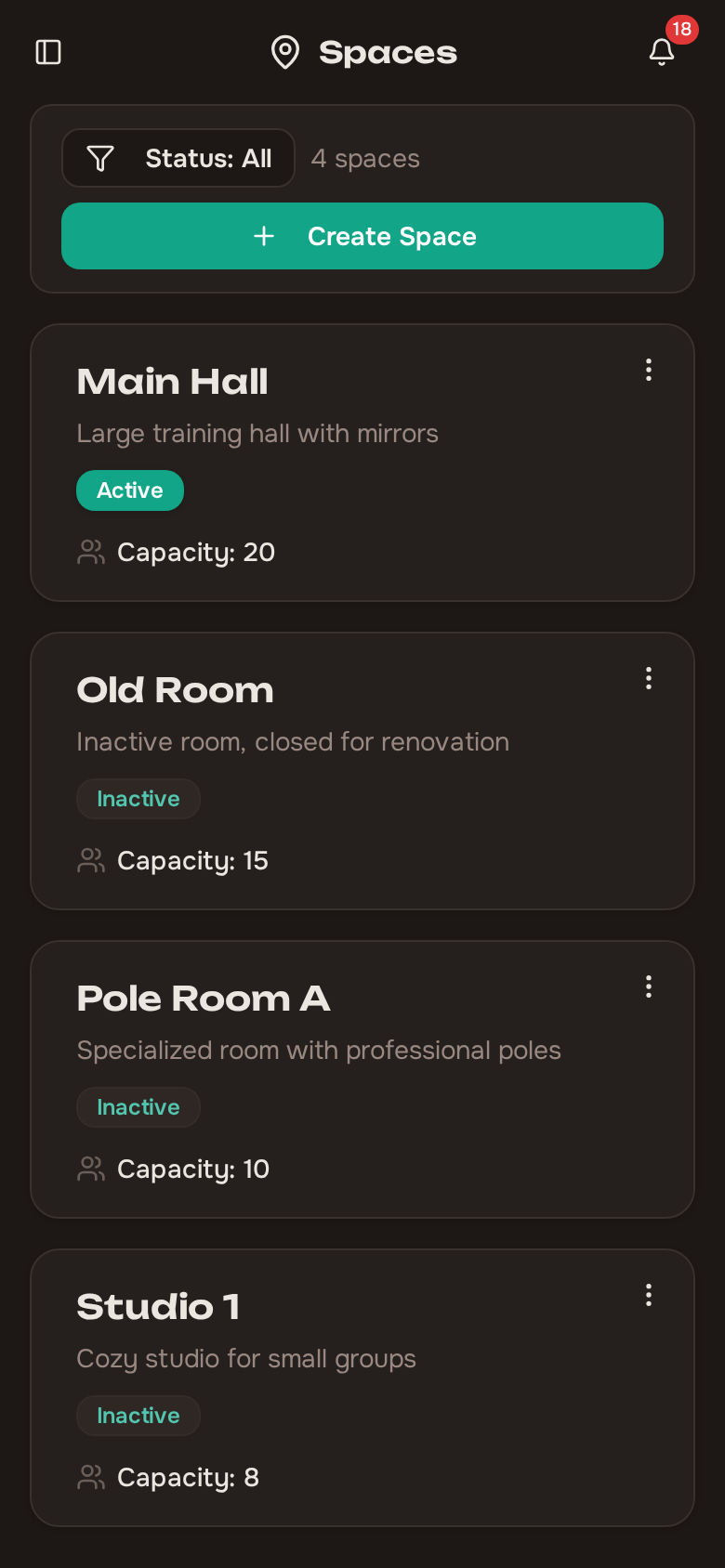
Spaces represent the physical locations where training sessions and rentals take place – rooms, studios, courts, or any other venue your organization uses.
Creating a space
Section titled “Creating a space”To add a new space:
- Go to the space management section.
- Create a new space.
- Fill in the details:
- Name (supports multiple languages if your organization has more than one locale).
- Description (optional, also multilingual).
- Capacity – the maximum number of participants the space can hold.
- Save the space.
Once created, the space becomes available for scheduling trainings and creating rentals.
If your organization only has one space, Trainery automatically simplifies the interface – space selection fields are auto-filled and space filters are hidden on list and calendar pages.
Updating a space
Section titled “Updating a space”You can update a space’s name, description, or capacity at any time. Changes take effect immediately and apply to future scheduling.
Deleting a space
Section titled “Deleting a space”When a space is no longer in use, you can delete it from the system. Keep in mind that deleting a space may affect existing schedules and rentals associated with it, so review any upcoming events before removing a space.
Before deleting a space, check whether any active training schedules or rentals are still assigned to it.