Managing Schedules
Once you have a training template, you can schedule it to create actual sessions that members can book. Trainery supports both one-time and recurring schedules, giving you flexibility to plan ahead.
Who can do this. Scheduling requires
training.create, which admins and owners hold by default. Trainers do not — see the note in Creating Trainings.
Creating a One-Time Schedule
Section titled “Creating a One-Time Schedule”A one-time schedule creates a single session. To set one up:
- Select the training template you want to schedule.
- Choose a date and time.
- Optionally, override the default space if this particular session will take place somewhere else.
That’s it — the session will appear on the calendar and become available for booking.
Start and end times
Section titled “Start and end times”Every session runs within a single day, so the end time must be later than the start time. You set the start and the end, and Trainery keeps the duration in sync automatically — move the start and the end follows, keeping the same length; change the end and the duration updates; type a duration and the end is calculated for you.
Overnight sessions that run past midnight are not supported. If you enter an end time earlier than the start, Trainery will not let you save.
Creating a Recurring Schedule
Section titled “Creating a Recurring Schedule”Recurring schedules let you repeat a training on a regular basis without manually creating each session.
Frequency Options
Section titled “Frequency Options”You can set the recurrence to one of the following:
- Daily — Repeats every day, or every N days (e.g., every 2 days).
- Weekly — Repeats on selected days of the week (e.g., every Monday and Wednesday).
- Monthly — Repeats either on a specific date (e.g., the 15th of each month) or on a specific day pattern (e.g., the 3rd Saturday of each month).
- Yearly — Repeats once a year on the same date.
For any frequency, you can set a custom interval. For example, “every 2 weeks” instead of every week.
End Conditions
Section titled “End Conditions”Every recurring schedule needs an end condition:
- Never — The schedule runs for up to one year automatically.
- On a specific date — The schedule ends on the date you choose.
- After N occurrences — The schedule ends after a set number of sessions.
Exception Dates
Section titled “Exception Dates”If there are specific dates when the training should not occur (holidays, closures, etc.), you can add exception dates. These dates are skipped while the rest of the recurring pattern continues as normal.
Viewing Schedules
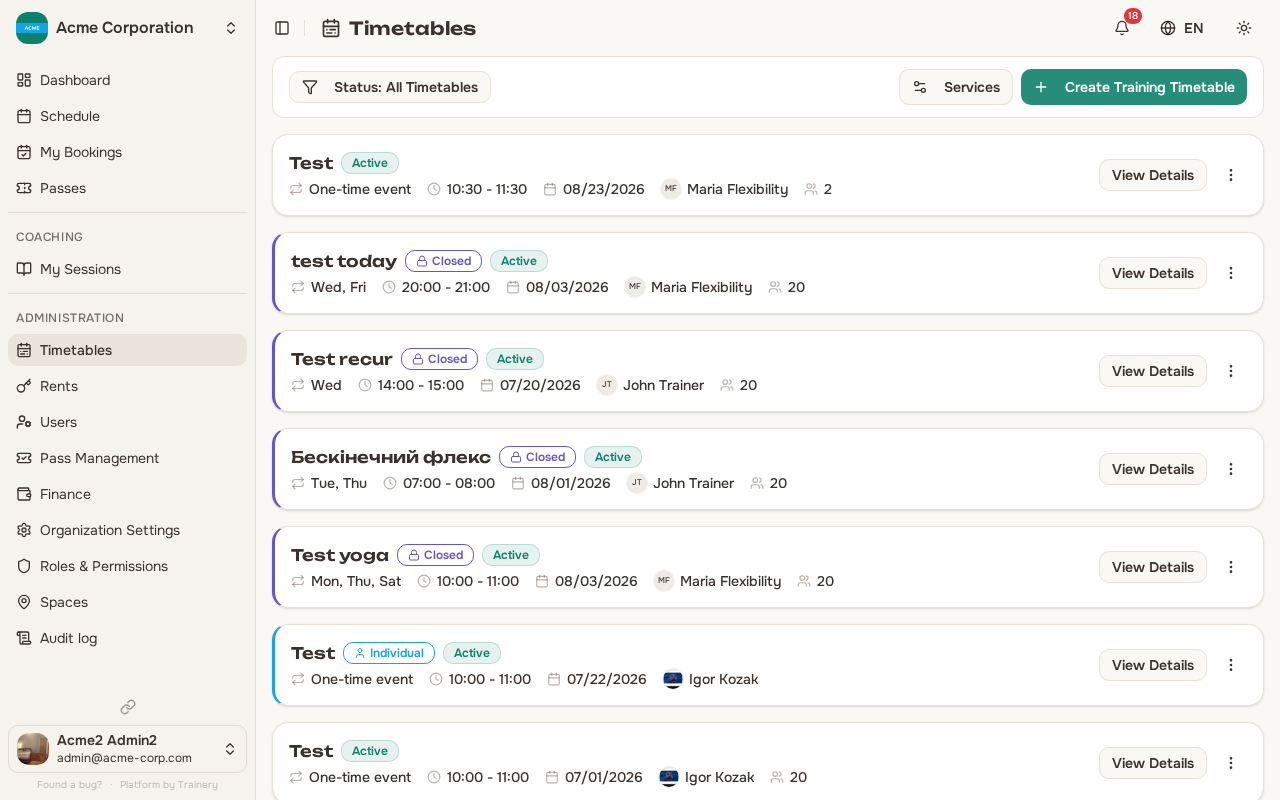
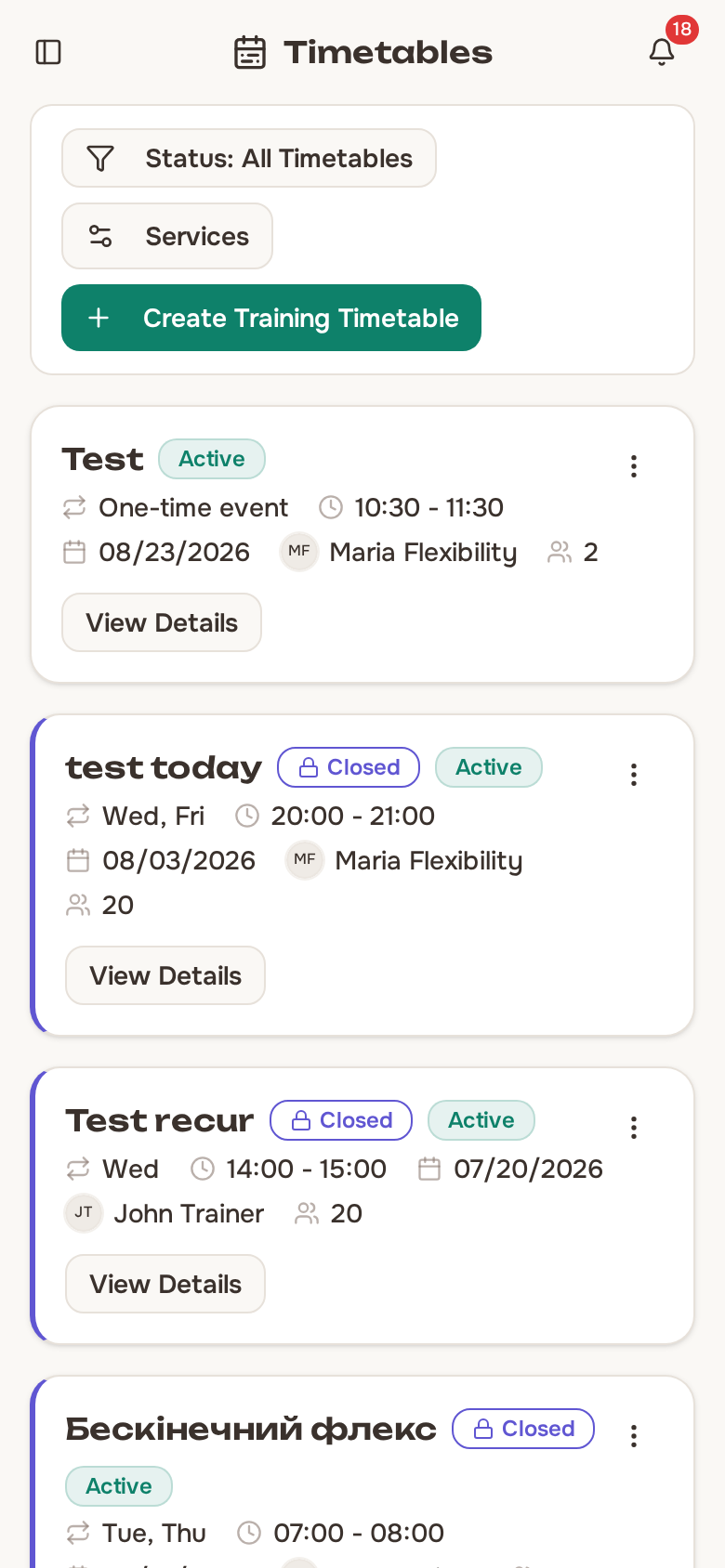
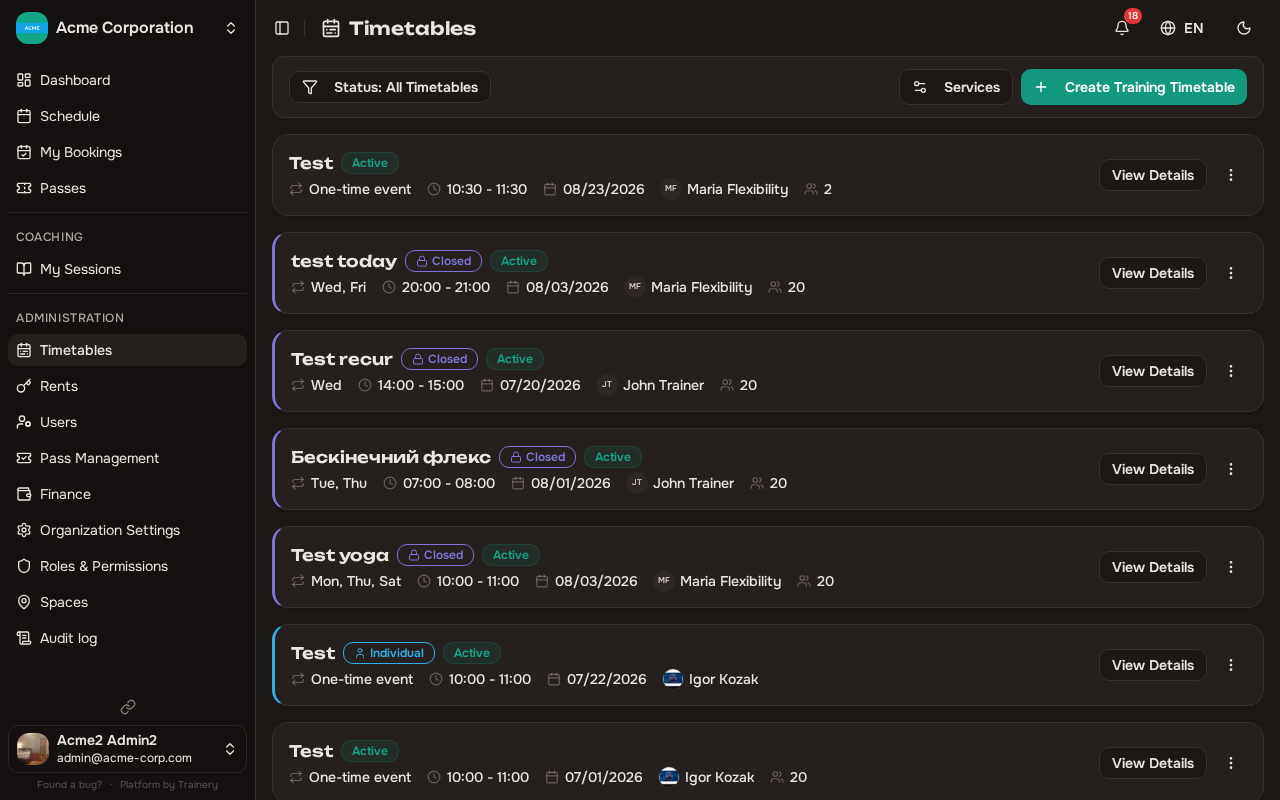
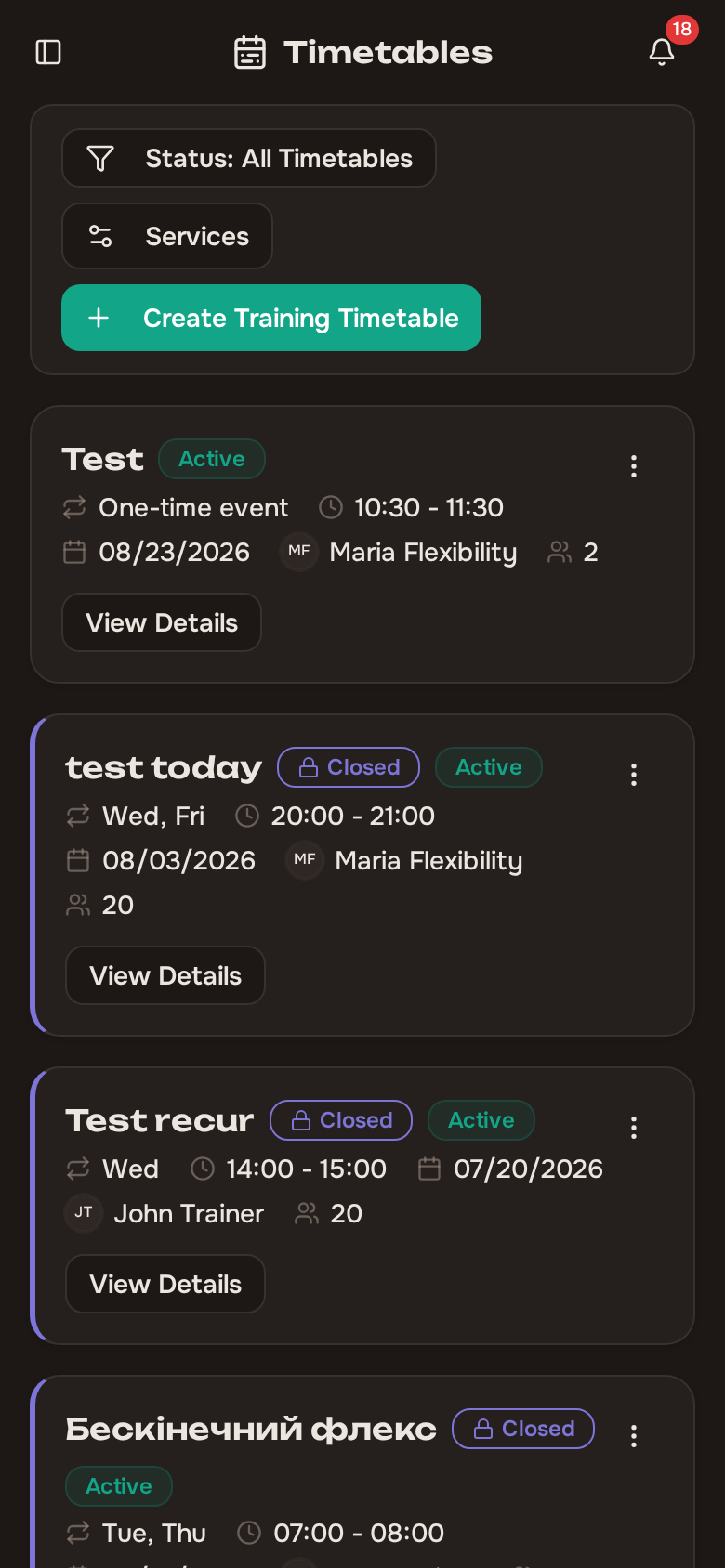
Section titled “Viewing Schedules”The schedules page displays every active schedule in your organization, with useful information at a glance:
- The recurrence pattern (e.g., “Weekly on Mon, Wed, Fri”)
- The next upcoming occurrence
- The total number of occurrences
Searching and filtering
Section titled “Searching and filtering”For a long list, you can narrow it down:
- Search timetables… matches on the training name or the trainer’s name.
- Filter by trainer to show only one person’s timetables.
Active and inactive timetables
Section titled “Active and inactive timetables”By default the page shows only Active timetables. Use the status filter to switch between Active, Inactive, and All Timetables.
A timetable becomes Inactive on its own once it has no sessions left to run — a one-off whose date has passed, or a recurring one that reached its end date or occurrence limit. You never deactivate it by hand, and if you later extend it (adding new future sessions) it returns to Active automatically. A recurring timetable set to end Never always stays active, because there are always more sessions ahead.
Checking for Conflicts
Section titled “Checking for Conflicts”When you create or modify a schedule, Trainery automatically checks for conflicts. There are three types:
- Trainer time conflicts — The assigned trainer already has another session at the same time.
- Space conflicts — The selected space is already booked for another session.
- Member conflicts — A member enrolled in the session has a conflict with another booking.
You will be notified of any conflicts so you can adjust the schedule accordingly.
Editing a timetable never conflicts with itself: saving an edit rebuilds the timetable’s own future sessions, and those sessions are not counted as conflicts against the new version. If a genuine conflict remains — the room or trainer really is busy at the new time — the save is refused with That room or trainer is already busy at this time. Change the time, room or trainer.
Editing a Schedule That Already Has Bookings
Section titled “Editing a Schedule That Already Has Bookings”Trainery never cancels someone’s booking in order to rebuild a schedule. When a schedule regenerates its sessions after an edit, a future session that members have already booked is preserved rather than dropped and recreated.
On a recurring schedule that means a booked date keeps its time while every other date moves to the new one.
A one-time schedule is different: its single session is the schedule, so changing the start or end time moves that session, bookings and all. The members who booked it are notified that it was rescheduled, and their reminder follows the new time. The session is not marked as rescheduled — it simply is at the new time. If the new time clashes with another session, the save is refused and nothing moves. The check uses the session’s own trainer and space, so a session you reassigned to another trainer is checked against that trainer’s day. A cancelled session is left where it is.
There are two exceptions, and in both the session stays where it is. Instead of the usual success message, you get a warning headed The session kept its original time:
- You already rescheduled the session itself. That reschedule wins. The warning reads: This session was rescheduled separately, so changing the timetable does not move it. Open the session and reschedule it — the booked members will be notified.
- The session has already taken place, or the new time has already passed. A session counts as having taken place once it has started or attendance has been marked for it. A booked session is never moved into the past. The warning reads: This session has already taken place, or its new time has already passed, so changing the timetable does not move it.
The rest of the edit still applies: the schedule stores the new time, and changes to the trainer, the space, or the capacity reach the session.
On a closed timetable, an edit that adds sessions (for example, moving the end date out) also books every member who still has sessions owed on their closed pass into the new ones, in the same save. See Pass Management.
Cancelling a Schedule
Section titled “Cancelling a Schedule”If you need to stop a recurring schedule going forward, you can cancel all future sessions. When you do this:
- Only future occurrences are cancelled. Past sessions remain unchanged.
- Any existing bookings for the cancelled sessions are automatically cancelled.
- Passes used for those bookings are refunded to the members.
- Anyone who was only on the waitlist is released too, but nothing is refunded to them — waiting for a seat never cost a session.
- Each affected member gets one notification, not one per cancelled session. It names the training, the date the cancellation starts from, and how many sessions went back onto their pass. Members who are owed nothing back are simply told the timetable is cancelled.
- The trainer who was leading the timetable is notified as well, even if they had no booking of their own.
- Your activity log records the cancellation once, with the number of sessions and bookings it affected.
Cancelling is the recommended approach when you want to stop future sessions while preserving the history of sessions that already took place.
Deleting a Schedule
Section titled “Deleting a Schedule”Deleting a schedule removes it entirely, along with all of its occurrences (past and future).
If a closed pass is linked to the timetable, the confirmation warns you that deleting removes every member’s bookings and attendance in it and leaves the pass tied to no group. To change dates or extend a course, edit the timetable instead: members are enrolled into the new sessions automatically.
Use deletion only when you need to remove the schedule completely. If you just want to stop future sessions, cancelling is usually the better choice.