Rent Management
If your organization rents out its spaces, the rent management section lets you handle everything from creating new rentals to viewing them on a calendar alongside training sessions.
Rent must be enabled in your organization settings before you can use these features. See Organization Settings for details.
Creating a rental
Section titled “Creating a rental”To create a new rental:
- Go to the rent management section.
- Create a new rental.
- Choose the type: Rent or Self-training. Rent is selected by default and is the normal case – you are renting the space out to a customer. Self-training is covered below. The type is chosen here and cannot be changed later.
- Fill in the details:
- Space: Select which space is being rented.
- Date and time: Choose the start and end time.
- Title: A name or description for the rental (supports multiple languages).
- Base price: What you charge for the space itself. You can charge it as a fixed amount for the whole booking, or per hour, in which case Trainery multiplies it by the rental’s duration. If you leave the price blank, it falls back to the space-specific price, and then to the organization’s default rent price.
- Add-ons: Any equipment the renter is also taking (see below).
- Payment method: How the rental will be paid.
- Save the rental.
Scheduling conflicts
Section titled “Scheduling conflicts”Trainery checks for scheduling conflicts when you save, and handles them exactly the way creating a training schedule does: it warns, it does not block. If the space is already taken during the selected time, the first save does not fail – the dialog shows Scheduling conflicts detected and lists the overlapping rentals and sessions inline, and the save button relabels to Create Anyway (or Save Anyway when you are editing). Click it a second time and the rental is saved on top of the overlap.
Double-booking a room on purpose is a legitimate thing a studio does, which is why the second click exists. Changing the space, the date or the times clears the warning, so the next save re-checks from scratch rather than pushing through an overlap that is no longer the one you were shown.
Self-training
Section titled “Self-training”Sometimes a space is not being rented out to a customer at all – a trainer simply wants to book a room to practise on their own. That is what the Self-training type is for.
A self-training slot is deliberately minimal: it is just space + time + price. When you pick this type, the form changes:
- The renter picker lists only trainers – people who are allowed to lead sessions. If you select someone who is not, saving is rejected.
- The title, number of people, pricing type, equipment add-ons and price breakdown / manual override fields disappear.
- What remains is the space, the date, the start and end time, the price, and the payment method.
Everywhere else a self-training slot behaves like any other rental: it occupies the space, so it prevents double-booking, it appears on the calendar, and it counts in finance reports.
Because a self-training slot has no title, Trainery labels it Self-training followed by the trainer’s name – for example Self-training – Anna Kovalenko – in lists and on the calendar, and shows a Self-training badge on the rental card and in the detail dialog.
The type is fixed at creation. Editing a self-training slot shows the same reduced form, with no type picker – to change the type, cancel the slot and create a new one.
Equipment add-ons
Section titled “Equipment add-ons”Beyond the space itself, you can charge for extras the renter uses – lights, a smoke machine, a PA system, and so on. These live in an inventory catalog that you manage once and then reuse on every rental.
To manage the catalog, open the inventory manager from the rent page. For each item you set:
- Name and description (supports multiple languages).
- Price, charged either as a fixed amount per rental or per hour of the rental’s duration.
The list itself is reordered by dragging — the order you give it here is the order the items appear in when you add equipment to a rental. Anyone who can see rentals can read the list; changing the order needs the permission to manage rents.
When you create or edit a rental, pick the items the renter needs and set a quantity for each. Trainery shows a running breakdown so you can see exactly what makes up the total.
The inventory is a price list, not a stock room. Trainery does not track how many of an item you own and will not warn you if the same item is on two overlapping rentals.
Items you no longer offer can be deactivated rather than deleted. A deactivated item disappears from the picker for new rentals but stays visible on past ones, so your historical records and finance reports stay intact. You can restore it later at any time.
Prices on a rental are a snapshot: changing an item’s price in the catalog affects future rentals only and never rewrites what an existing rental cost.
The total price
Section titled “The total price”The rental total is calculated for you:
Total = base price (fixed, or hourly × duration) + all add-on lines
If you have agreed a different figure with the renter – a long-booking deal, a bundle discount, an agreed surcharge – you can set a manual price override and record the reason for it. The override becomes the amount charged, while the calculated subtotal stays visible underneath so you can always see what the standard price would have been and why it was changed.
Prepayment and confirmation
Section titled “Prepayment and confirmation”Some studios take the money before the renter walks in. If yours does, turn on Require prepayment in the Rent section of Organization Settings. It is off by default, so nothing about rentals changes for a studio that does not prepay.
With it on, a newly created rental opens as Awaiting payment instead of Booked.
An awaiting-payment rental still holds the space. It appears on the calendar, and it blocks another rental or a training session from being scheduled over it – the slot is reserved whether or not the money has landed yet. What it does not do is count as income: finance reports only count rentals that have actually been paid for.
Self-training slots are never held this way. A trainer booking a room to practise (see Self-training above) is not a sale, so those slots are created as normal regardless of the setting.
Marking a rental paid
Section titled “Marking a rental paid”When the money arrives, someone with the confirm permission marks the rental paid with a single action – Mark as paid – available from the rentals list, from the rental card, and from the detail dialog. While the rental is still unpaid, the detail dialog carries a short note, “This rent holds the space but has not been paid for yet.”, with the action right beside it.
Once confirmed, the rental records who confirmed it and when, shown as a Confirmed by line on the detail dialog.
Confirming is one-way. There is no un-confirm – if you mark the wrong rental paid, correct it by cancelling that rental and creating it again.
Confirming is its own permission. Owners and admins have it by default and you can grant it to anyone else – see Role Management. It is deliberately not tied to who created the rental, and not tied to editing rentals either: a front-desk person who may confirm payments but may not edit rentals still gets the action.
The money still moves outside Trainery. The app does not process a payment – it only records that someone saw it arrive.
Spotting unpaid rentals
Section titled “Spotting unpaid rentals”A rental carries two separate badges, not one combined status. The first says whether the slot is booked: an unpaid rental still reads Booked, because the space really is held. The second says whether it has been paid, and appears only while it is unpaid – a solid Unpaid chip, deliberately louder than the outlined badges around it. Fold the two into one badge and paid and unpaid differ only by a shade nobody notices while scrolling.
It is a warning colour rather than a red one: an unpaid rental is a task, not a mistake.
The badge disappears the moment the rental is marked paid. On surfaces that already say “rent” some other way – the compact card in the schedule, the rentals table – only the payment badge is shown; in the table it sits in the price column, the one asking whether it is money yet.
The rentals list filter reads Unpaid / Paid / Cancelled, labelled along the axis that actually separates the three, so you can pull up everything still owed in one click.
On the calendar, an unpaid rental is drawn with a dashed edge and a striped fill rather than in a different colour – rental tiles already have a colour of their own, and changing it would only make the calendar harder to read.
A rental that has ended while still unpaid also joins the backlog count on the schedule page’s Show earlier control, alongside registers that have not been marked – see the trainer guide. Only past rentals are counted, since an upcoming unpaid one is already on screen, and only staff who can mark a rental paid see that part of the count.
Viewing and managing rentals
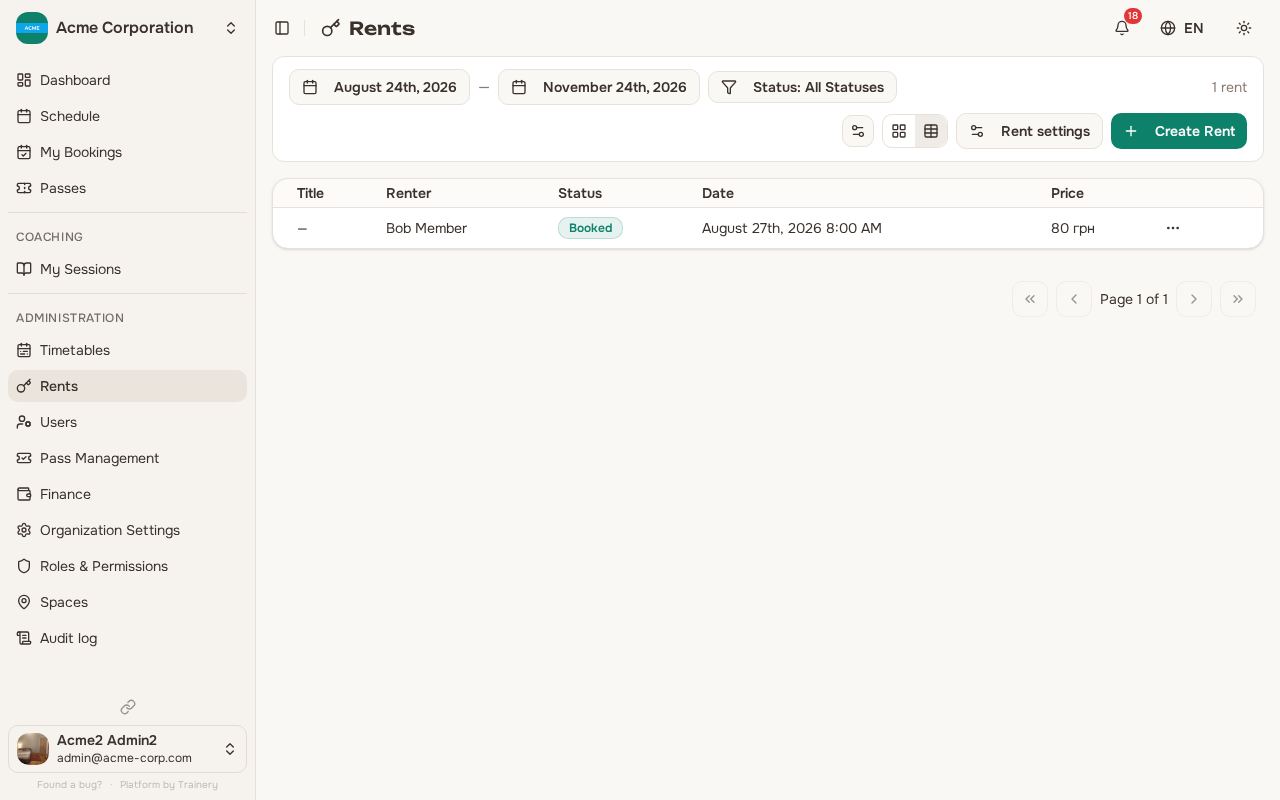
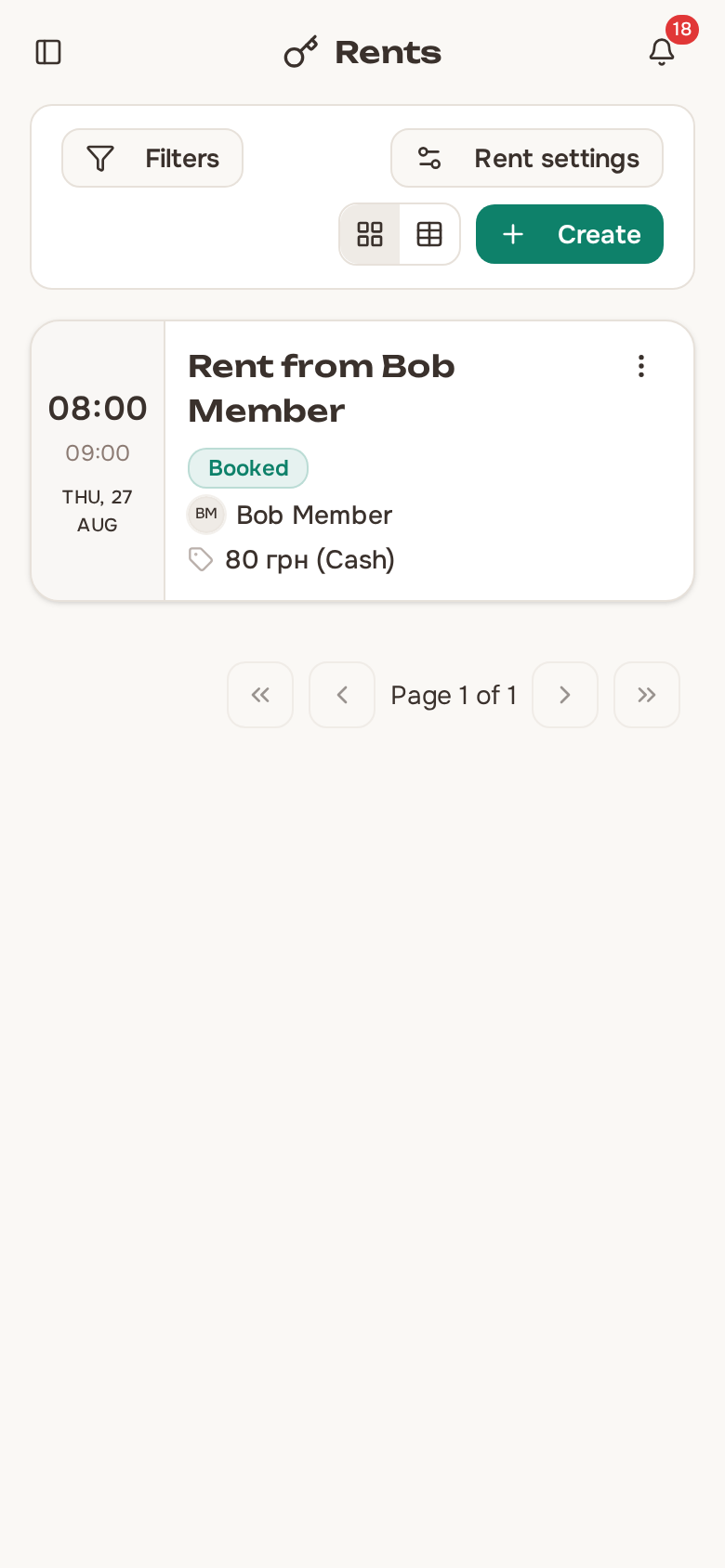
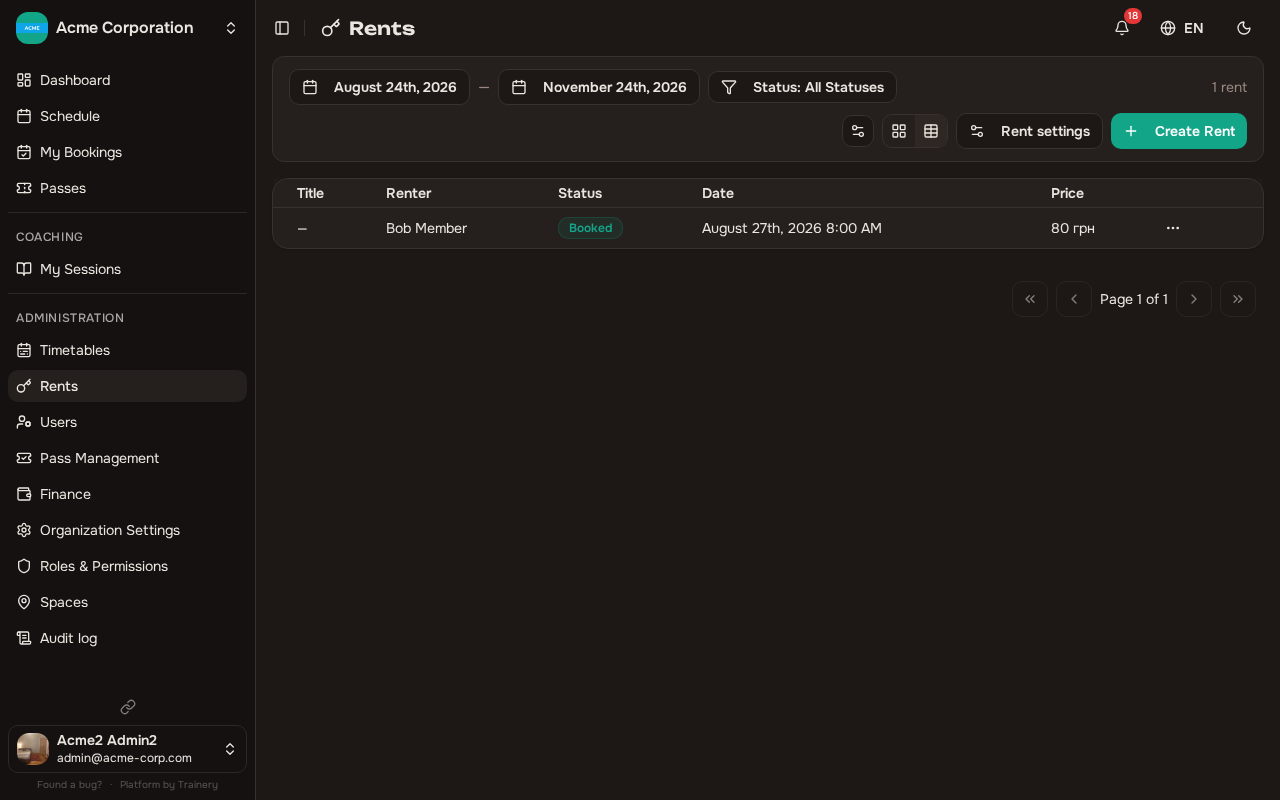
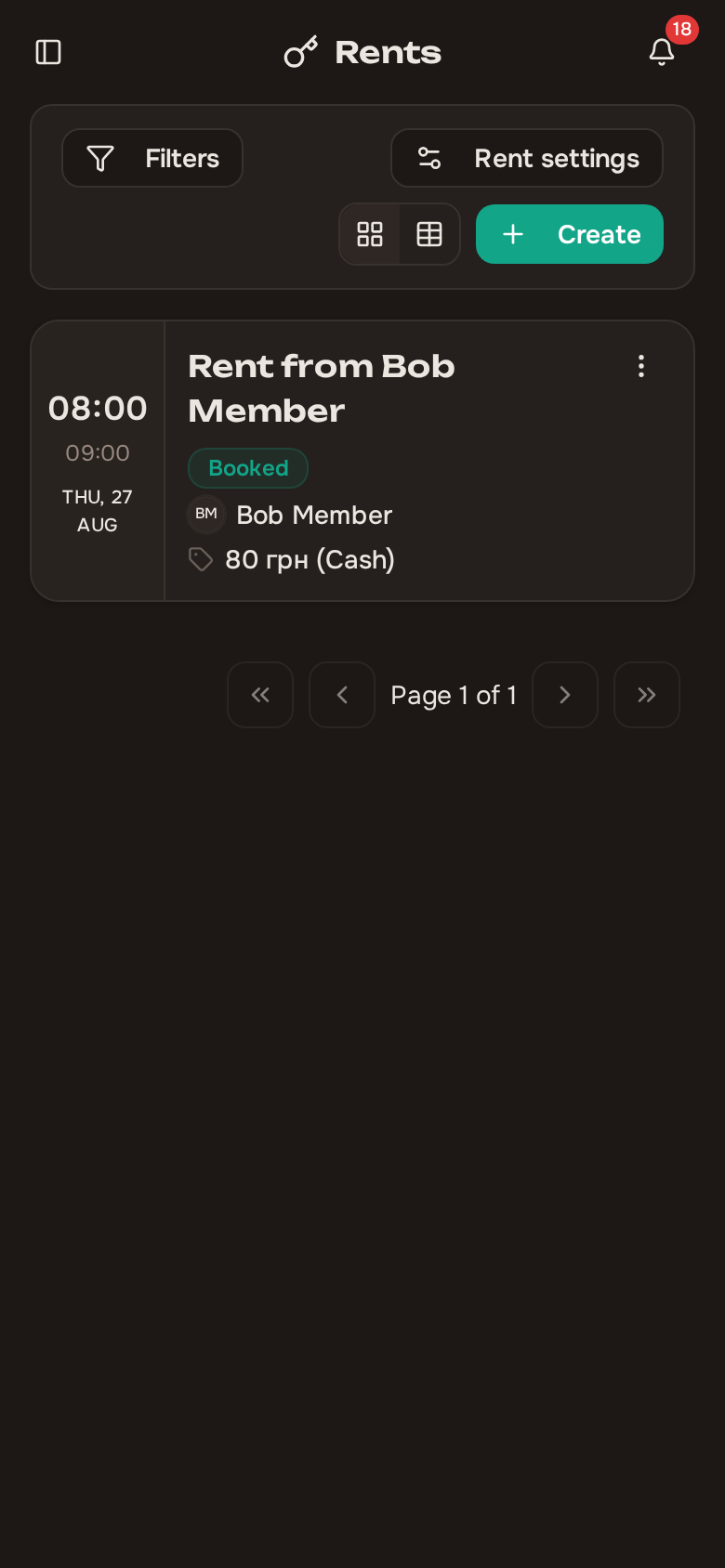
Section titled “Viewing and managing rentals”The rental list shows all rentals with their status, space, date, and price. You can:
- Filter by space, date range, or status to find specific rentals.
- Update a rental’s details (time, price, title, etc.).
- Cancel a rental that is no longer needed.
Calendar view
Section titled “Calendar view”The calendar provides a visual overview of how your spaces are being used. Rentals appear alongside training sessions, giving you a complete picture of your schedule.
Use the space filter to focus on a single space or view everything at once. This is especially helpful for organizations with multiple spaces to quickly spot availability or conflicts.
The calendar view is the fastest way to check whether a space is free before creating a new rental or scheduling a session.