Public Booking Page
Every organization gets a public booking page at https://<your-studio>.trainery.app/book. Anyone with the link — no account, no login — can browse your upcoming group classes and book a spot as a guest. It is a trial funnel: newcomers try a class first, and the confirmation email invites them to set up a full account afterwards.
The page is on by default. Every existing organization was switched on automatically, and new ones start enabled.
Turning it on or off
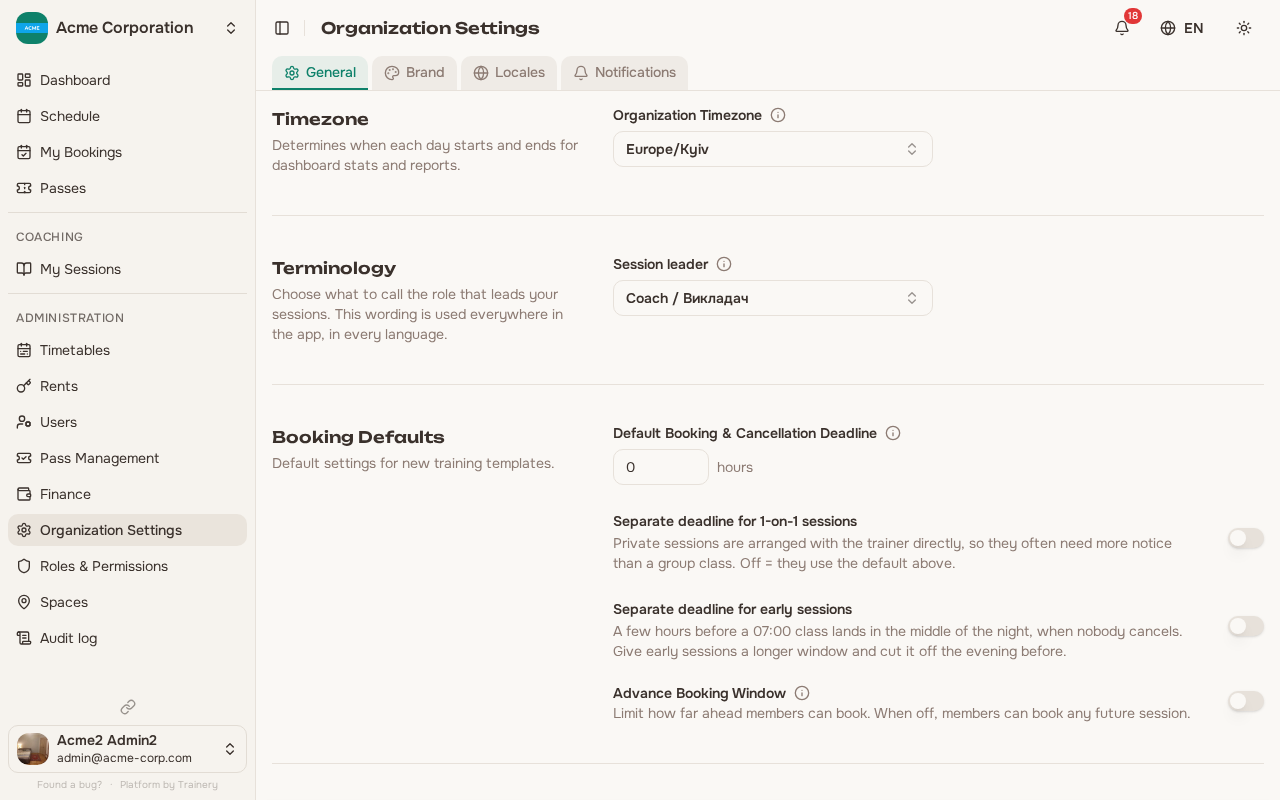
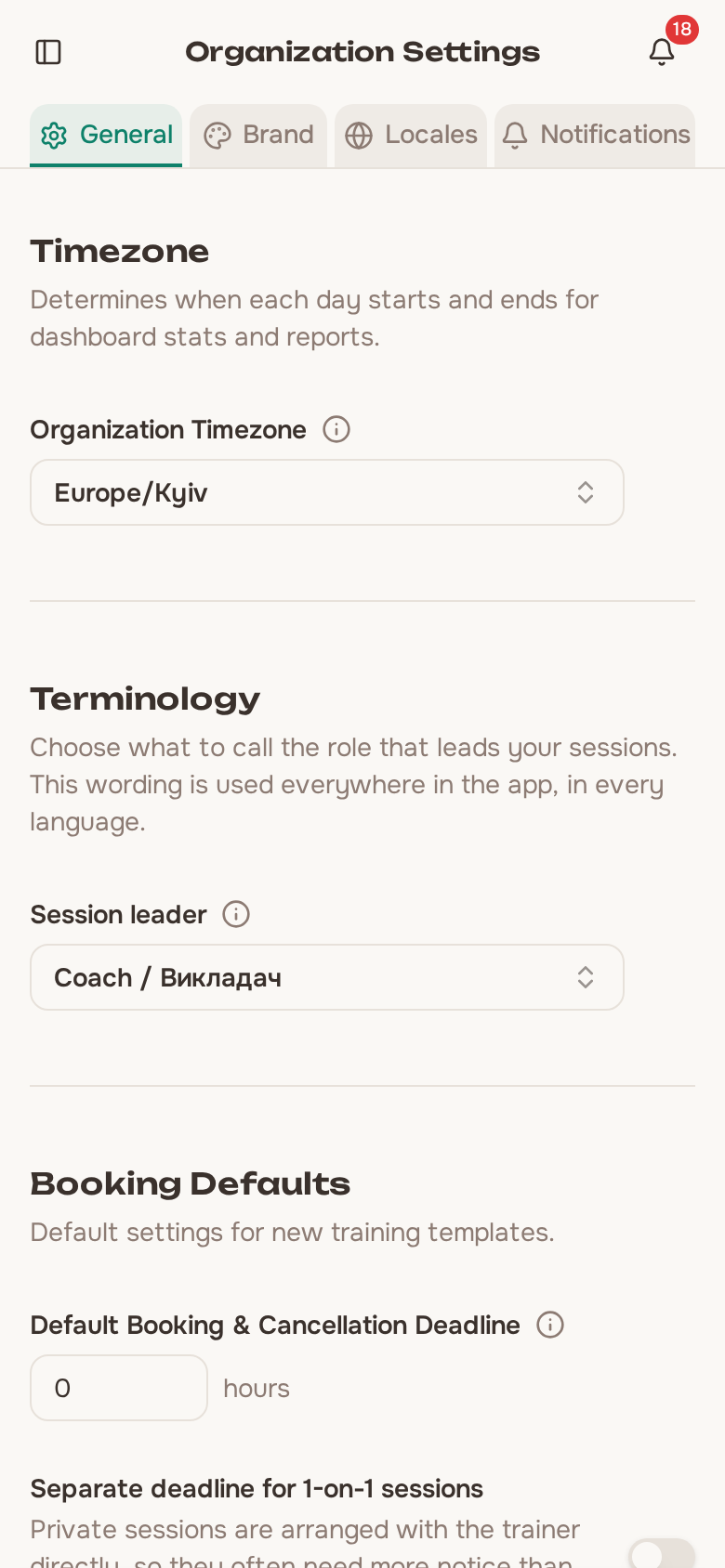
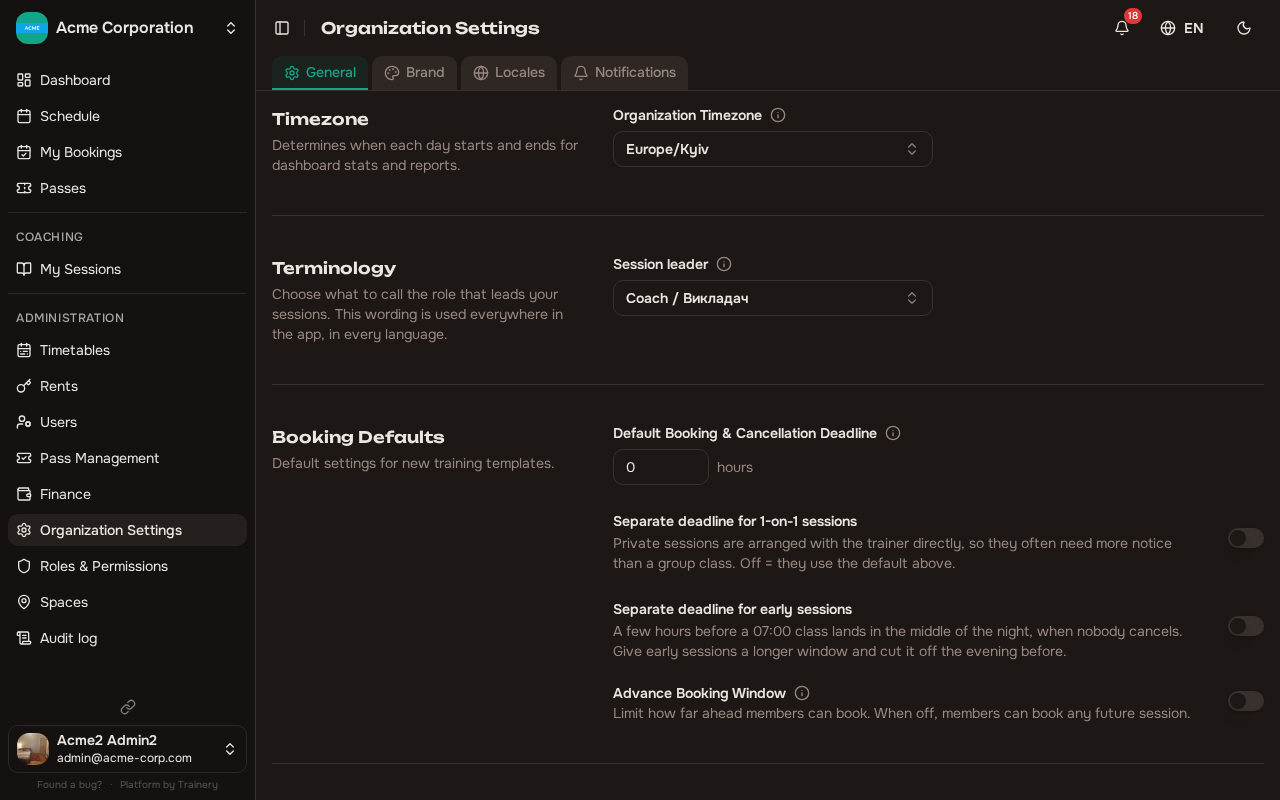
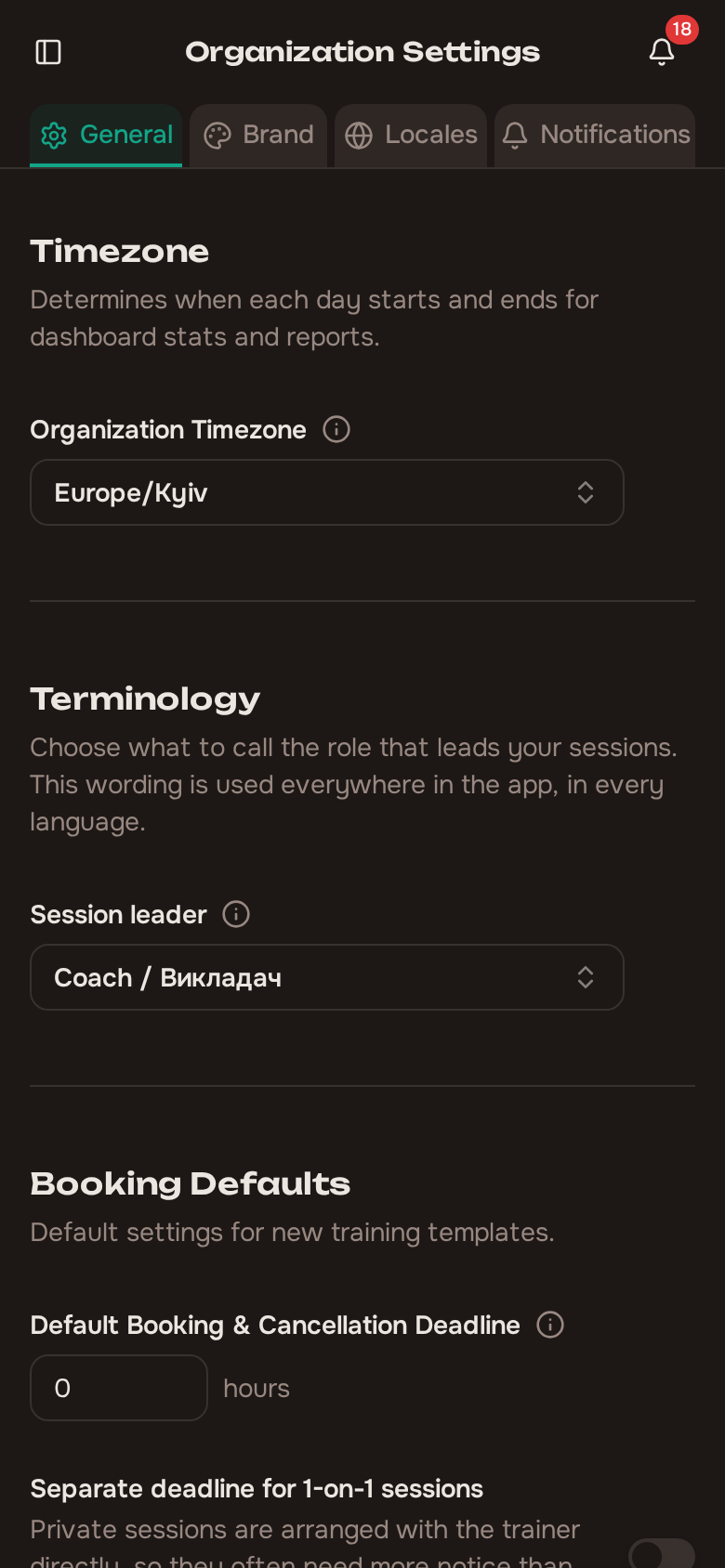
Section titled “Turning it on or off”The switch lives in Organization Settings → General, alongside your booking rules.
- On (default) — the
/bookpage is live and lists your bookable group sessions. - Off — visitors to
/booksee a short “not taking public bookings right now” message, and the underlying data is no longer served.
You can flip it at any time; existing bookings are never affected.
Sharing your booking page
Section titled “Sharing your booking page”When the page is on, managers get a ready-to-share link in two places:
- Organization Settings → General — a copyable
/bookaddress sits right under the toggle, with a button to open it in a new tab. - The schedule — a Share button in the header opens the same link, so you can grab it while you are looking at your classes.
Both are shown only to managers (owners and admins) and only while the page is enabled.
What visitors see
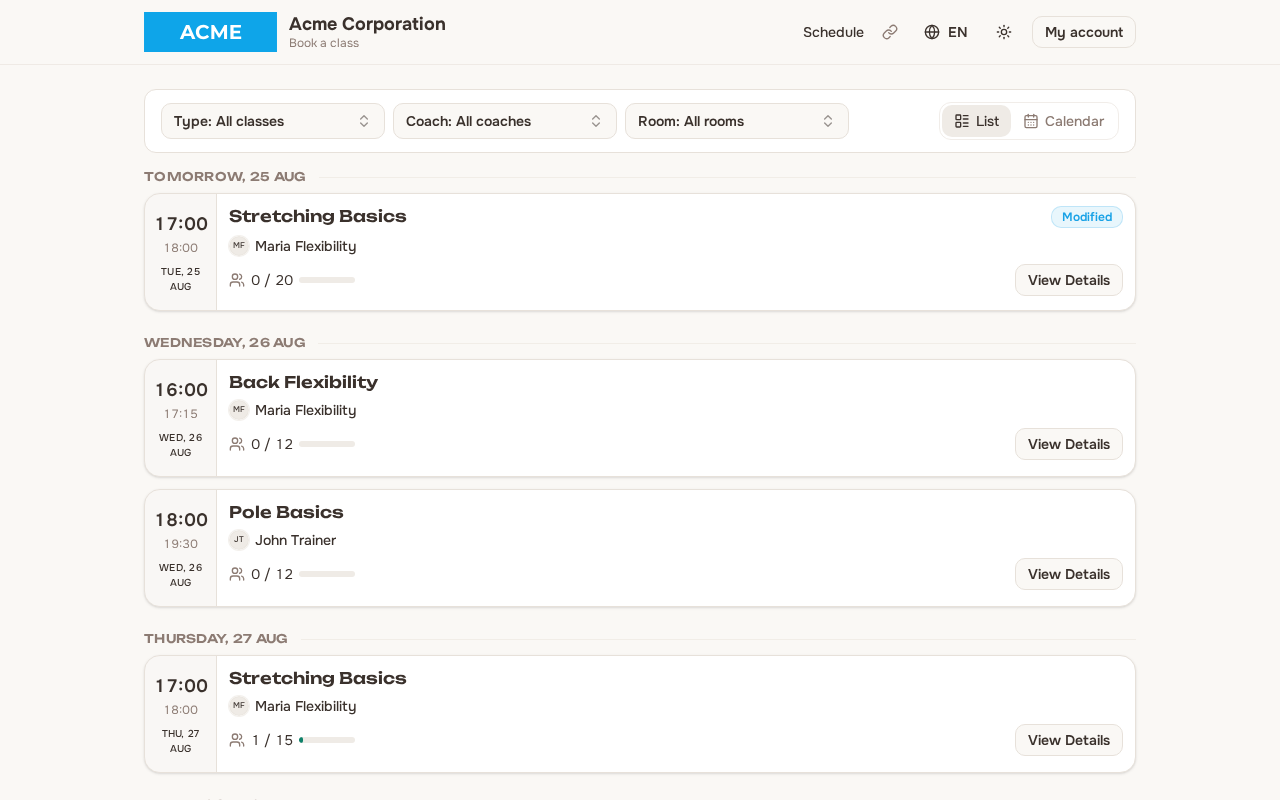
Section titled “What visitors see”The public page is a stripped-down, branded view of your schedule:
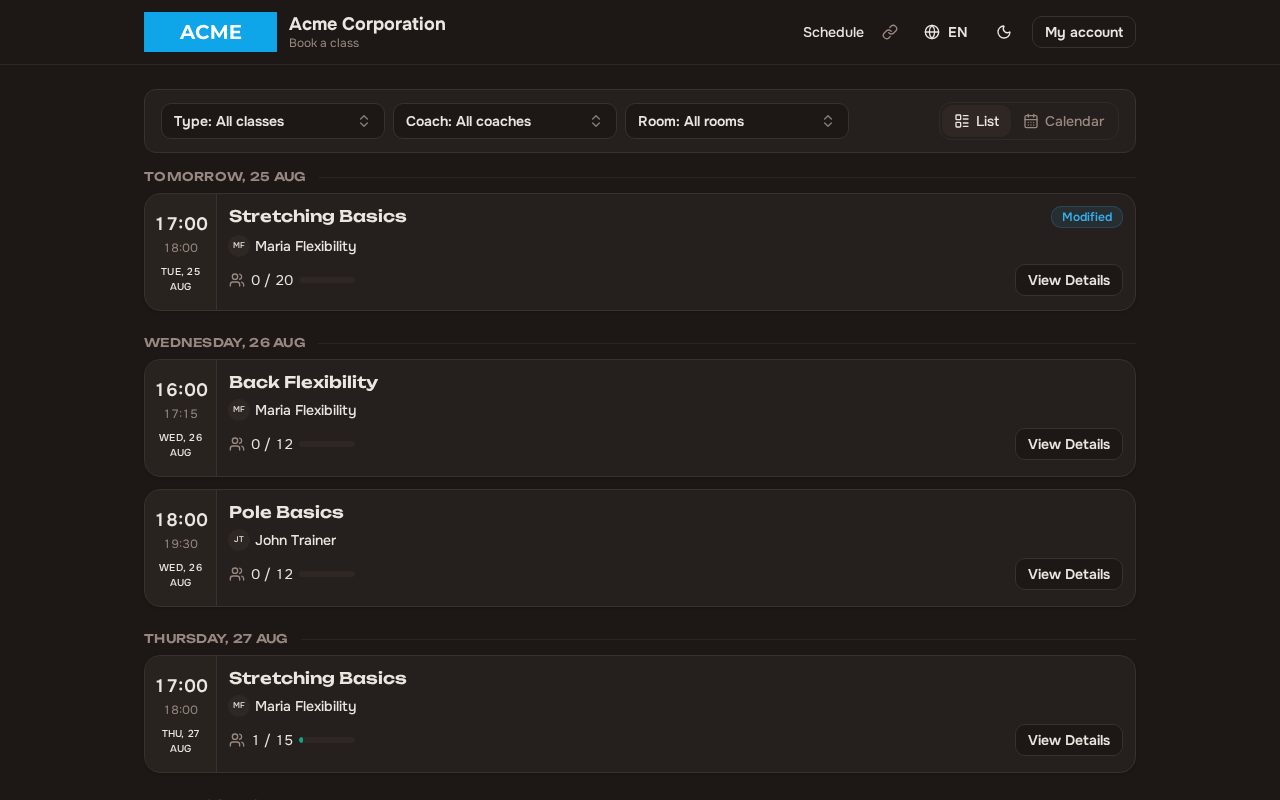
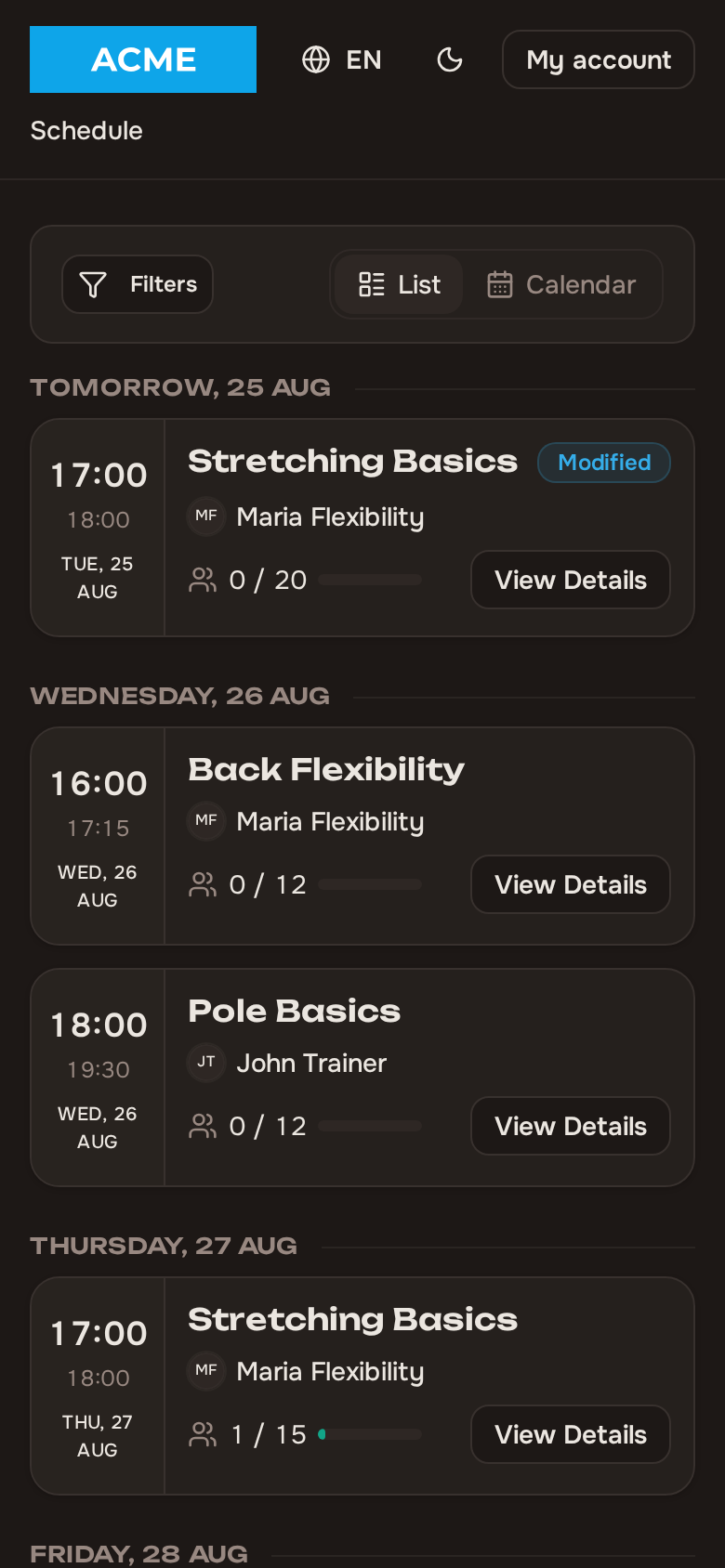
- Your studio header — name, logo, and any social links you have set (website, Instagram, Facebook, Telegram). Visitors can switch the language and the light/dark theme themselves.
- Upcoming group classes only — 1-on-1 sessions and pass-only (closed) classes never appear here, exactly as they stay hidden from public view elsewhere.
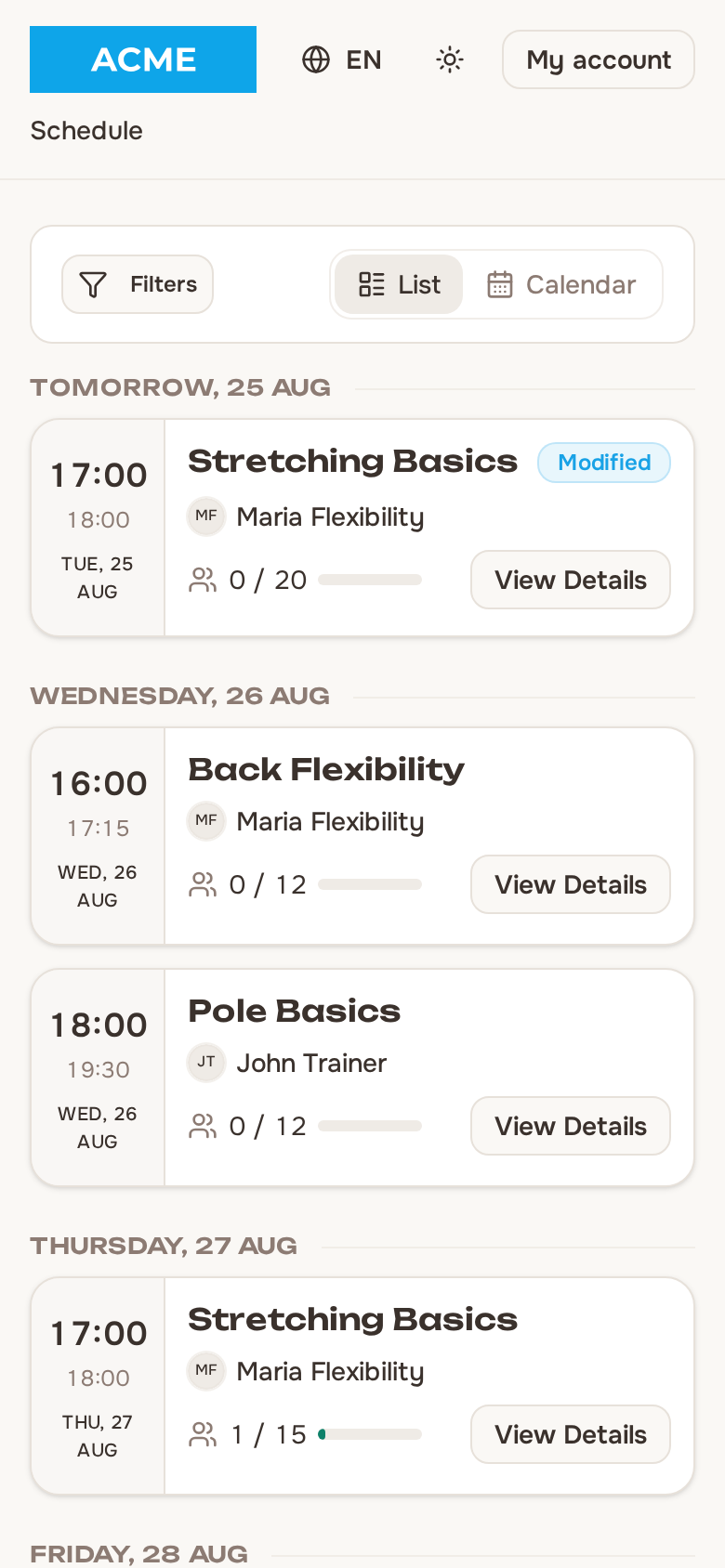
- List or calendar — a toggle switches between a simple list and a month/week/day calendar. The list is the default on every device, phone and desktop alike. When a visitor switches to the calendar it opens on Week on desktop and on Day on phones; on a phone the week and month views render as a horizontally scrollable time grid rather than the desktop-style calendar grid.
- Studio time — all class times are shown in your organization’s timezone, so a visitor in another timezone still sees your studio’s clock.
- The next 30 days — only sessions that are actually bookable (within your advance-booking window) are shown.
- Spots — each class shows the same capacity bar as your in-app schedule, so visitors can see at a glance how full it is.
- Trainer and price — each card shows who is teaching and the price, with a note that payment is on arrival at the studio.
- Filters — visitors can narrow the list by class type, trainer, or room. The choices are drawn from the sessions shown on the page, and a dimension with only one option is hidden entirely. Each filter is multi-select (several trainers or several class types at once, not just one) and searchable — a type-to-filter box inside the dropdown, which matters once your class list gets long. A Clear action resets everything, and each individual filter also has its own small clear control.
- On a phone there are no dropdowns. The three filters collapse into a single Filters button carrying a badge with the number of active filters; tapping it opens a panel from the bottom of the screen with the same filters stacked, the Clear action, and a Done button to close it.
- Single-room studios — if your organization has only one room, no room is named anywhere on the public booking page: the room line is dropped from every class and the room filter does not appear at all. A visitor sees exactly what a logged-in member sees.
- About the studio — underneath the classes, your studio description, address and map, contacts and opening hours, so a visitor can check where you are before booking. It appears only once you have filled it in — see Studio Profile.
Booking as a guest
Section titled “Booking as a guest”A visitor opens a class and fills in a short form:
- Name — required.
- Email — required.
- Phone — optional.
The booking is confirmed immediately (pay on arrival). If the class is full and your waitlist is enabled, they join the waitlist instead and are promoted automatically if a spot opens; if the waitlist is off, a full class simply cannot be booked.
Behind the scenes, each guest booking creates a guest member in your organization — the same kind of record a trainer creates when adding a walk-in. There is no trial cap: a guest can book as many classes as they like — unless they get flagged for a no-show or a late cancellation (see below).
The confirmation email
Section titled “The confirmation email”Every guest booking sends one combined email containing:
- The booking details.
- A set-up-account link so the guest can turn their trial into a full account (each link stays valid for seven days).
- A cancel link they can use with no login.
If someone books several classes, every email’s set-up link keeps working — there are no dead links.
Cancelling without an account
Section titled “Cancelling without an account”The cancel link in the email opens a confirmation page (/book/cancel/<token>) where the guest releases their spot with a single click. Cancellation is allowed any time before the class starts, and it is safe to click twice — an already-cancelled booking just confirms it is cancelled.
Booking rules on the public page
Section titled “Booking rules on the public page”If your organization has booking rules configured, guests must accept them before they can book:
- The rules are shown inline in the booking form — not as a popup — with a required I have read and understand the booking rules. checkbox.
- The checkbox blocks the guest signup button, and the one-click booking button for a member who is already logged in.
- Guests accept every single time they book. Nothing is remembered between bookings, because a guest has no account.
- A View booking rules link also sits in the footer of the public page. It disappears when no rules are configured.
The rules themselves are written in Organization Settings.
Blocking no-shows and late cancellations
Section titled “Blocking no-shows and late cancellations”To protect your spots from guests who repeatedly book and never turn up, a guest is automatically flagged when they either:
- are marked as a no-show for a class they booked, or
- cancel after the booking deadline has passed (but before the class starts).
Once flagged, their next attempt to book on /book is turned away. They can still be added to a session manually by you or a trainer — the block only applies to self-service public booking.
This feature is on by default. You control it in Organization Settings → General, under Guest Booking Restrictions:
- Toggle — turn the whole behavior on or off.
- Message — write the message a blocked guest sees, in each of your languages. Leave it empty to use the built-in default.
Clearing a guest’s flag is done from their member profile — see Managing Members. Only guests are ever flagged; a member with a full account is never blocked this way.
Members who are already logged in
Section titled “Members who are already logged in”If a logged-in member opens /book, they get a one-click booking — no need to re-enter their name and email. If a visitor tries to book with an email that already has an account, they are prompted to log in instead of creating a duplicate.
Related
Section titled “Related”- Want to promote a single class instead of your whole schedule? Use a shareable class link.
- The trainer-side flow for walk-ins and converting guests into members is covered in Guest Members.